
Segments is a powerful condition builder within the EasyDMARC TouchPoint platform that helps MSPs organize and prioritize leads based on specific criteria and business needs.
Using Segments, MSPs can automatically group leads by company data, email security and domain scan results, technology stack, contact information, and other valuable insights available within TouchPoint.
This enables teams to quickly identify high-value opportunities, focus on leads that match their ideal customer profile, and prioritize accounts that are more likely to convert.
Instead of manually reviewing spreadsheets or exported scan results, Segments dynamically organizes leads into actionable audiences, helping MSPs streamline lead management and accelerate personalized outreach.
Creating Your First Segment
Now let’s take a closer look at the dashboard and create your first Segment.
To begin, click the Create Segment button located in the upper-right corner of the dashboard.
While creating a Segment, you can define:
- The Segment name
- The Segment color is based on your preference
You will then be able to build your conditions using a wide range of available data points, including:
- Company information
- Contact data
- Domain security results
- Technology stack insights
- And many other lead attributes are available within TouchPoint
These conditions help MSPs generate highly targeted leads based on their business needs and ideal customer profiles.
Understanding AND & OR Conditions
While building your Segment, you can combine conditions using AND and OR logic:
OR → A lead will match the Segment if at least one selected condition is met.
AND → A lead will match the Segment only if all selected conditions are met.
Segment Logic Example
The example below demonstrates how multiple condition groups can work together within a single Segment and the behavior of both AND and OR logic within Segments.
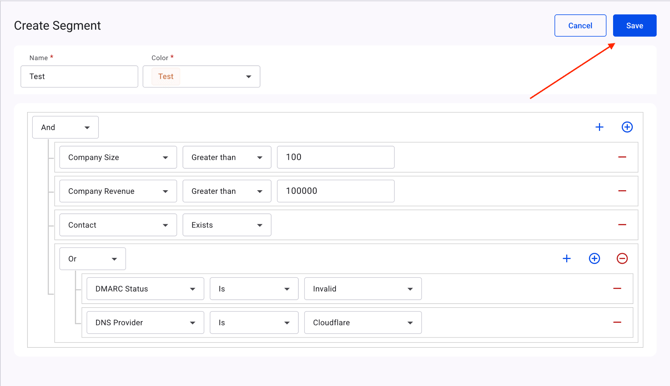
In this configuration, a lead will be detected if:
All of the following conditions are met:
- Company Size is greater than 100
- Company Revenue equals 100000
- Contact information exists
AND
At least one of the following conditions is met:
- DMARC Status is Invalid
- DNS Provider is Cloudflare
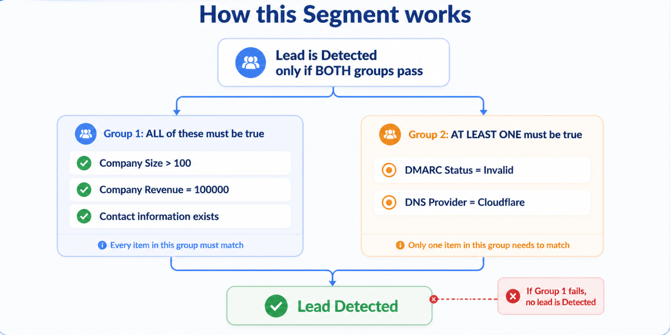
This means the first condition group requires all conditions to be satisfied together, while the second condition group requires at least one of its defined conditions to match.
Both condition groups must be successfully matched for the lead to be detected within the created Segment. If one of the condition groups does not meet its requirements, the lead will not be included in the applied Segment results.
Please refer to the screenshot below, which demonstrates the same logic explained above in a more simplified and easy-to-understand way:
Once you have finished configuring your conditions, click the Save button located in the upper-right corner to create your Segment.
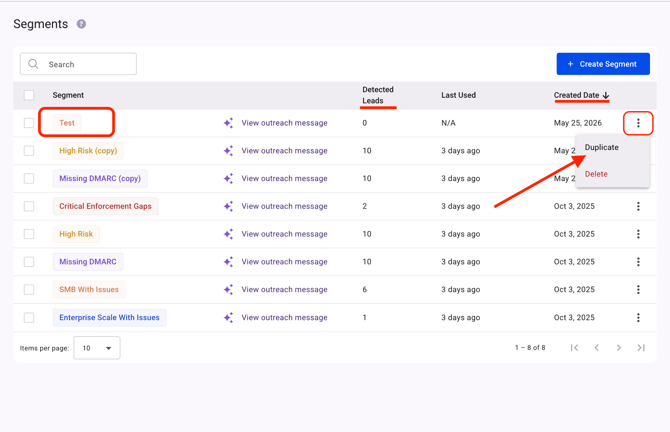
After the Segment is created, it will appear in the Segments dashboard along with additional details such as:
- Detected Leads count
- Created Date
- Segment name and color
- Other relevant Segment information
By clicking the three-dot menu next to a Segment, you will have access to additional actions such as:
- Delete: Permanently remove the created Segment.
- Duplicate: Create a copy of an existing Segment with all previously configured conditions already applied.
The Duplicate option is especially useful when you want to create a similar Segment without rebuilding all conditions from scratch. Once selected, the system will redirect you to the Segment configuration page, where you can modify existing conditions, add new ones, or remove unnecessary filters before saving it as a new Segment.
This helps MSPs save time while creating multiple Segments with similar targeting logic, without affecting the original Segment configuration.
Reviewing a Created Segment
If you click on any created Segment from the Segments dashboard, you will be redirected to a detailed overview page where you can review additional information and perform more actions related to that specific Segment.
In the example below, we are reviewing the Missing DMARC Segment (name).
1- At the top of the page, you will see the predefined conditions of the Segment displayed in a clear and readable format, allowing you to quickly understand the logic behind the detected leads.
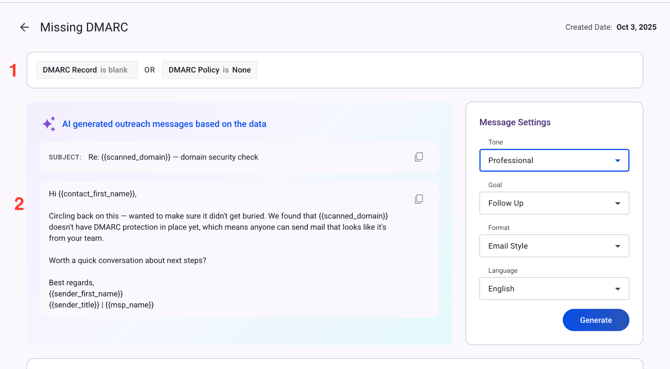
2- In the middle section, you will find the AI-generated outreach message based on the detected Segment data. You can customize the generated message by adjusting settings such as:
- Tone
- Goal
- Message format
- Language
- And other available preferences
Once configured, click Generate to create an outreach message tailored to your needs.
3- At the bottom of the page, you will find the Detected Leads table containing all leads that matched the conditions of the selected Segment. The dashboard provides additional insights and security-related information detected by the system based on your configured conditions.
You also have the ability to:
- Customize the displayed columns and information
- Search through detected leads
- Export the results in CSV format for sharing with your team or clients
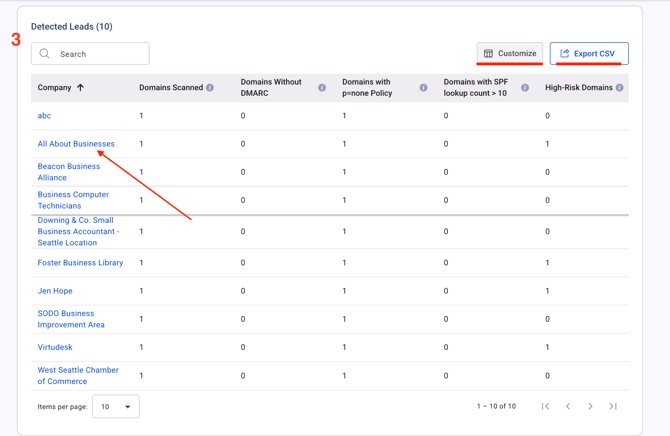
Reviewing Detected Lead Details
By clicking on any detected lead from the Detected Leads table, you will be redirected to a dedicated details page for that specific lead.
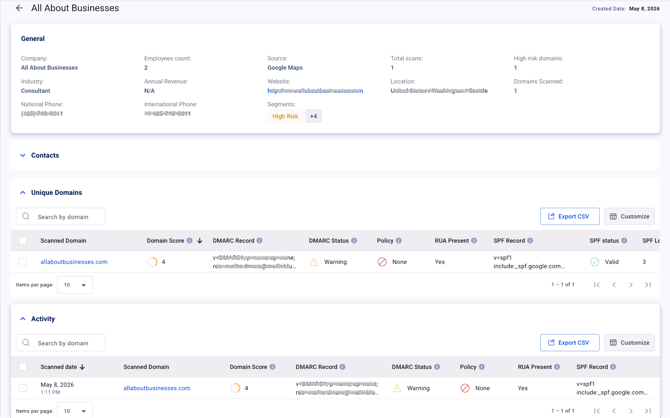
This page provides more in-depth information about the selected company, including:
- General company information
- Available contact details
- Unique scanned domains
- Activity history
- Security and domain-related insights
Each section helps MSPs better understand the detected lead and review additional technical and business-related information collected by the system.
Similar to the Segments dashboard, these tables and sections are also customizable, allowing you to adjust the displayed information based on your preferences. You can additionally export the displayed data in CSV format for reporting, internal review, or sharing with your team and clients.
Segments Within Integrations & Notifications
Segments can also be used across other features within the EasyDMARC TouchPoint platform, including Integrations and Notifications.
Segments in Integrations
When configuring a new Integration, you will have the ability to select and apply your created Segments directly from the Integration settings.
For already connected Integrations, previously applied Segments will remain active. However, newly created Segments will not be automatically added to existing Integrations.
For example, in the screenshot below, the newly created Segment named Test only becomes available for the HubSpot Integration after manually selecting and enabling it from the Integration settings page.
This gives MSPs more flexibility and control over which Segments should sync with each connected platform.
For more information about the Integrations feature, please refer to the Integrations article.
Segments in Notifications
Segments are also integrated into the Notifications feature.
When creating a new notification or editing an existing one, you will see a Segment selection field where all created Segments are available for selection.
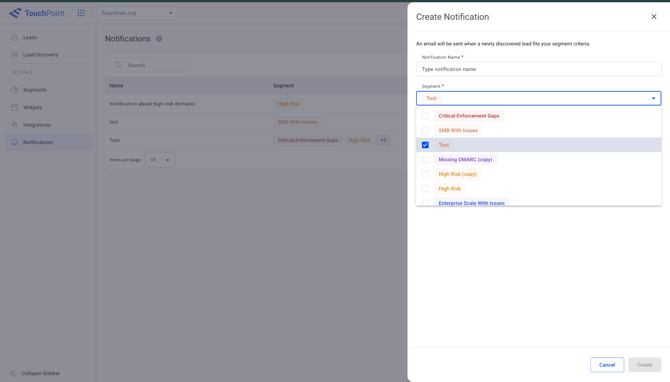
This allows MSPs to create targeted notifications based on specific Segment conditions and receive alerts whenever newly detected leads match the selected Segment criteria.
For more information about the Notifications feature, please refer to the Notifications article.
Segments provides MSPs with a powerful and flexible way to organize, prioritize, and manage leads within the EasyDMARC TouchPoint platform.
By combining company information, security insights, technology data, contact details, and customizable condition logic, Segments help teams quickly identify the leads that matter most and focus on opportunities with higher conversion potential.
In addition to intelligent lead filtering, Segments also integrates seamlessly with other TouchPoint features such as AI-generated outreach messages, Integrations, Notifications, customizable dashboards, and CSV exports while allowing MSPs to streamline lead management, improve targeting, and simplify outreach workflows.
With dynamic condition building and detailed lead insights, Segments enable teams to move from lead discovery to actionable engagement faster and more efficiently.