
After signing a Reseller Contract with our Sales Team the installation process is divided into a few simple steps, such as:
- Obtaining your API Keys from EasyDMARC Dashboard
- Downloading and installing the Module itself
- Configuring the module in your WiseCP Admin Panel
- Setting up EasyDMARC as a Product or Addon to your existing products.
Step 1 - Obtain your API Keys from EasyDMARC Dashboard
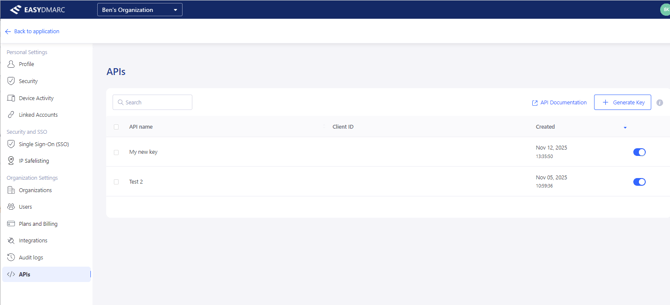
- Sign in to your EasyDMARC Account and go to our API Page.
- Click Generate Key to open and provide a name for your new Keys.
- Click Generate and you will be provided with Client ID and Secret Key
- Copy both values and keep them confidential at all times
Step 2 - WiseCP Module Installation
- Download the module .ZIP file from here.
- Extract the downloaded package to your computer.
- The password to extract the file will be provided by our Sales Team upon signing the Reseller Contract.
- Access your server using FTP, cPanel File Manager, or SSH (depending on what your hosting provides).
- Navigate to the main WiseCP directory.
- This is the folder where your WiseCP installation is located.
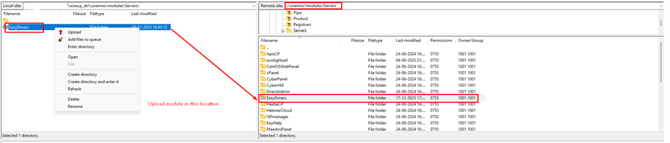
- Inside the main WiseCP directory, open the following path:
/coremio/modules/Servers/EasyDmarc
- Upload the extracted module folder into the modules directory.
Step 3 - Setting Up WISECP Server Test Connection
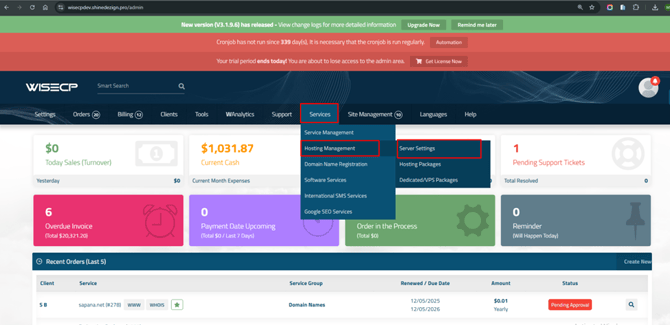
- Sign in to your WiseCP Admin panel and go to Services → Hosting Management → Server Settings
2.In the Server Settings page click +Add New Server
3.Use the following details to set it up:
-
- Add Hostname → api2.easydmarc.com
- Username → use generated Client ID
- Password → use generated Secret Key
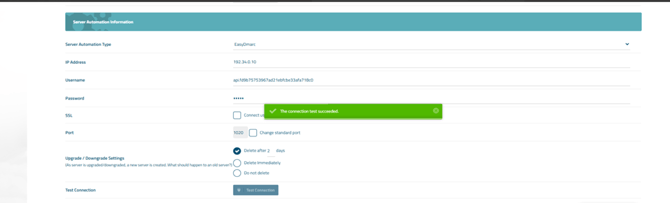
4.After providing all details click Test Connection and you should see a connection success message. Afterwards click Add New Server.
- Once the connection is established and server created, you can move to the next step for creating the package and configuring the EasyDMARC module.
Step 4 - Package/Product Creation and Group Setup in WISECP
Create a Server Group
- Go back to Services → Hosting Management → Server Settings.
- Click Server Groups and then +Create New Group on the next page.
- Name a new Group and move EasyDMARC Server to the Assigned box. Afterwards click Create.
Create New Package
Go to Services → Hosting Management → Hosting Packages
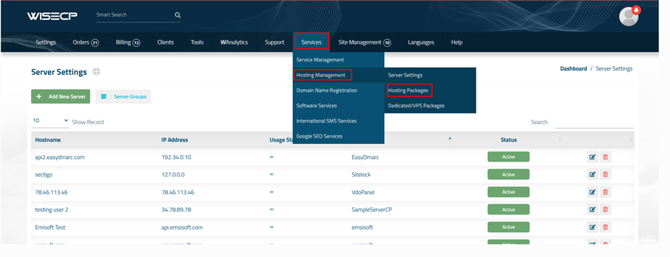
- In Hosting Packages page click Create New Package
- In the Core tab choose Server Group and select the Group created in the previous step.
- Select the Plan you wish to configure for the new Package.
- Configure the Pricing for the new Package under the Pricing tab.
- You can also determine the Upgrades packages from the Upgradable Products tab.
- Lastly under the Detail tab you can provide a name for the Package and set some additional preferred settings.
Customer Access to EasyDMARC after purchase
- All Domains added to EasyDMARC account with respective Domain Group names
- Their Plan Name
- Domains and Email Volume limit
- Billing frequency and expiration date
- Single Sign-On button to access EasyDMARC account.
The setup instructions can also be found in the attached file.
In case of any questions feel free to reach out to EasyDMARC's Support Team!