
Sometimes, you may see a sending IP address listed as non-compliant because it passes SPF alignment but fails SPF authentication, even though it’s a legitimate source for your domain.
In such cases, when you recognize the IP address as a legitimate sending source, you simply need to add that IP address to your domain’s SPF record to safelist it. This ensures that emails sent from that IP authenticate correctly and avoid SPF failures moving forward.
Find the steps for adding a non-compliant legitimate IP address to the domain’s SPF record below.
There might be two situations when referring to EasyDMARC:
1. You have activated the EasySPF solution for your domain and manage the SPF record via EasySPF
2. You haven’t activated the EasySPF solution, and the SPF record is managed directly in the DNS
Let’s observe both cases in the example below, where the domain is mydmarc.dpdns.org, and the IP address in question is 51.79.209.15. 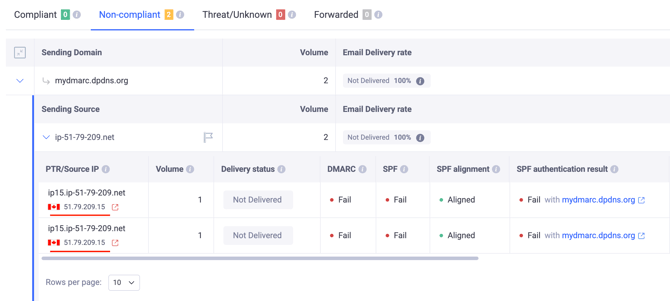
1. You have activated the EasySPF solution for your domain and manage the SPF record via EasySPF
In case you’re using EasySPF to manage your domain’s SPF record, you need to copy the IP address in question >> navigate to the EasySPF page >>, click the “Add source” button >> add the source, and save the record.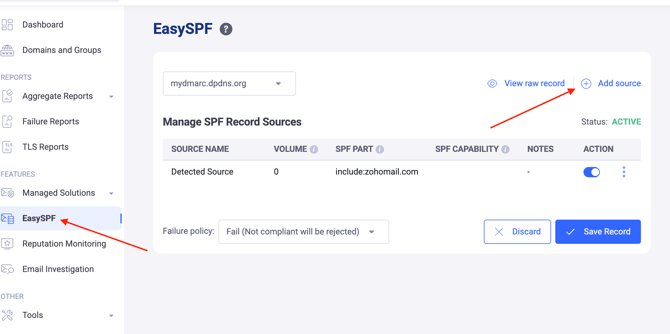
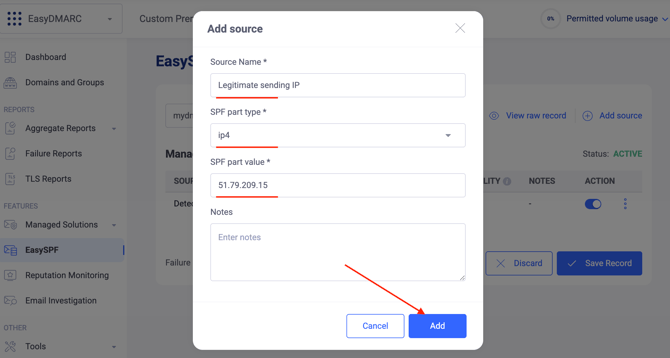
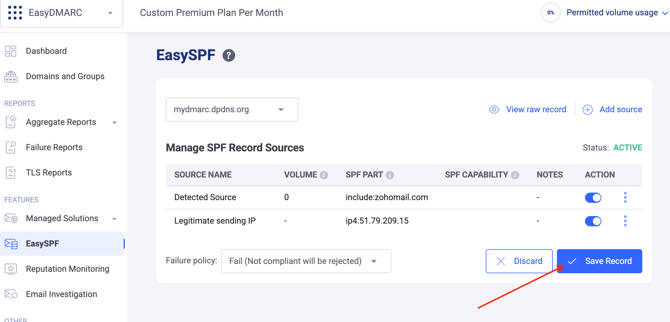
Moving forward, emails sent out from the IP address in question will properly pass the SPF checks.
2. You haven’t activated the EasySPF solution, and the SPF record is managed directly in the DNS
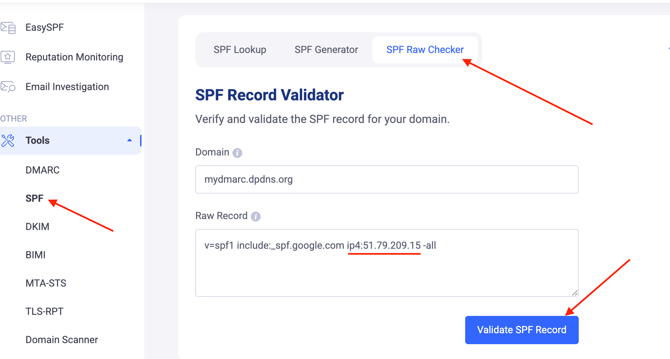
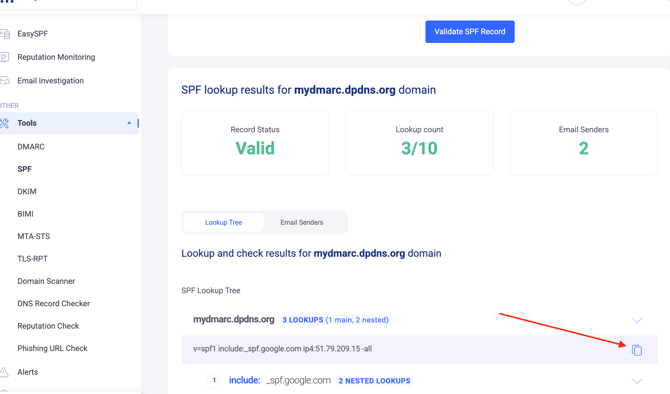
The tool will provide you with a new, valid SPF record where the IP address in question is already added. Copy the provided new SPF record >> navigate to your DNS zone >> replace the current SPF record with the new one, where the IP address was already added, and save the record.
We will use Cloudflare as an example of a DNS zone below.
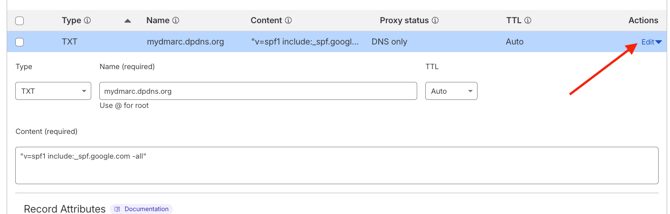
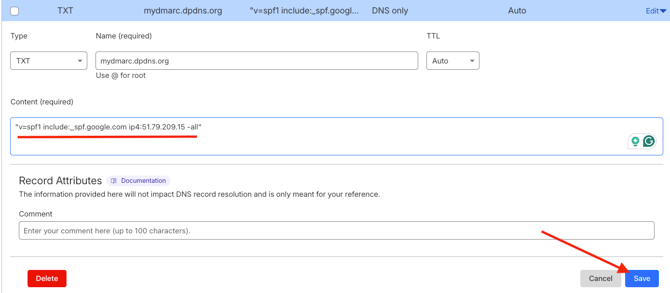
Again, as a result, moving forward, your emails sent out from the newly added IP address will be able to pass the SPF checks, and since DMARC requires either SPF or DKIM to pass, your emails will be DMARC compliant.
In case you have any specific questions, feel free to contact EasyDMARC technical support.