
The Email Verification tool allows you to validate email addresses, helping you determine whether they are safe and suitable for sending emails.
Using a series of advanced checks and validation algorithms, the system analyzes each email address and provides a status such as Deliverable, Undeliverable, or Risky. These results help you understand the overall quality and reliability of your email list.
The primary purpose of this tool is to assess the validity of an email address—specifically, whether it can successfully receive emails and whether it should be used in your sending campaigns. In cases where an address is identified as Risky or Undeliverable, the system also provides the underlying reason for that classification, helping you better understand potential issues and take appropriate action. By identifying invalid or high-risk addresses, you can improve deliverability, protect your sender reputation, and optimize your email performance.
Getting Started with Email Verification
When you first open the Email Verification page, you will be presented with two main options for adding email addresses to be checked for validity.
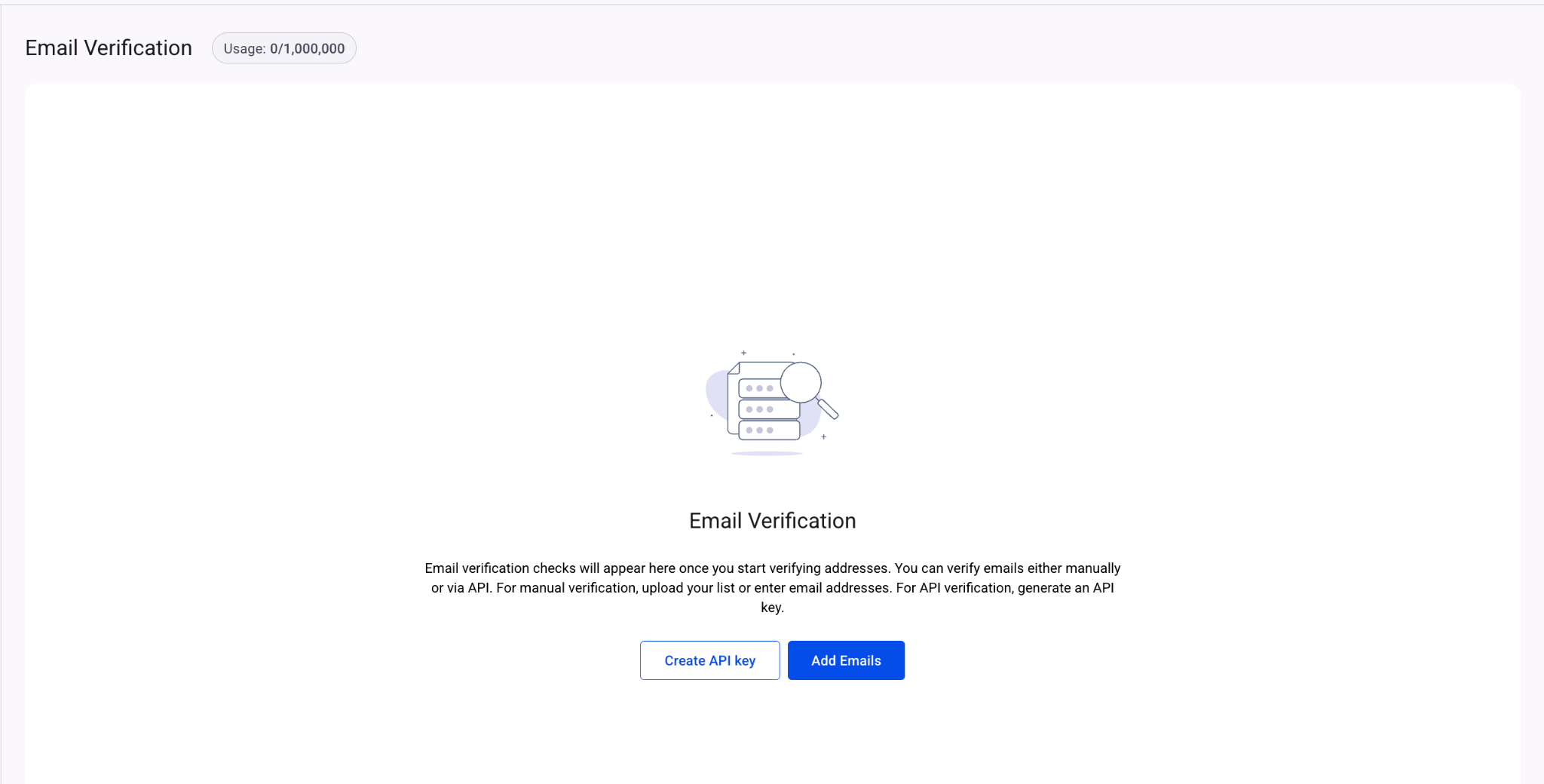
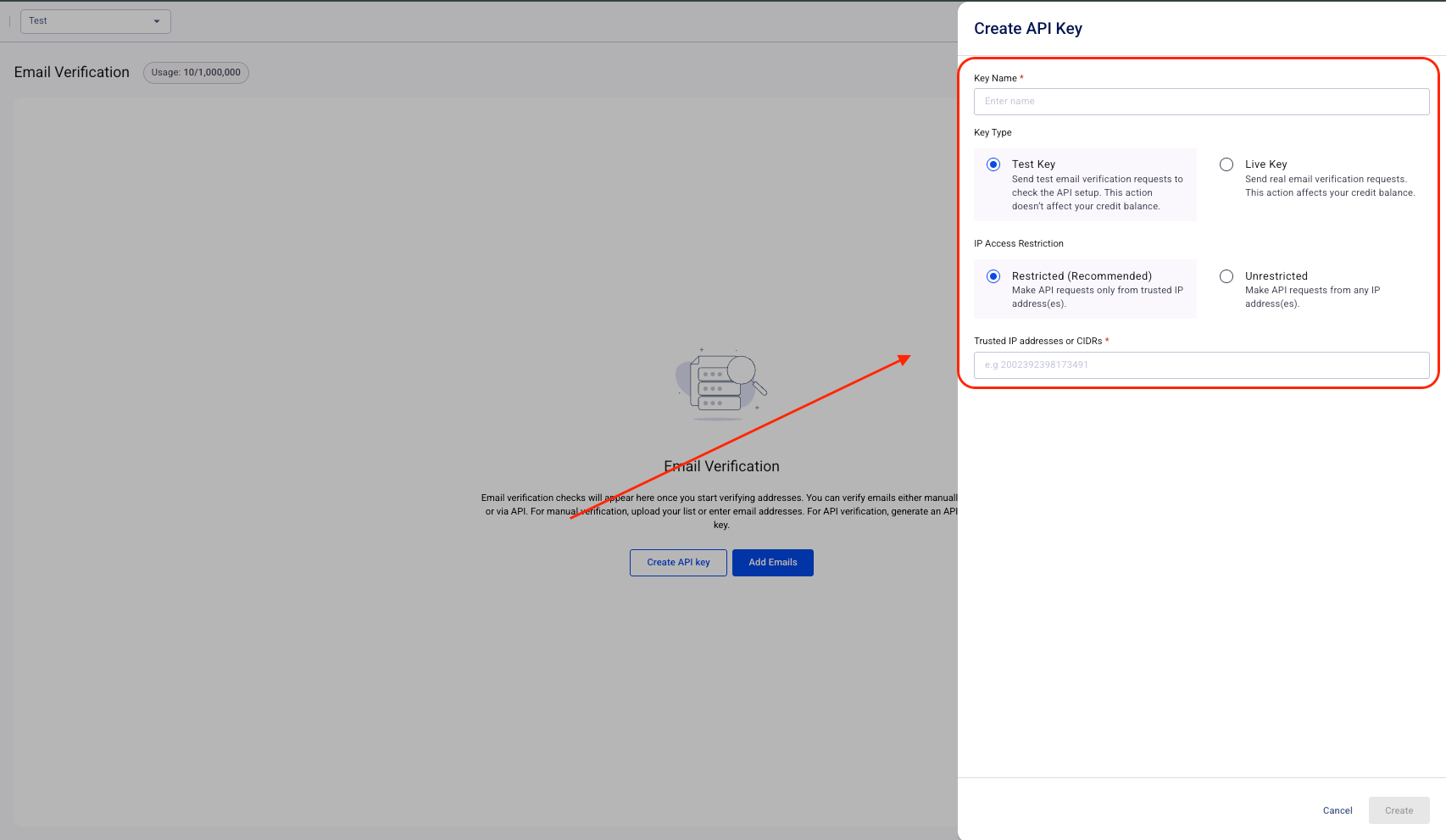
1. Create API Key
This option allows you to perform both single and bulk email verification through an API. It is ideal for integrating email verification directly into your applications or workflows.
By generating an API key, you can automate the verification process and validate email addresses programmatically. For detailed instructions on how to generate and use your API key, including implementation steps, please refer to the dedicated guide here.
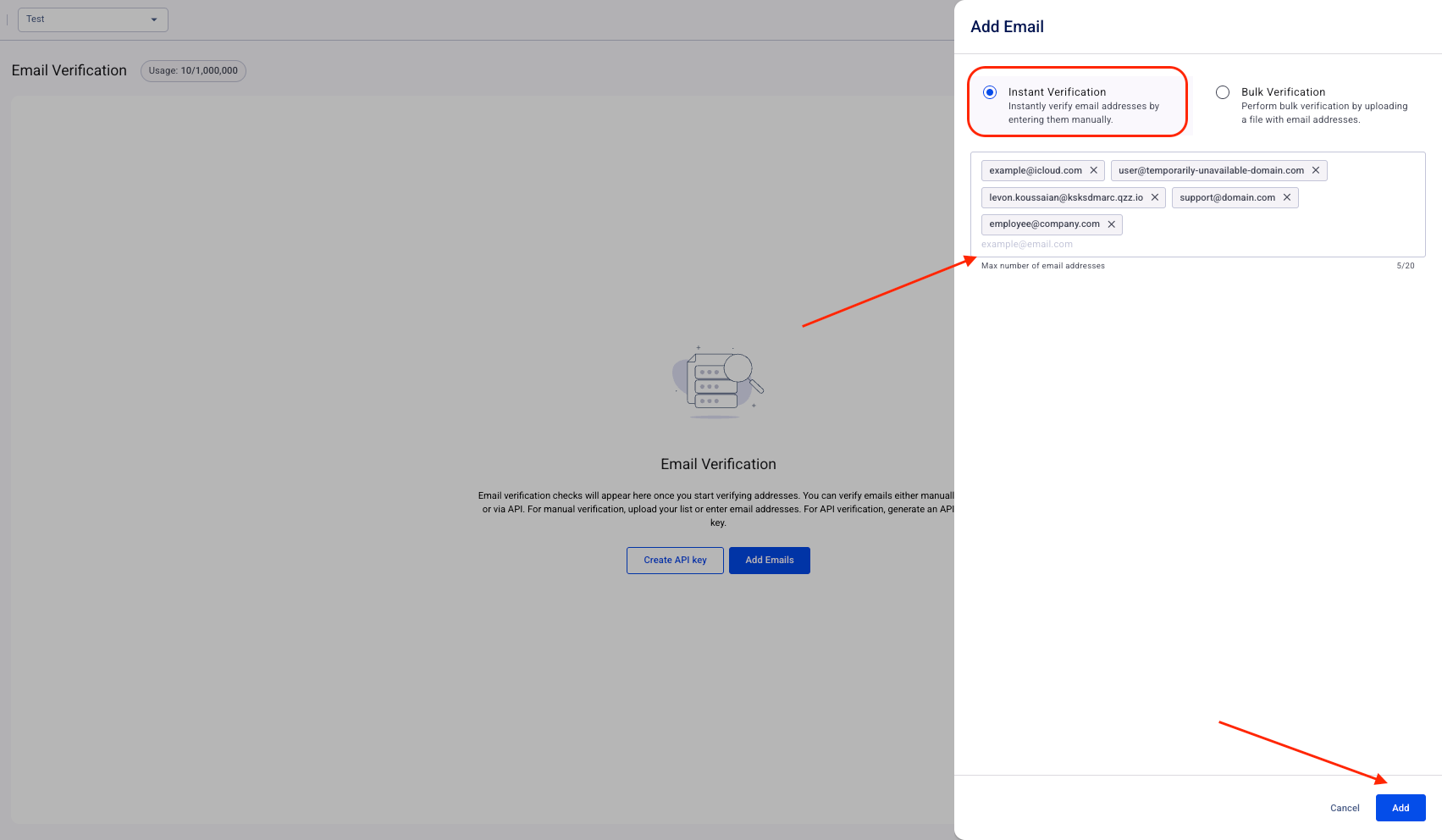
2. Add Emails
This option enables you to manually submit email addresses for verification through the platform. It includes two methods:
- Instant Verification: Allows you to manually enter one or more email addresses and perform immediate verification checks.
- Bulk Verification: Enables you to upload a CSV or XLS/XLSX file containing a list of email addresses for batch processing.
“Instant Verification” Overview
First, we will go over the Instant Verification option by adding email addresses manually to check their validity and reviewing the insights provided by the system.
Within the results dashboard, you will find four different tabs:
- Manual Bulk
- Manual Instant
- API Bulk Request
- API Single Request
Each tab represents a different method of how the email validation requests were submitted and allows you to review the corresponding results in an organized way.
Dashboard Overview
A few important elements to note:
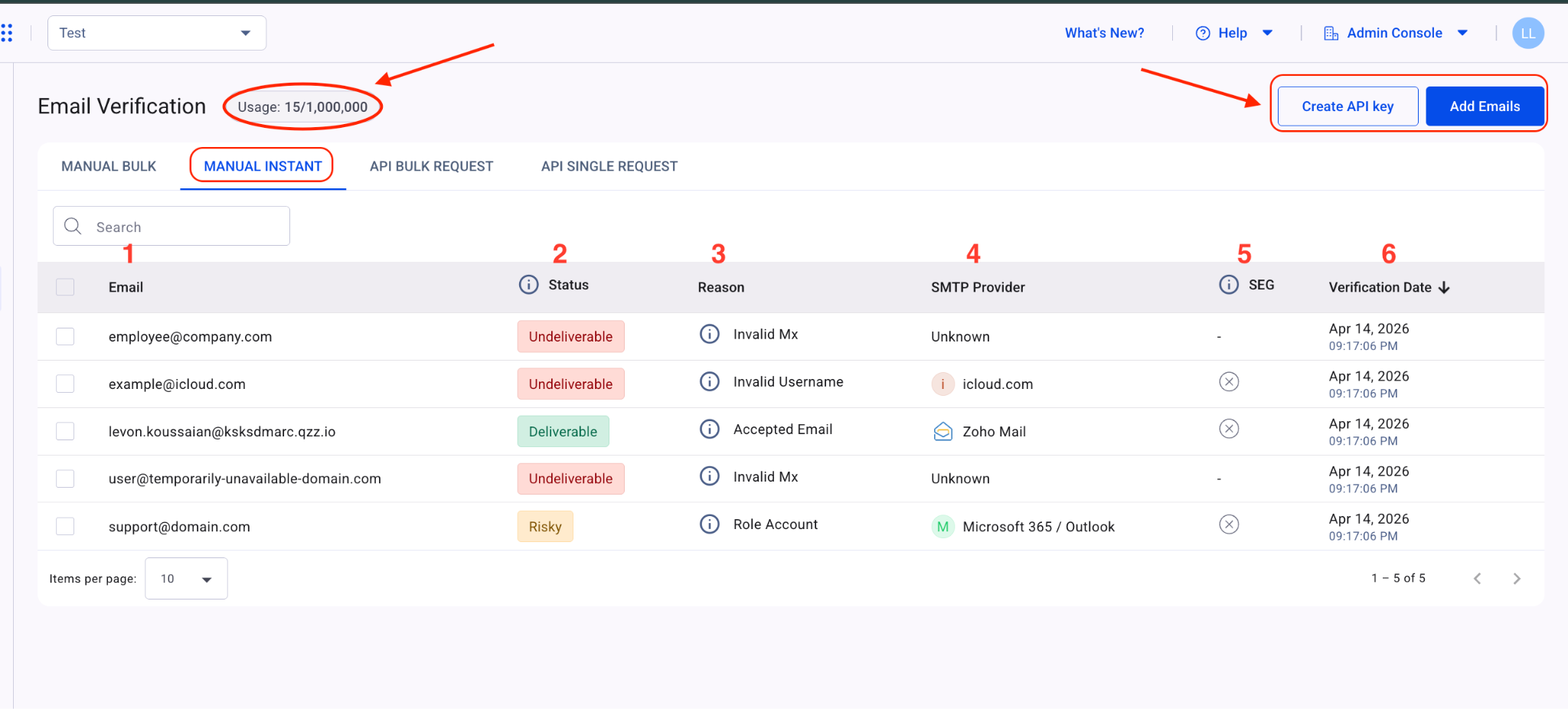
- In the upper-left section, you can view your tool usage, which reflects the number of validations performed over time based on your plan limits.
- In the upper-right section, you will find the same initial options: Create API Key and Add Emails, allowing you to perform additional validation checks whenever needed.
Instant Verification Results (Dashboard Overview)
Since the emails were added manually using Instant Verification, the results will be displayed under the Manual Instant tab in the dashboard, where you can review the full analysis and validation outcomes.
In the dashboard, you will see each of the email addresses you have submitted, along with their corresponding validation results and related information. Below is a breakdown of the key fields displayed for each email address:
1.Email:
Displays the email address that was manually submitted for validation.
2.Status:
Each email address is assigned one of the following validation statuses: Deliverable, Undeliverable, Risky, or Unknown. Below is a detailed explanation of each status:
- Deliverable: Indicates that the email address is valid and active. Emails in this category can generally be used safely for sending, as they are expected to successfully receive messages.
- Risky: A "risky" result indicates potential issues with the email address, which may lead to bounces or low engagement. Exercise caution when sending to risky addresses, such as "Accept All," "Full inbox," or "Role" addresses. Such email addresses may require either removal from your recipient list or additional testing to ensure successful delivery.
- Undeliverable: Emails falling into this category are considered undeliverable, meaning that there's a high chance your messages won't reach the intended recipients and you’ll experience a high level of hard bounces. It's best to avoid sending messages to these addresses for the sake of your sender reputation.
- Unknown: An "unknown" status is returned when we cannot receive a response from the recipient's mail server. This typically occurs when the destination mail server is slow or temporarily unavailable. If you retry verifying "unknown" emails after approximately 5 minutes, you may receive more certain statuses such as "Deliverable," "Undeliverable," or "Risky.
3.Reason:
The report provides specific reasons associated with each status. These reasons add more context to the verification result by offering detailed explanations of why a particular email address was classified as Deliverable, Risky, Undeliverable, or Unknown.
Below, you will find a breakdown of the possible reasons and what each of them represents:
- Accepted email: The address is valid and can accept emails.
- Accept-all: "Accept-all" or "Catch-all" is a configuration applied to an email domain. It involves setting up a specific "Catch-all" email address that collects all incoming emails sent to the domain, regardless of whether the recipient's email address exists or not. For instance, if someone makes a mistake and sends an email to "Namee@domain.com" instead of "Name@domain.com," the email will be received by the "Catch_all@domain.com" address but will be bounced back to the sender because the "Namee@domain.com" email address doesn't actually exist. Verifying such email addresses can be challenging. Sending emails to an "Accept-All" or "Catch-All" domain can potentially lead to an increase in bounce rates (undelivered emails) and a decrease in open rates (emails not being read). Therefore, it's important to exercise caution when sending emails to such domains to ensure your messages are delivered successfully.
- Mailbox exists: We’ve validated the email address via our alternative check mechanism, even though the email domain is configured as accept-all.
- Role account: email address belongs to a company or a specific department within a company, rather than being associated with a particular individual employee. Sending newsletters or campaign emails to such addresses can harm your open rates and may lead to spam complaints. Therefore, it's best to avoid sending any promotional or marketing emails to role addresses.
- Full Inbox: When an inbox is marked as "Full," it means that the recipient's mailbox has reached its storage limit and can no longer accept new emails. Any new messages sent to this address will likely bounce back or be rejected until the recipient clears out their mailbox or increases their storage capacity.
- Invalid syntax: This means that the email address does not follow the correct format for an email address. Common syntax errors include missing or misplaced characters such as the "@" symbol or the domain name.
- Rejected email: This status occurs when the mail server of the recipient's email address refuses to accept or deliver the email message. The rejection can happen due to various reasons, such as spam filters, blacklisting, or specific rules set up by the recipient's email provider.
- Invalid domain: When the status shows "Invalid domain," it means that the domain name in the email address does not exist or should not be used for emailing. This could occur if the domain has expired, been deactivated, or if you mistakenly entered an incorrect domain name.
- Invalid username: This reason indicates that the username portion of the email address does not exist or should not be used for sending emails. It could mean that the account associated with that username has been deleted, deactivated, or never existed in the first place.
- Invalid MX: The "Invalid MX" reason suggests that the domain does not have a valid MX (Mail Exchange) record. An MX record is essential for routing emails to the correct mail server. If the domain lacks an MX record, it typically means that the email services associated with that domain are not properly configured.
- Disposable: A disposable email address is a temporary email account that is typically used for short-term purposes or to avoid providing a permanent email address. These addresses are designed to expire after a certain period, making them less reliable for long-term communication.
- Connection error: This reason indicates that an error occurred while attempting to establish a connection with the recipient's mail server. It could be due to network issues, server downtime, or firewall restrictions, preventing a successful connection.
- Timeout: A timeout reason indicates when the mail server is taking too long to respond to a request. It could be caused by server congestion, high traffic, or a slow network connection. The sending server may give up on the connection attempt after a certain period of waiting.
- Unavailable SMTP: This reason suggests that the SMTP (Simple Mail Transfer Protocol) server, responsible for handling outgoing email, is currently unavailable or unresponsive. It could be a temporary issue with the server or a configuration problem that needs to be resolved.
- Unexpected error: The "Unexpected error" reason indicates that an unforeseen or unhandled error occurred while trying to connect to the mail server. This could be due to a software glitch, server misconfiguration, or an issue with the recipient's email infrastructure.
Displays the mail server (mailbox provider) associated with the email address, such as Microsoft 365, Google Workspace, Zoho Mail, and others. This helps identify where the email inbox is hosted.
5.SEG (Secure Email Gateway):A Secure Email Gateway (SEG) is a security layer that filters and scans incoming emails before they reach the recipient mailbox. Even if an email address is marked as Deliverable, messages may still be blocked or filtered by an SEG before reaching the inbox.
6.Verification Date:Indicates the date and time when the email address was checked for validity, representing when the verification process was performed for that specific result.
Bulk Verification Overview
Since we have already covered Instant Verification, let’s now review how the dashboard and results appear when performing a Bulk Verification. This method allows you to upload a file containing a list of email addresses to be checked for validity.
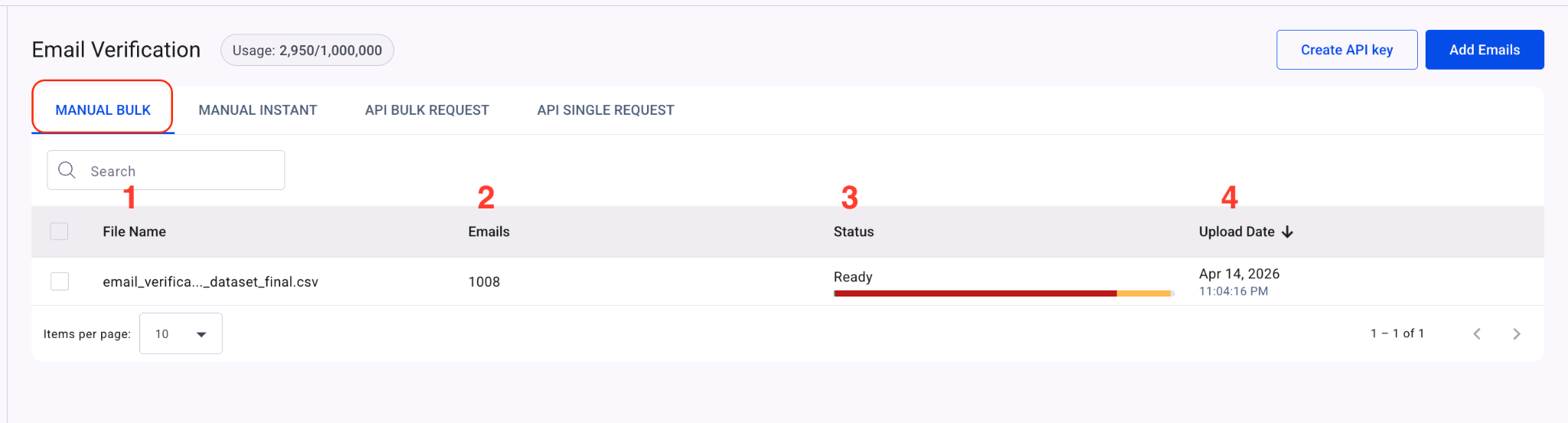
Bulk Dashboard Fields
After uploading your file, the dashboard will display the following key fields:
1. File Name: The name of the uploaded file.
2. Emails: The total number of email addresses included in the file.
3. Status: Indicates the processing state of the file (e.g., Ready, To Be Verified, Verifying).
4. Upload Date: The date and time when the file was uploaded.
Viewing Bulk Verification Results
By clicking on the uploaded file, you can access a detailed overview of the results:
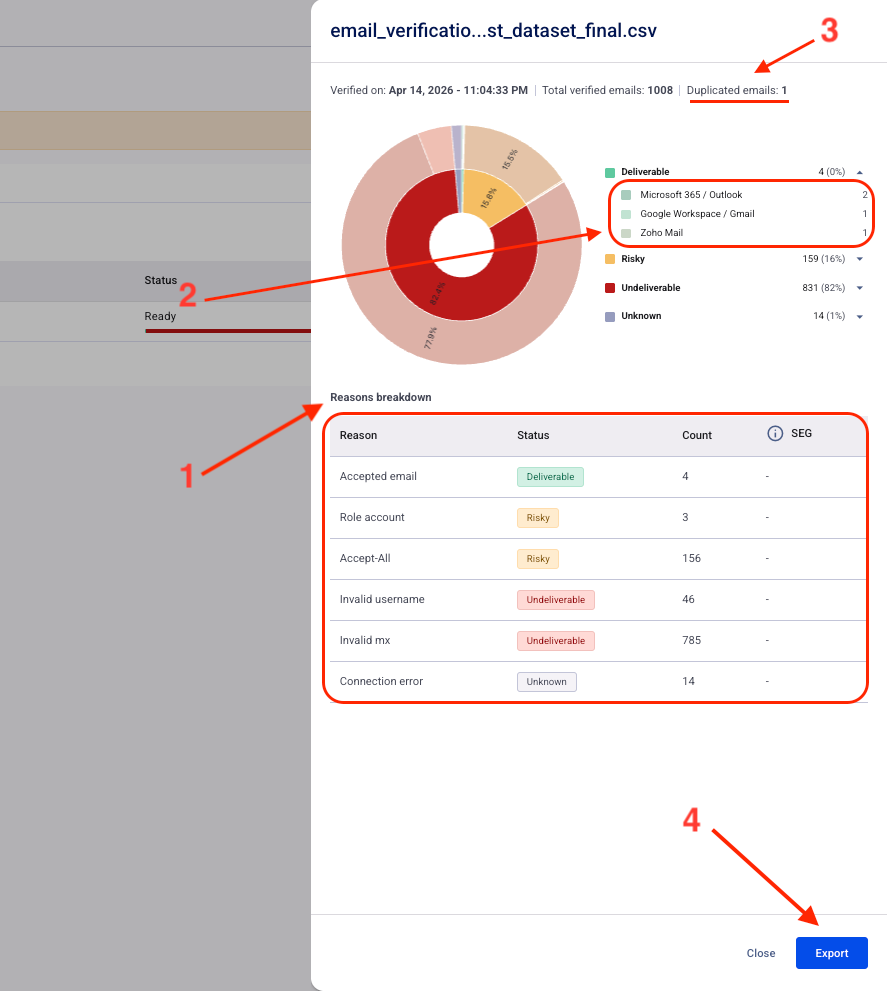
1. Reasons Breakdown:
In this section, you will see a summary of the same statuses and reasons introduced earlier, displayed as counts based on the email addresses within the uploaded file.
Important Note: Bulk verification results are presented in an aggregated format. This means you will not see individual email addresses mapped to specific statuses or reasons. Instead, the system provides a count of how many email addresses fall under each status and reason. This approach is designed to help you quickly assess the overall quality of your email list and take appropriate action.
2.Mail Server (SMTP Provider) Distribution:
For each status category, the system displays the associated mail servers (mailbox providers) along with the number of email addresses linked to each provider. This is similar to the SMTP Provider field shown in Instant Verification results, but presented in an aggregated format.
3.Duplicate Detection:
Highlights any duplicate email addresses identified within your uploaded list, helping you clean and optimize your data before sending campaigns.
4. Export:
You have the option to export the results for further use. The export can be customized based on your preferences, allowing you to extract only the data that is most relevant to your needs.
Conclusion
The Email Verification tool provides a reliable and efficient way to assess the validity of email addresses, whether individually or in bulk. By combining advanced checks with clear, structured results, it enables you to quickly identify valid, risky, and undeliverable addresses, along with the reasons behind each classification.
With features such as instant checks, bulk processing, detailed insights, and export capabilities, the tool helps you maintain a clean and high-quality email list. This ultimately improves deliverability, protects your sender reputation, and enhances the overall effectiveness of your email campaigns.
If you have any questions, please don’t hesitate to open a support ticket, and our team will assist you.