
The Email Investigation tool allows you to send a test email and receive a comprehensive, end-to-end analysis of how that message performs within the email infrastructure ecosystem. It provides a holistic overview of all critical aspects of email delivery and authentication, helping you understand whether your message successfully passes required checks.
Through this analysis, you can evaluate factors such as authentication results, spam classification, and the reputation of the sending domain and IP address, including any blacklist listings. The tool also provides additional insights into the email’s journey and overall behavior.
In the sections that follow, we will break down each component of the report, explaining what each metric represents and how to interpret the results effectively.
Getting Started with Email Investigation:
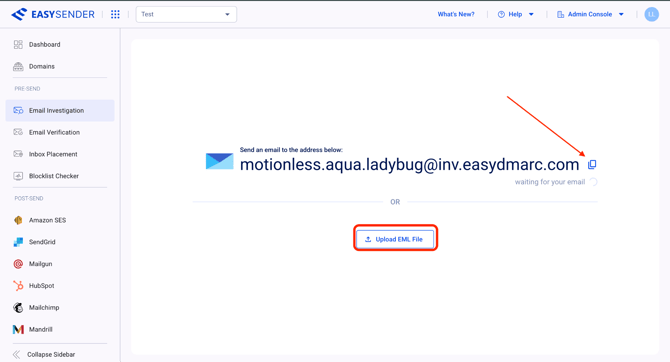
When you first open the Email Investigation page, the system provides a unique email address for you. You should send a test email from your domain to this address. Once the email is received, within a few minutes, the platform will process it and provide a detailed analysis of its performance and authentication results.
In addition to sending a test email, you also have the option to upload an EML file. This is useful if you already have an existing email (including its full headers) that you would like to analyze. By uploading the EML file, the system will generate the same comprehensive report as it would for a newly sent test email, allowing you to review all relevant data in a structured and accessible format.
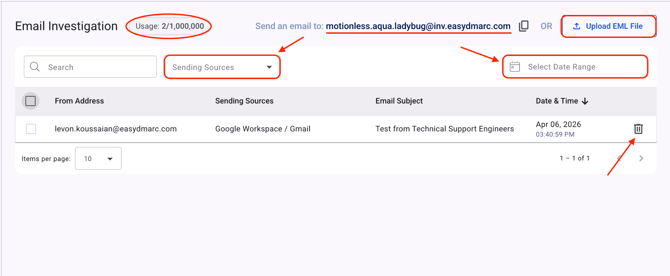
After sending a test email, it will appear in the dashboard along with key details such as the From Address, Sending Source, Email Subject, and Date & Time. This allows you to easily identify and locate the specific email you have submitted for analysis.
Before diving into the detailed results of a test email, there are several elements within the dashboard that are important to understand:
Filtering Options: You can filter test emails based on the sending source, allowing you to focus on specific services or platforms used to send emails.
Date Range Customization: The dashboard enables you to define a custom date range to view test emails performed within a specific time period.
Usage Overview: At the top-left of the page, you can view your current usage, which reflects the number of tests performed relative to your plan’s limits.
Delete Option: You have the option to delete any test email that is no longer needed, helping you keep your dashboard organized.
Additionally, the unique email address and EML File Upload options remain accessible at the top of the page, allowing you to initiate new tests at any time.
To view the detailed analysis, click on the test email you have submitted from the dashboard.
You will be presented with 8 different sections (tabs), each representing a different area of the email’s analysis and evaluation. These sections provide a structured breakdown of the test results, allowing you to review specific aspects of your email in an organized manner.
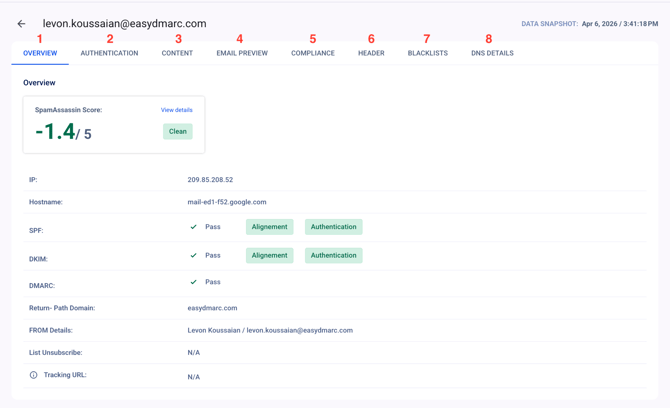
In the following sections, we will go through each tab one by one, explaining what it represents and what kind of information you can expect to find.
1.Overview
The Overview tab provides a high-level summary of the most important aspects of your test email, including spam evaluation, sending infrastructure, and authentication results.
SpamAssassin Score:
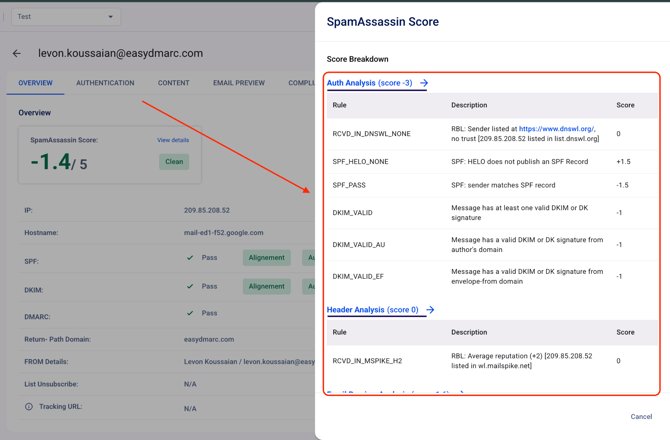
The SpamAssassin score is a numerical value to indicate the likelihood of an email being classified as spam. This score is calculated based on multiple checks, including message content, headers, and sender reputation.
Higher scores suggest a greater probability of spam, while lower (or negative) scores indicate that the email is more likely to be legitimate. Typically, a threshold of 5.0 is used to determine whether a message is considered spam.
For a more detailed breakdown of how this score was calculated, you can click on the “View Details” button. This will display all evaluated rules and metrics. Additionally, selecting any specific metric will redirect you to the corresponding section, where you can review a more in-depth analysis.
IP Address:
Displays the IP address used to send the test email.
Hostname:
Represents the reverse DNS (rDNS) name associated with the sending IP address (e.g., mail-ed1-f52.google.com). This helps verify the identity and legitimacy of the sending server.
Authentication Results:
This section summarizes the results of the three core email authentication protocols:
- SPF (Sender Policy Framework):
- Alignment: Confirms that the From domain matches the Return-Path domain.
- Authentication: Verifies that the sending IP address is authorized to send emails on behalf of the domain according to its SPF record.
- DKIM (DomainKeys Identified Mail):
- Alignment: Ensures that the From domain matches the domain specified in the DKIM signature (d= value).
- Authentication: Confirms that the DKIM signature has been successfully validated.
- DMARC (Domain-based Message Authentication, Reporting, and Conformance):
- Indicates whether the email passes DMARC validation based on SPF and/or DKIM authentication and alignment.
Return-Path Domain:
Specifies the domain used for bounce handling. This indicates where non-delivery reports (NDRs) or bounce messages are sent.
From Details:
Displays the sender’s visible name and email address as shown to recipients, helping identify who the email appears to come from.
List-Unsubscribe:
Indicates whether the email includes a List-Unsubscribe header, which allows recipients to opt out of mailing lists. A value of “N/A” means that no such header is present.
Tracking URLs:
Identifies whether tracking mechanisms are present within the email. Tracking URLs are typically detected based on known tracking domains or URL parameters. A value of “N/A” indicates that no tracking was detected.
2.Authentication
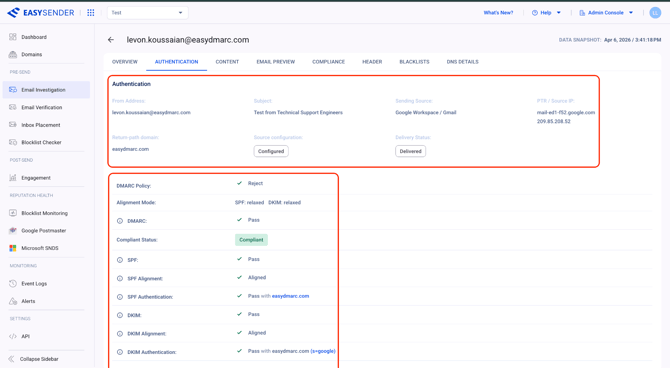
In this section, you will find a detailed breakdown of the email authentication protocols (DMARC, SPF, and DKIM), along with additional information about the email, such as the From and To addresses, Email Subject, and Delivery Status.
All information is presented in a clear, structured, and easy-to-understand format, allowing you to quickly review and interpret the results.
Received Headers
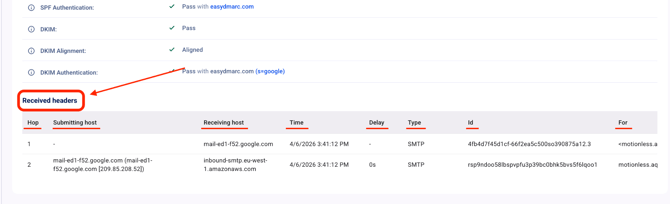
In this same section, at the end, you will be able to view the Received headers of your test email, presented in a structured and easy-to-read format. These headers provide a detailed record of the email’s path as it travels through different mail servers.
We will go through each component of the Received headers and provide clear explanations of what each field represents, helping you better understand the email’s journey and delivery process.
- Hop: Indicates the sequence of servers the email passed through, showing its path from sender to recipient.
- Submitting Host: Represents the server that initially sent or relayed the email at a specific step.
- Receiving Host: Identifies the server that accepted the email from the previous hop.
- Time: Displays the exact timestamp when the receiving server processed the email.
- Delay: Shows the time it took for the email to travel between two consecutive hops.
- Type: Specifies the protocol used for transmission (e.g., SMTP), indicating how the email was transferred.
- ID: A unique identifier assigned by the receiving server for tracking the message.
- For: Indicates the intended recipient address associated with that specific delivery step.
3.Content
In this section, you can review the content of your test email, which is divided into two main parts: Links and Images. These tabs allow you to analyze the elements included within the email body.
Note: If your test email does not contain any links or images, the corresponding sections will appear empty.
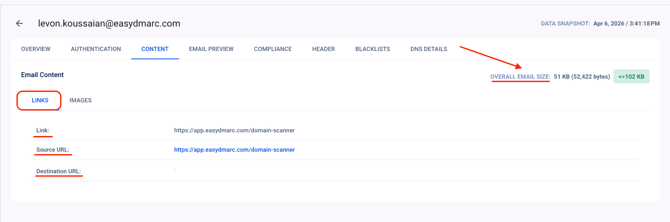
Additionally, in the upper-right corner of the dashboard, you will find the Overall Email Size, displayed in kilobytes (KB), providing insight into the total size of the email.
Links:
In this tab, you can view all links included in your test email. For each link, the tool displays both the Source URL (as it appears in the email) and the Destination URL (the final redirect location). You can click on the link to verify where it leads and ensure it behaves as expected.
Images:
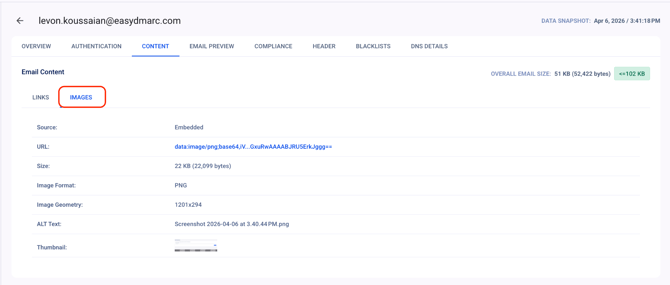
In this tab, you can review information about the images included in your test email. This includes details such as the image format, file size, and other relevant attributes that help you better understand how images are embedded and presented within the email.
 . |
. |
4.Email Preview
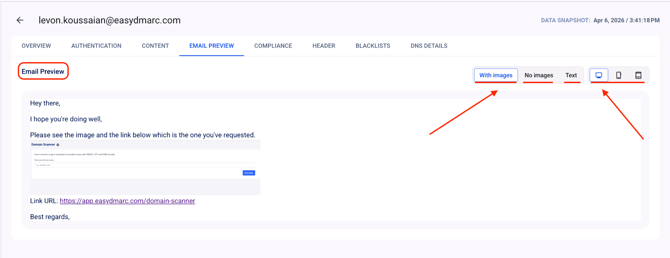
In this section, you can review the exact body of the test email as it was sent.
From the upper-left corner, you have the option to switch between different viewing modes, including With Images, No Images, and Text Only, allowing you to analyze how the email content is displayed under different conditions.
Additionally, you can preview your email across different screen formats, such as desktop and mobile, to evaluate its responsiveness and overall appearance on various devices.
5.Compliance
This section focuses on the email’s compliance with unsubscribe best practices and standards. It evaluates whether the email provides recipients with clear and accessible options to opt out of future communications.
Unsubscribe
The following checks are performed to assess unsubscribe functionality:
List-Unsubscribe Header: Indicates whether the email includes a standard List-Unsubscribe header, which allows email clients to present an easy unsubscribe option (often displayed as a button).
Non-Interactive Unsubscribe: Refers to the ability to unsubscribe without requiring additional user interaction, such as logging in or completing multiple steps.
RFC 8058 One-Click Header: Verifies whether the email supports the one-click unsubscribe mechanism defined in RFC 8058, enabling users to unsubscribe instantly with a single action.
In-Body Unsubscribe Link: Checks whether a visible unsubscribe link is included within the email content itself.
Note: A missing or failed check (❌) indicates that the corresponding header or feature is not present in the test email.
6.Header
In this section, you can view the full email headers of your test email, which contain the underlying technical details used for analysis, including authentication and routing information.
The data presented throughout the report is extracted from these headers to provide meaningful insights into the email’s behavior and performance.
You can review the headers in two formats:
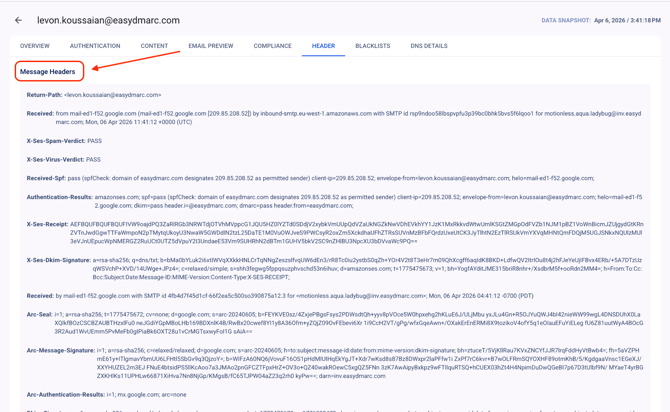
Message Headers: Displays the email headers in a clearer, more readable format, while preserving the original structure and content.
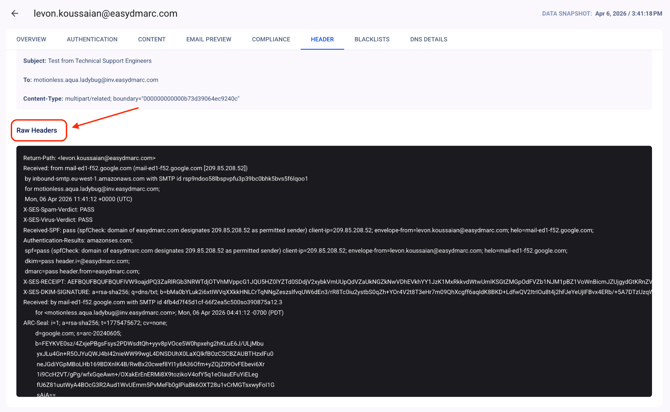
Raw Headers: The original, unprocessed headers as received, displayed in their native format for advanced analysis.
7.Blacklists
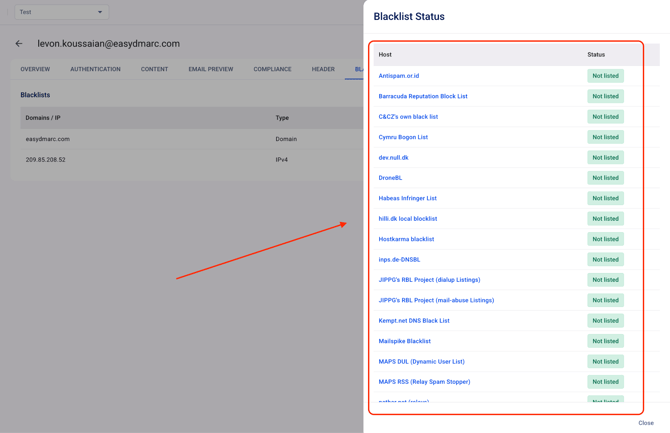
In this section, you can review the blacklist count for both the sending domain and the source IP address used to send the test email. This provides a quick overview of how many blacklist vendors have listed either entity.
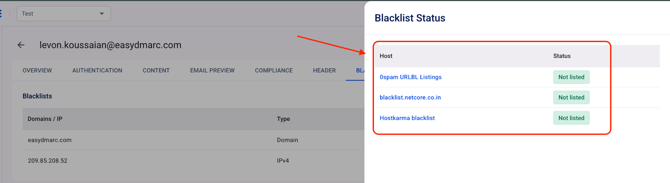
By clicking on the Domain name or the IP address, a detailed panel will appear on the right-hand side. This panel displays the blacklist providers that were checked, along with their corresponding status (Listed or Not Listed).
Please note that the blacklist checks performed for domains and IP addresses may differ. As a result, it is expected that the number of vendors checked for an IP address may not match those checked for a domain.
- See the example below when selecting a Domain:
- See the example below when selecting an IP address:
8.DNS Details
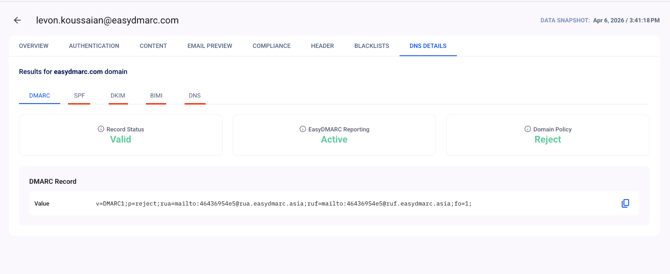
In this section, you can review your domain’s email authentication protocols and their corresponding results, including DMARC, SPF, DKIM, and BIMI.
In addition to authentication protocols, this section also provides visibility into other relevant DNS records under the DNS tab, such as A, MX, NS, and other related entries. This helps you better understand your domain’s DNS configuration and how it supports email delivery and authentication.
Conclusion
The Email Investigation tool provides a comprehensive and structured way to analyze your emails from multiple perspectives, including authentication, content, compliance, and infrastructure. By consolidating all critical insights into a single report, it enables you to quickly identify potential issues and understand how your emails are evaluated across different systems.
Whether you are troubleshooting delivery problems or validating your email setup, this tool helps you make informed decisions and improve overall email performance with confidence.
If you have any questions, please don’t hesitate to open a support ticket, and our team will assist you.