
Inbox Placement is a powerful deliverability testing feature that helps you understand where your emails are landing across different mailbox providers. By sending a test email from your domain through your configured sending source to a set of predefined seed addresses, you can measure whether your messages reach the inbox, spam folder, or fail to arrive at all.
The tool provides a detailed breakdown of inbox placement performance across multiple email providers supported in our database. This gives you clear visibility into how your emails are being handled by each mailbox provider, helping you identify delivery issues, compare results by provider, and better understand the overall reputation and deliverability of your sending setup.
In addition to placement results, the feature may also surface deeper insights and diagnostic information related to each test, allowing you to assess where the email landed and review the results of the test in detail. You can also choose specific recipient mailbox providers for testing, giving you more control over the scope of your analysis.
Inbox Placement can also be connected with other Sender Insights solutions, giving you a more complete view of your domain and sending source performance. This makes it easier to evaluate deliverability from multiple angles and take informed action to improve inbox placement results over time.
Getting StartedSender
When you first open Inbox Placement, the system prompts you to create a test. To begin, click the Create Test button and follow the setup flow.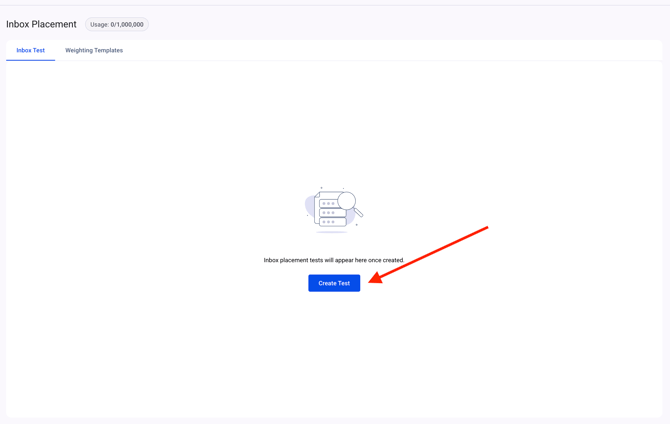
The tool offers two types of Inbox Placement tests:
- Manual Test
- Recurring Test
Manual Test:
The Manual Test is the standard way to run an Inbox Placement test. The system generates a set of email addresses for a one-time test, and the results are shown in your Inbox Placement dashboard after the email is sent.
Recurring Test:
The Recurring Test uses the same testing logic, but it is designed for repeated use. You can download the provided email list and reuse it whenever you want to run another test, without creating a new one each time.
Test Workflow Difference:
You can think of the Manual Test as the regular way to create and run an Inbox Placement test directly from the dashboard. The Recurring Test, on the other hand, gives you a reusable list so you can run tests again without setting them up from scratch each time.
Manual Test Setup
To configure a Manual Test, start by entering a Test Name. This name helps you identify the test later in your Inbox Placement dashboard.
You can also enable Include Email Investigation if you want to review the email investigation results for the message you send from your domain. When this option is enabled, the test will be linked with the Email Investigation feature as well.
For more details about the Email Investigation tool, please refer to the article link here.
Note: If Include Email Investigation is selected, credits will be deducted separately from both your Inbox Placement and Email Investigation balances.
After setting these options, click Next to continue.
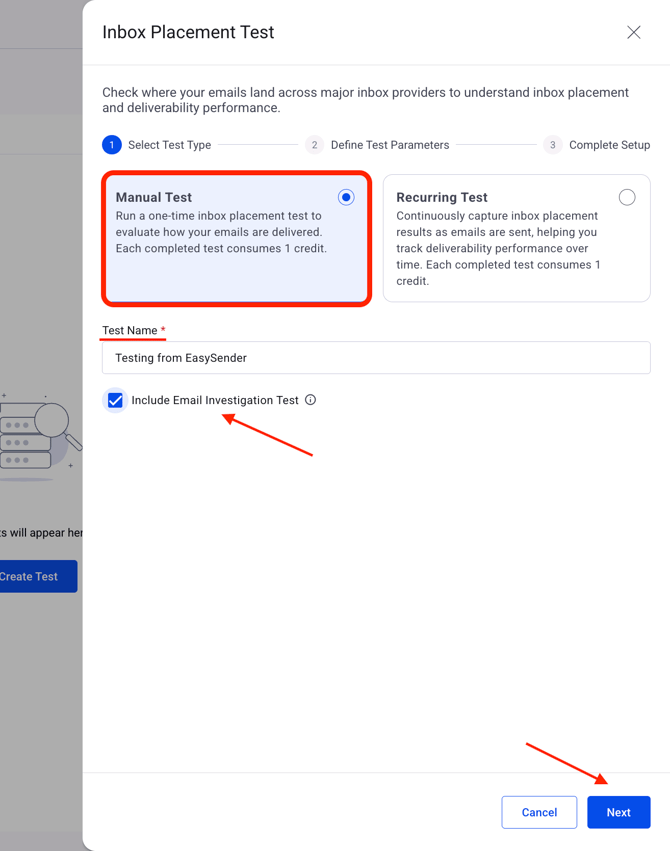
Mailbox Provider Configuration (Define Test Parameters):
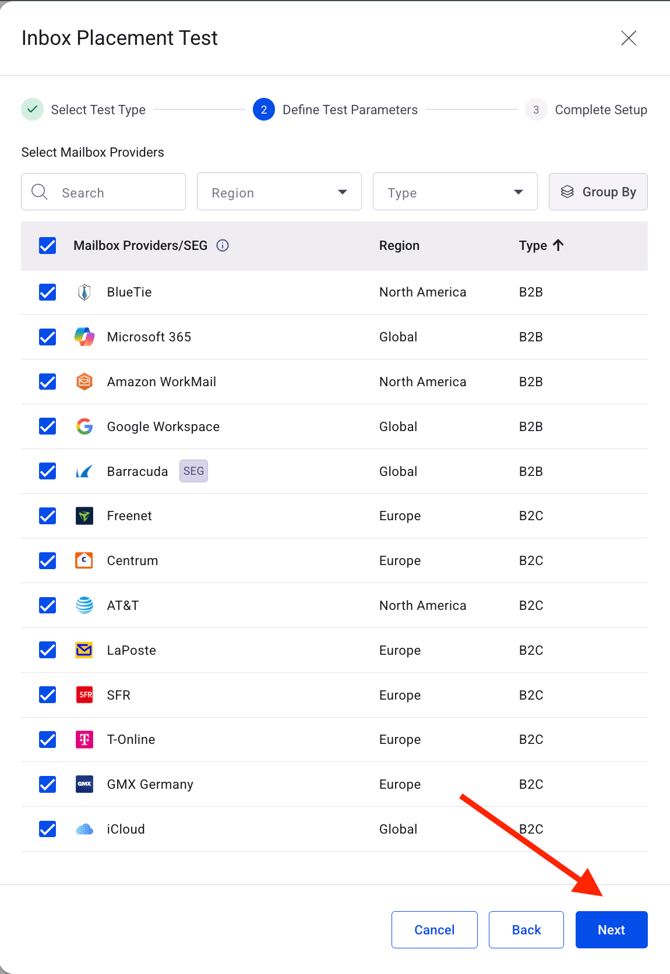
In this step, you can choose which mailbox providers and Security Gateways will receive the test email. By default, Sender Insights includes a broad recipient list from its database, but you can customize the selection based on the providers that are most relevant to your domain and sending environment.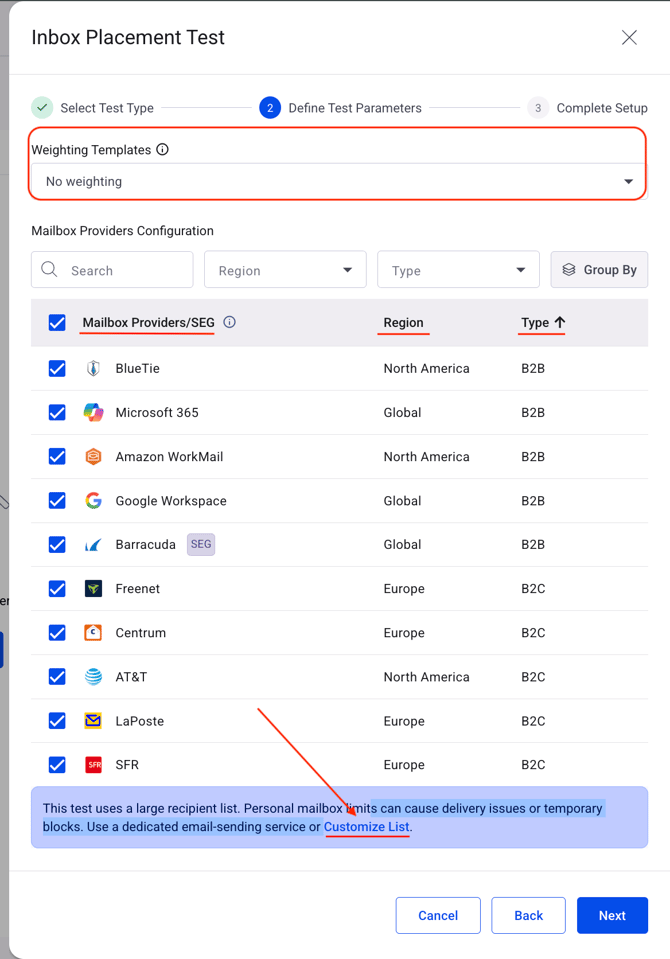
You can adjust the mailbox provider selection directly from this screen by enabling or disabling the checkboxes next to each Mailbox Provider or SEG name. This gives you a quick way to include only the providers you want to test.
You can also use the Customize List option at the end of the section. This will take you to the full mailbox provider list, where you can modify the Seeds Used / Max values. These values determine how many recipient mailbox providers will receive your test message, within the limits allowed by the system. After updating the configuration, save the changes to apply them to your test.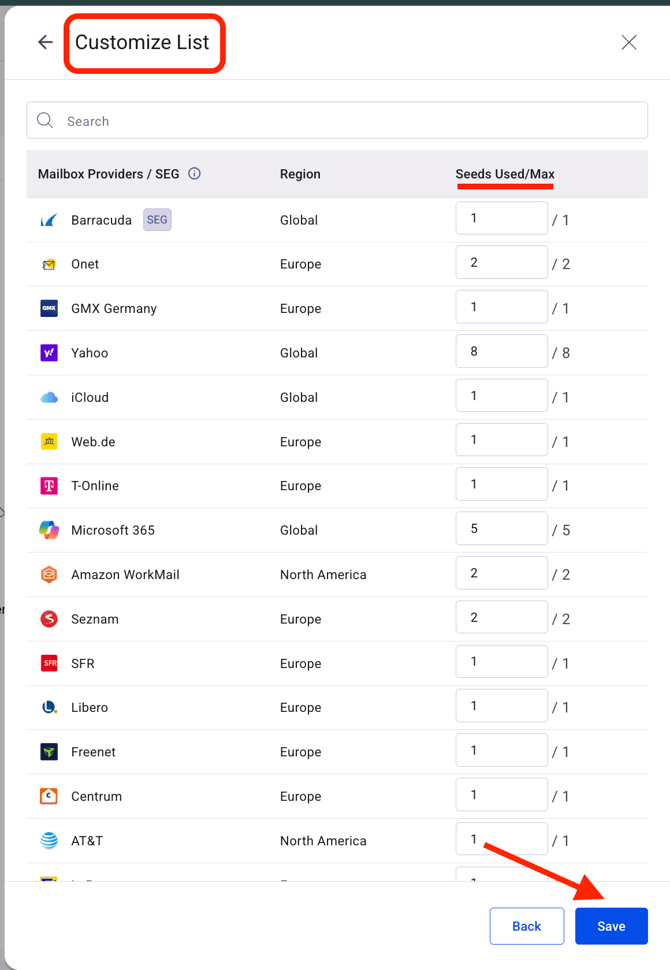
For each mailbox provider, the results display:
- Region: such as Global, North America, or Europe.
- Type: such as B2B or B2C.
You can also organize the provider list using the Group by option.
- Group by lets you organize providers by either Region or Type
- Sorting lets you view the list in A-Z or Z-A order.

These options make it easier to filter, organize, and select the mailbox providers that matter most to your test.
Weighting Templates
Weighting Templates let you control how much emphasis each mailbox provider receives in an Inbox Placement test. They are useful when you already know that your audience is concentrated around specific providers, such as Google or Microsoft, and you want the test results to reflect that distribution more accurately.
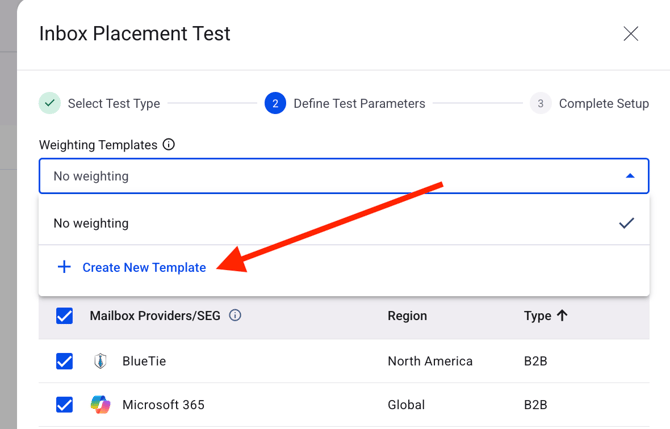
From the top of the test setup page, you can choose an existing Weighting Template before running the test. If no template has been created yet, you can click Create New Template to open the Weighting Templates section and set one up.
Creating a template
To create a new template, click Create Template. Inbox Placement tool offers two ways to build a template:
1- Manual
2- Upload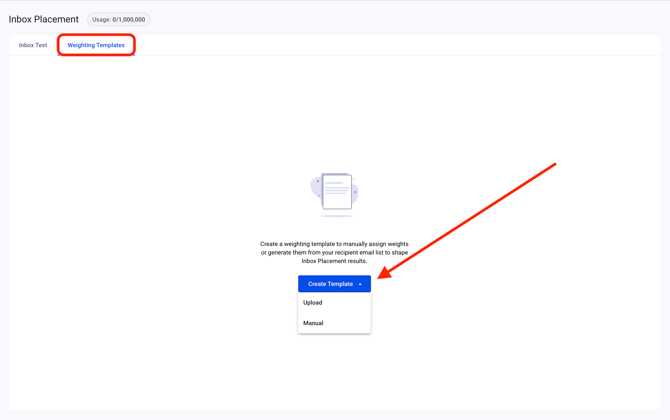
1- Manual setup:
In the Manual setup, you create the template yourself by entering a Template Name, adjusting the Region and Type filters if needed, and assigning weights to the mailbox providers based on your audience distribution.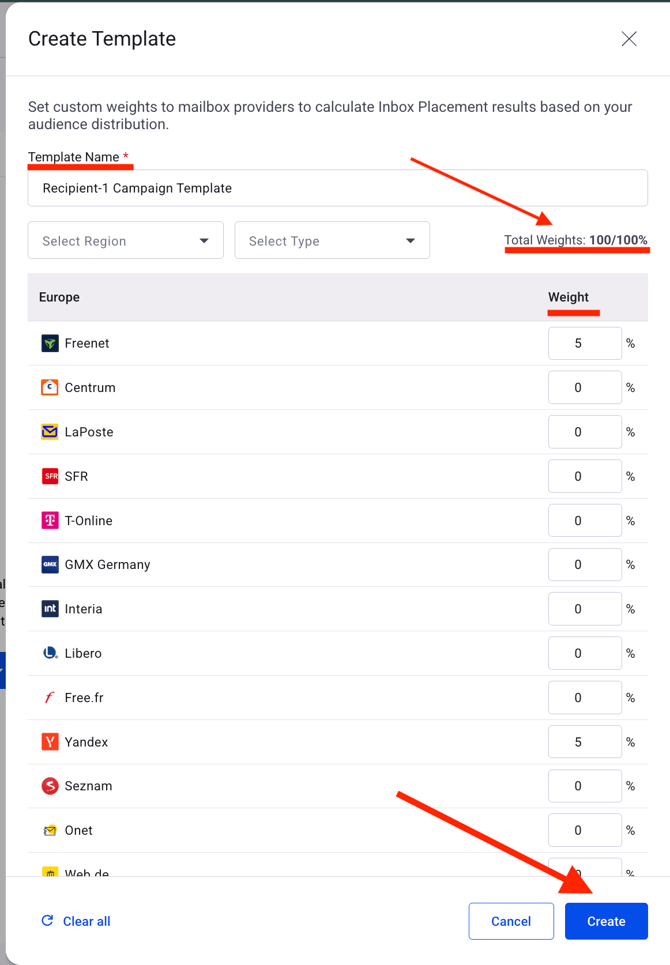
Important Note: The total weight must always equal 100%. If the total is below or above 100%, the system will not allow you to save the template. The current total is shown in the top-right area of the page, so you can keep track of it while configuring the values.
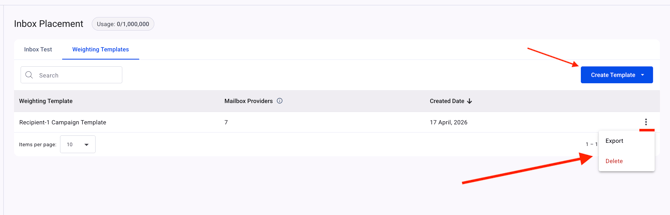
Once the total reaches 100%, save the template. It will then appear in your Weighting Templates list and can be reused in future Inbox Placement tests.
You can also use the menu on the right side of a saved template to Export or delete it.
2- Upload setup:
The Upload method follows the same purpose, but instead of assigning weights manually, you upload a file in CSV or XLS format containing your recipient list. The tool then analyzes the email addresses in the file, identifies the mailbox providers, and builds the template based on that data.
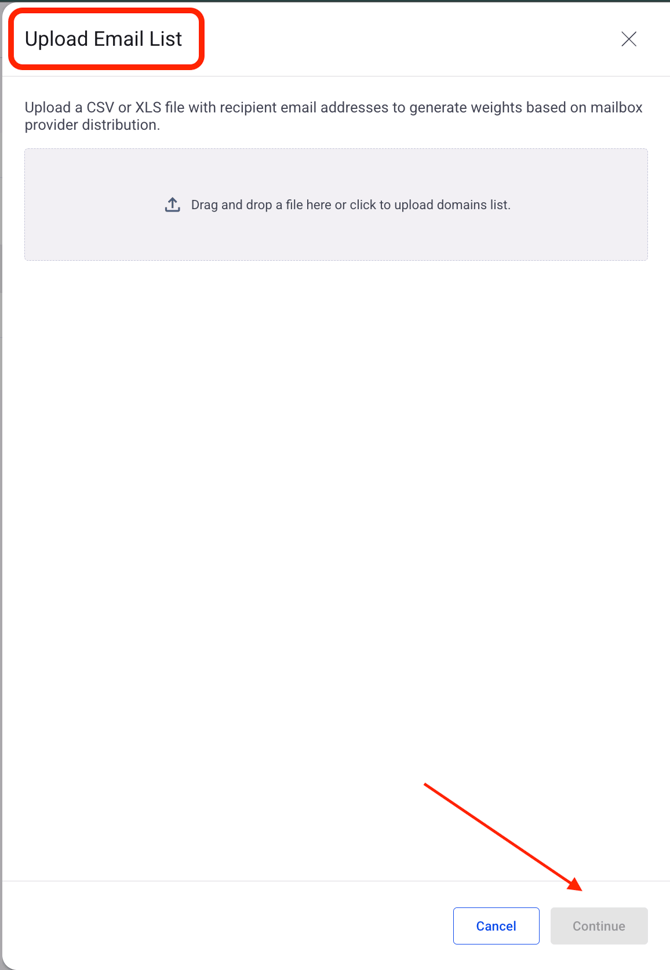
This option is helpful when you want the template to reflect your real recipient base but do not want to map the providers manually. It saves time and helps you create a more accurate weighting structure from an existing contact list.
Why this is useful:
Weighting Templates make Inbox Placement tests more realistic. Instead of treating every provider equally, they let you mirror your actual recipient distribution, which helps you understand how your emails are likely to perform in the environments that matter most to your audience.
Completing the Manual Test
After creating your Weighting Template, return to the Manual Test flow, select the template you created, and click Next to continue.
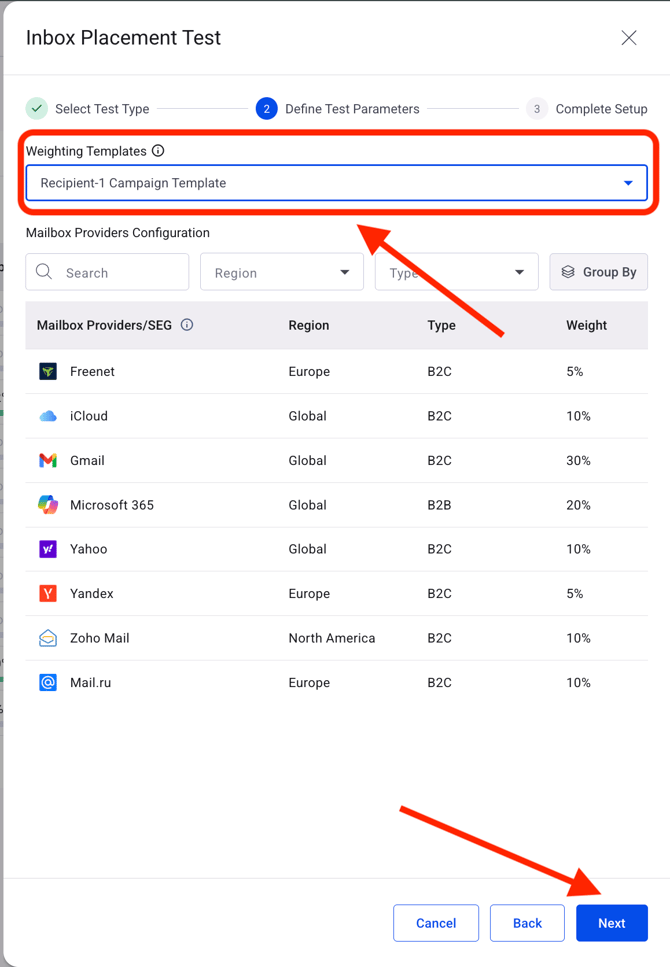
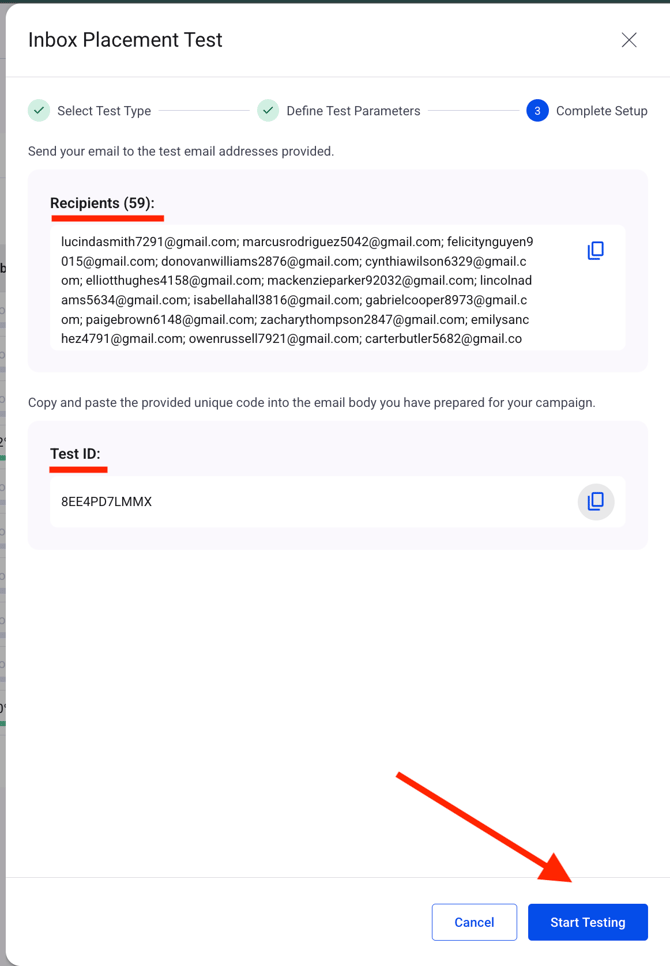
The system will then generate the recipient email addresses for your selected setup, along with a unique Test ID. Use the provided addresses to send the test email from your domain, and include the Test ID in the body of the message. Once the email has been sent, click Start Testing and allow time for the system to process the results.
Inbox Placement Dashboard:
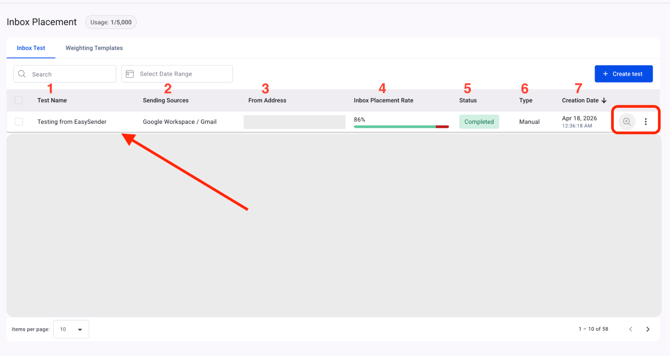
When the test is complete, it will appear in your Inbox Placement dashboard. Each test row includes the main details you need to review:
1- Test Name: The name you assigned when creating the test.
2- Sending Source: The sending source used to send the test email.
3- From Address: The sender address used for the test.
4- Inbox Placement Rate: The percentage of emails that reached the inbox, spam folder, or were missing.
5- Status: The current state of the test, such as Processing or Completed.
6- Type: Whether the test was Manual or Recurring.
7- Creation Date: The date the test was created.
From this view, you can also open the email preview using the button next to the three dots, or use the menu to edit the test name or delete the test.
Test Details:
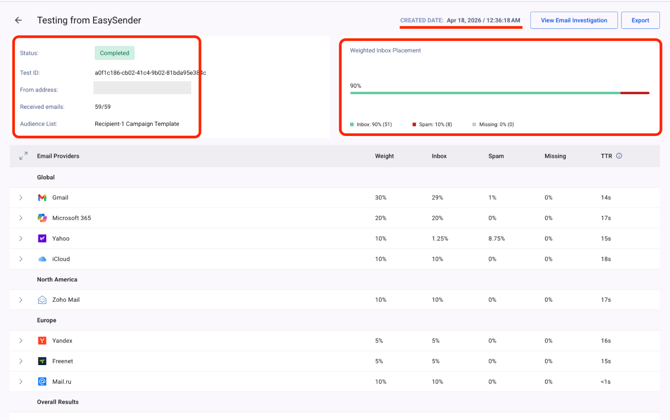
Clicking on a completed test opens a detailed view with results for each mailbox provider included in the test.
On the left side, you can see key information about the test, including the Status, Test ID, From Address, and other relevant details. On the right side, you can review the Weighted Inbox Placement, which shows the percentage of messages delivered to the inbox, spam, or missing.
Note: If Email Investigation was enabled during test creation, you can also click View Email Investigation in the top-right section to review its results. From the same area, you can also export the test information.
Mailbox Provider Results:
Inside each mailbox provider, you can review the results for individual recipient addresses. In the Microsoft 365 example shown in the screenshot, the provider details include:
1- Recipient: The specific email address that received the test message.
2- Delivered To: The final placement, such as the Inbox, Spam, or Missing.
3- TTR: The average time it took for the message to reach the recipient's mailbox.
4- Sender IP: The IP address used to send the test message.
5- Received: The date and time when the message was received.
6- Header view (< >): Opens the original email header for that specific message.
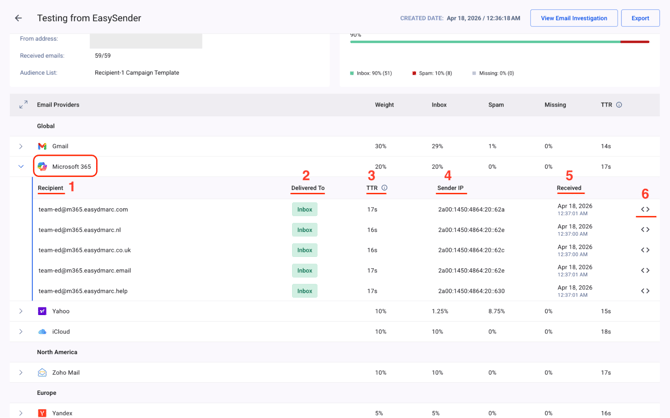
This level of detail helps you review how each mailbox provider handled the test and gives you a clearer view of inbox placement performance across your selected setup.
Recurring Test Setup:
To configure a Recurring Test, click Create Test, choose Recurring Test, and then click Next.
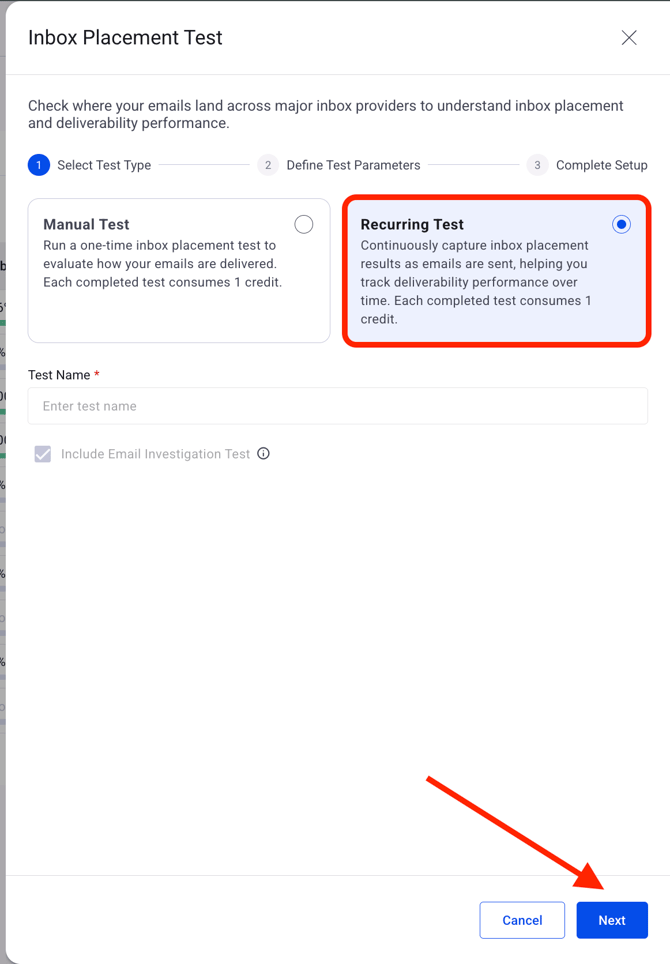
You will then be taken to the Define Test Parameters page, where you can customize the mailbox providers that will receive your test email. This step works the same way as in the Manual Test setup, so you can select the providers that are most relevant to your needs. Once you finish configuring the providers, click Next to continue.
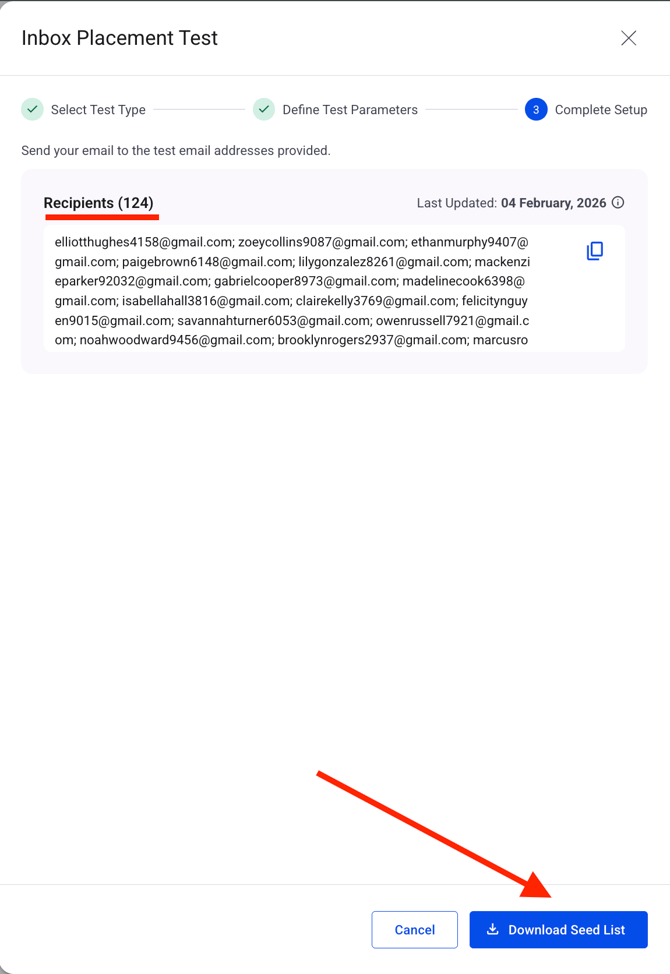
In the final step, the system generates the recipient email addresses for the recurring setup. You can download this list and reuse it later whenever you want to run another Inbox Placement test. After sending your test email to the downloaded recipients, allow some time for processing. Once the test is complete, it will appear in your dashboard with its results available for review.
Note: Because this test was created as a Recurring Test, the Type field will show Recurring. This makes it easier to distinguish recurring tests from manual ones when reviewing your dashboard.
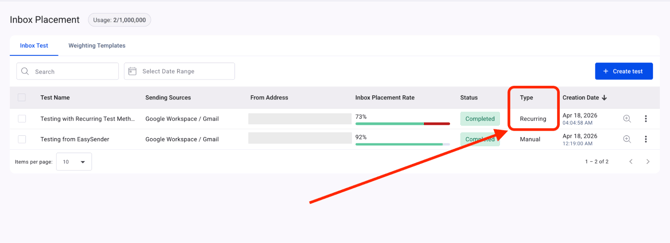
The results and insights available for Recurring Tests are the same as those shown for Manual Tests.
Conclusion:
Inbox Placement gives you a clear and structured way to test how your emails are being delivered across different mailbox providers. By letting you run both Manual and Recurring tests, customize the provider list, apply weighting templates, and review detailed delivery results, the tool helps you better understand how your sending environment performs in real-world conditions.
With the test insights available in the dashboard, you can quickly identify whether your emails are reaching the inbox, landing in spam, or going missing, and compare results across providers and regions. When used consistently, Inbox Placement becomes a practical way to monitor deliverability, validate campaign performance, and make more informed decisions about your email sending strategy.
If you have any questions, please don’t hesitate to open a support ticket, and our team will assist you.