
Understanding the Dashboard
The dashboard section provides a holistic overview of the health and performance of your domains based on the integrations you have configured.
You can choose to view all connected domains or select specific domains to focus on, along with defining a custom date range to analyze their corresponding data.
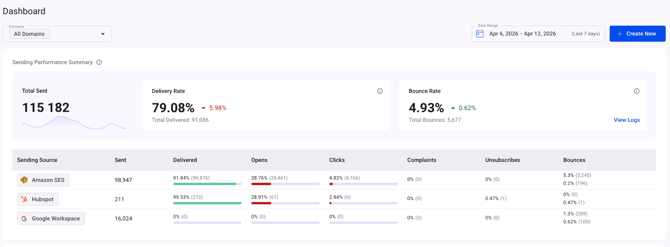
This section also allows you to create a custom dashboard based on the specific information you want to display. You can tailor the view by selecting the metrics and specifying the domains you wish to include.
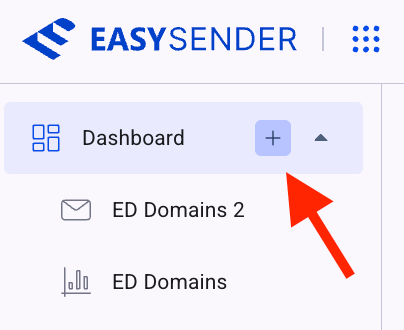
Once selected, you can define the name of your dashboard, choose the domains you want to include, and select your preferred navigation icon.
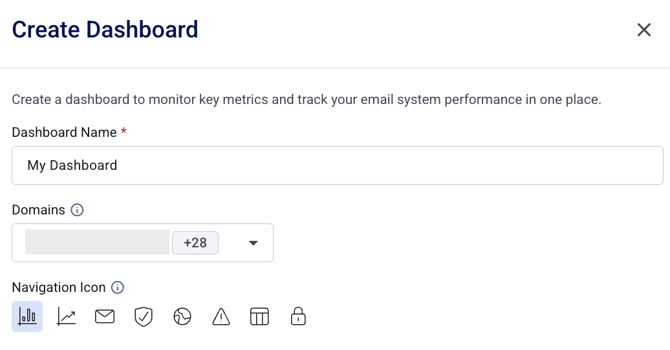
You can then save the configuration and proceed to add your preferred widget. The available widgets are listed below.
Blocklisted Domains
This metric shows the number of unique domains currently listed on blocklists based on the most recent check. The change value reflects the difference compared to the same point in the previous period.
Blocklisted Domains Trend
This metric shows the number of unique domains that were listed on blocklists at least once during each day. It helps track daily blocklist activity and identify patterns or fluctuations over time.
Sender Performance Summary
These cards display aggregated deliverability and engagement metrics for the selected sending domain over a specified date range. They provide a high-level overview of sender performance during the chosen period, helping you quickly assess overall trends and results.
Metric Trends by Sending Domain and Email
This chart displays daily trends for key deliverability and engagement metrics based on the selected sending domain. It helps identify performance patterns over time and detect potential issues as they emerge.
Detailed Metrics by Sending Emails
This table displays key delivery and engagement metrics for sent emails. It can be used to analyze performance and identify potential issues or underperforming areas across individual emails.
Detailed Metrics by Mailbox Providers and Recipient Domains
This table displays key delivery and engagement metrics segmented by mailbox provider and recipient domain. Bounce metrics include detailed breakdowns of failure causes, enabling deeper analysis. It can be used to monitor performance trends and identify potential issues across different recipients.
Metric Trends by Mailbox Provider or Recipient Domain
This chart tracks key deliverability and engagement metrics over time for a specific mailbox provider or recipient domain. It helps identify performance drops, spikes, or recurring patterns within the selected date range.
Top Recipient Domains/Provider Breakdown
This chart displays the top mailbox providers or recipient domains based on the selected metric. It helps identify performance trends and address deliverability issues with greater precision.
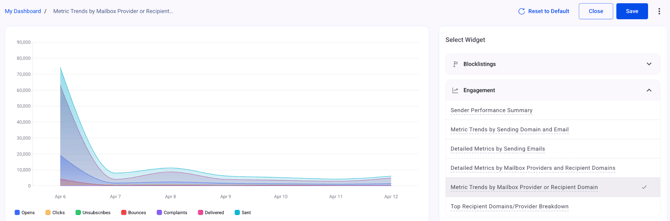
Once saved, your dashboard will look like the one shown below.
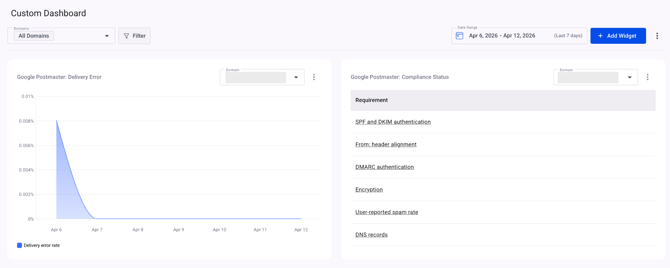
Let’s also look at the default Dashboard and what it includes. As mentioned earlier, it provides an overall view of the health and performance of your domains.
Within this dashboard, you can access the Sending Performance Summary, as well as the Bounce Rate, which can also be explored in more detail with filtering options to view soft or hard bounces separately. In addition, it displays your configured sending sources for easier tracking and analysis.
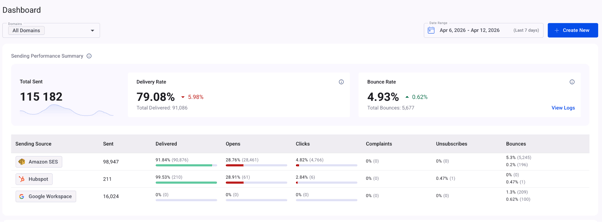
This section provides an overview of the reputation health of your domains, as well as highlights any domains that are blacklisted, if applicable.
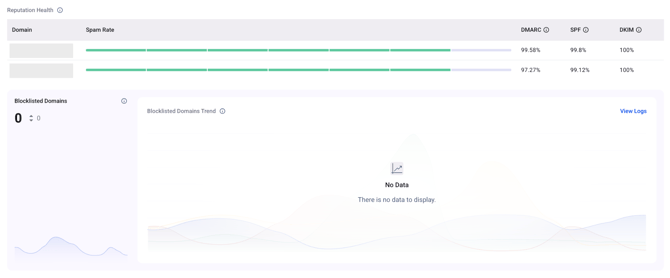
Reputation Health
This section displays key Google Postmaster indicators, including domain reputation, spam rates, and overall sender health. It highlights any reputation-related issues for the domain, helping you quickly identify areas that may require attention.
Blocklisted Domains
This metric shows the number of unique domains currently listed on blocklists based on the most recent check. The change value reflects the difference compared to the same point in the previous period.
Blocklisted Domains Trend
This metric shows the number of unique domains that were listed on blocklists at least once during each day. It helps track daily blocklist activity and identify trends over time.
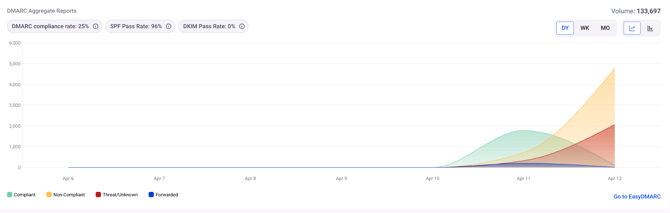
The DMARC Aggregate Reports chart will include:
1- DMARC compliance rate:
The DMARC compliance rate represents the proportion of compliant emails relative to the total volume of both compliant and non-compliant messages.
A higher DMARC compliance rate indicates a stronger email authentication setup, helping to protect the domain against spoofing and phishing attacks.
Note: Threat and forwarded emails do not impact the compliance rate.
2- SPF Pass Rate:
This metric represents the percentage of emails sent from the domain that successfully pass and align with SPF authentication.
3- DKIM Pass Rate:
This metric represents the percentage of emails sent from the domain that successfully pass and align with DKIM authentication.
If you have any questions, please don’t hesitate to open a support ticket, and our team will assist you.