
With EasyDMARC's Blesta integration, hosting and domain resellers can provision, configure, and manage email authentication for every customer with full control and visibility in one place.
After signing a Reseller Contract with our Sales Team the installation process is divided into a few simple steps, such as:
- Obtaining your API Keys from EasyDMARC Dashboard
- Downloading and installing the Module itself
- Configuring the module in your Blesta Admin Panel
- Setting up EasyDMARC as a Product to sell to your customers.
Step 1 - Obtain your API Keys from EasyDMARC Dashboard
- Sign in to your EasyDMARC Account and go to our API Page.
- Click Generate Key to open and provide a name for your new Keys.
- Click Generate and you will be provided with Client ID and Secret Key
a. Copy both values and keep them confidential at all times
Step 2 - Blesta Module Installation
- Download the module .ZIP file from here.
- Extract the downloaded package:
- The password to extract the file will be provided by our Sales Team upon signing the Reseller Contract.
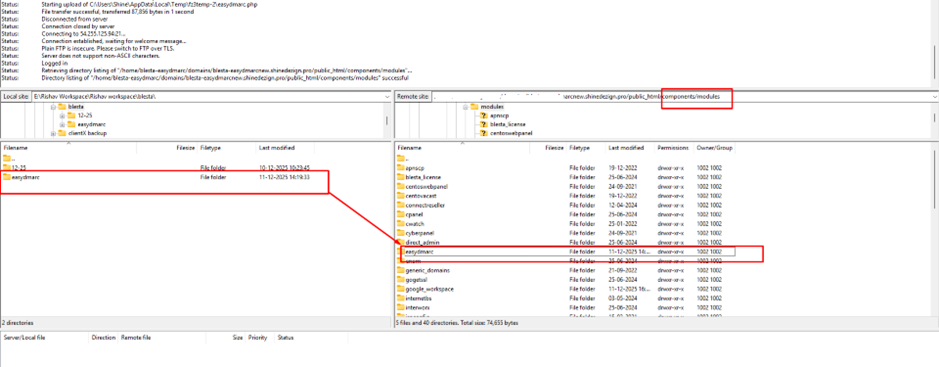
- Access your server using FTP, cPanel File Manager, or SSH (depending on what your hosting provides).
- Navigate to the main Blesta installation directory.
- This is the folder where your Blesta installation is located.
- Inside the Blesta directory, open the following path:
/Components/modules - Upload the extracted module folder into the modules directory.
Step 3 - Blesta Server Connection setup
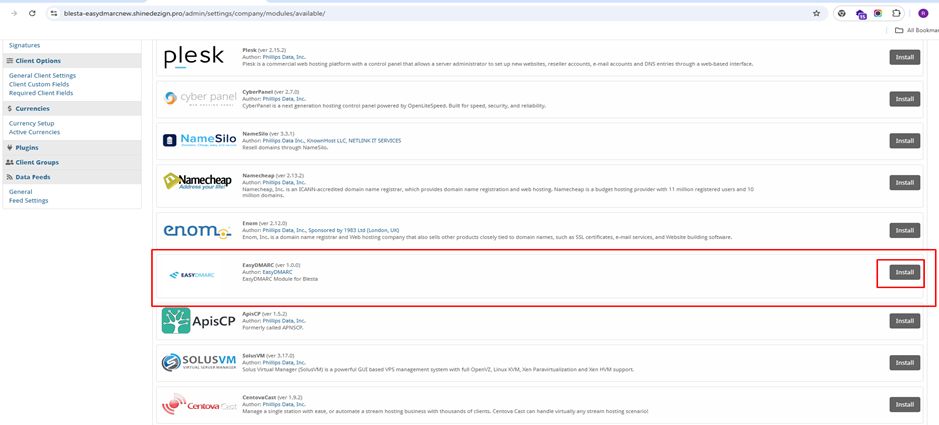
- Sign in to your Blesta Admin panel and go to Settings → Modules

- Click on Available and search for EasyDMARC and install it.
- After Installation go to the installed modules list and click on manage EasyDMARC.
- Click Add Server and use the following details to set it up:
- Enter Server Label
- Add Hostname → api2.easydmarc.com (latest version is always available here)
- Username → use generated Client ID
- Password → use generated Secret Key
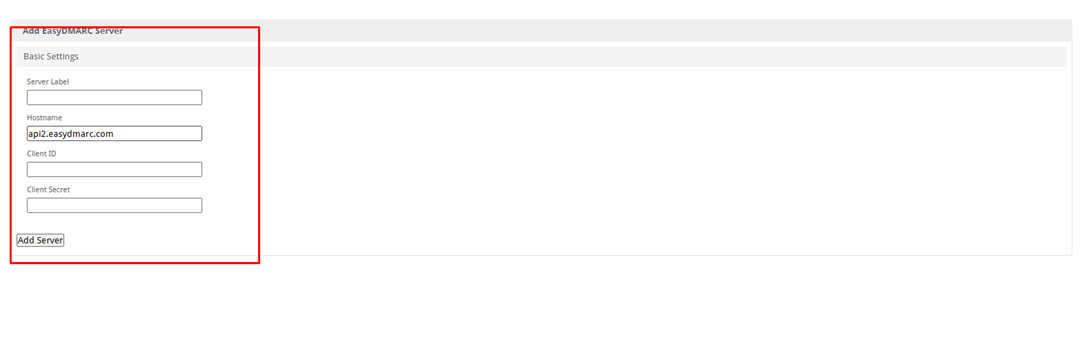
- After entering all the required details, Click Add Server to proceed to the next step.
Step 4 - Product Creation and Group Setup in Blesta
Create Product Group/Assign
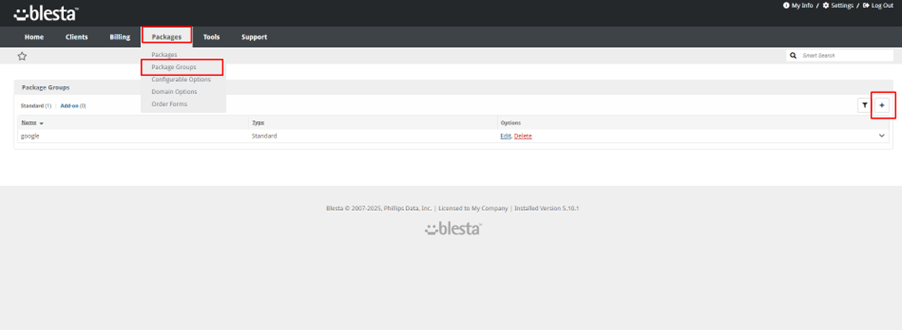
- Go to Packages->Package Groups.
- Click the Plus Icon (+) button to add a new package group.
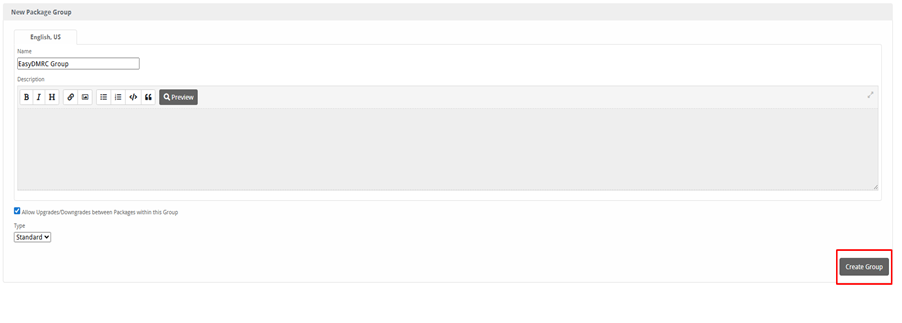
- Enter Package Group Name of your choice.
- Allow Upgrades/Downgrades between Packages within this Group.
Create/Assign product group into the Order Forms
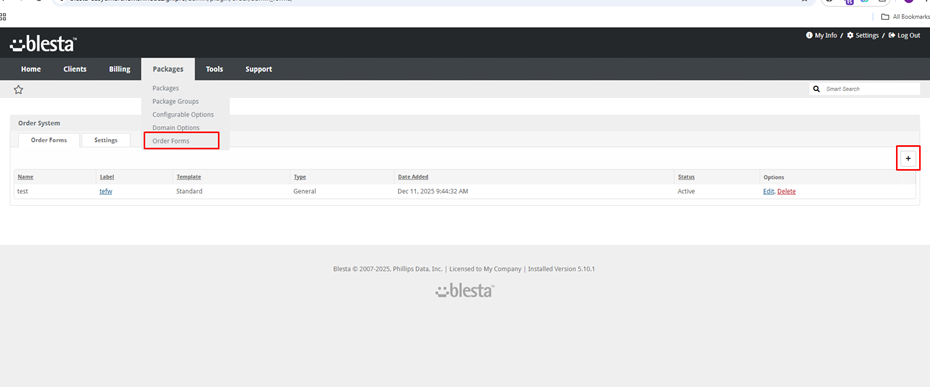
- Go to Packages → Order Forms and click Plus Icon (+)
- Enter the Name and the label of order form.
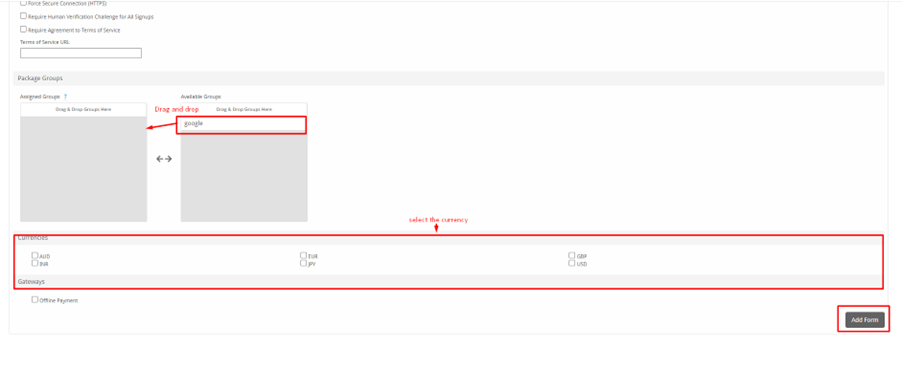
- Choose all the needed options under Description, choose Template and other settings that you need.
- Drag the Available Groups into the Assigned Groups.
- Select the Currencies only selected currency product listed on the client area.
- Click on the Add Form for save.
Create a New Package
- Click on the Packages->packages then click on the Plus Icon (+).
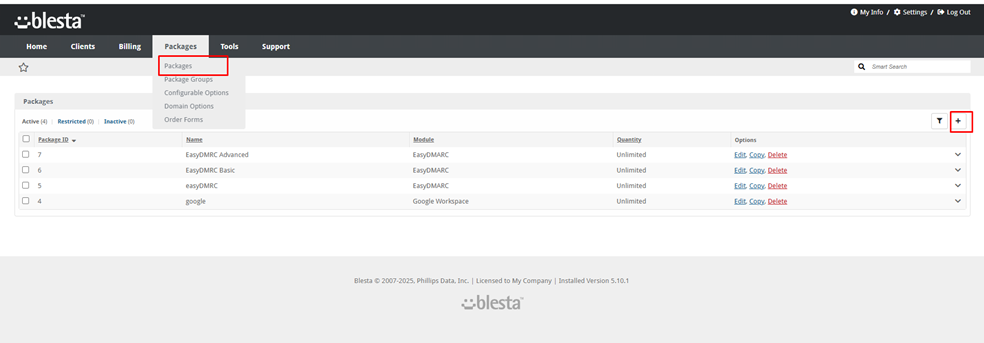
- In the Basic tab enter the details such as Package Name, Pricing and Term and Group Membership. You can also provide a description for the package.
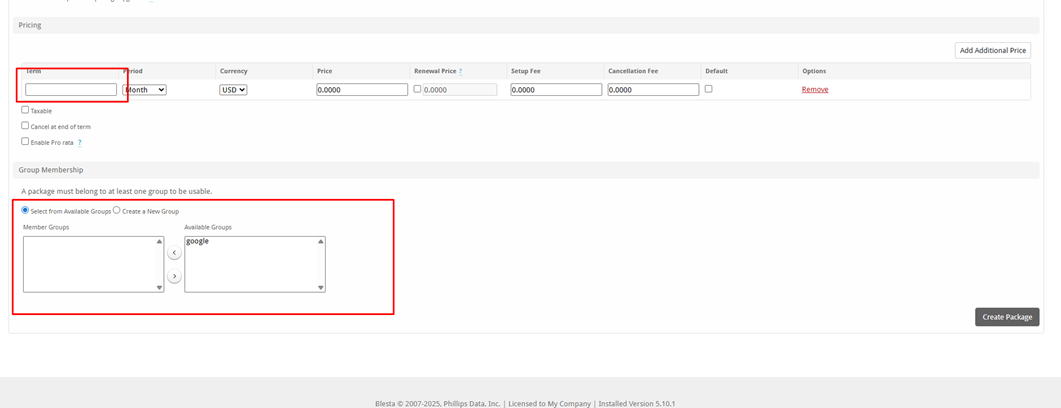
-
In the Module tab choose the EasyDMARC module from the first dropdown. Then select the Server that you added during server configuration in Step 3. Lastly select the EasyDMARC Plan from the list of available packages and click Create Package.
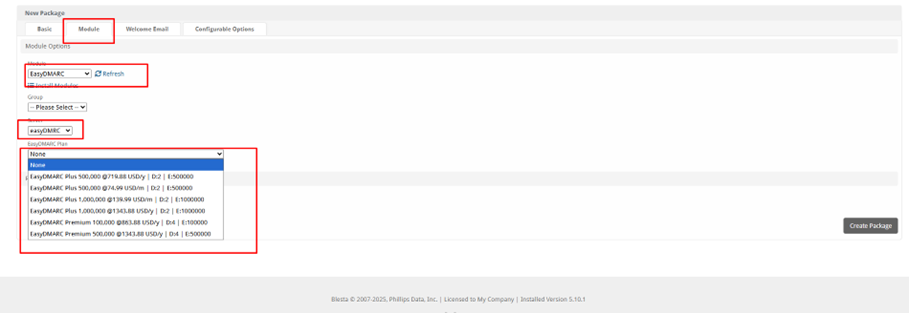
Step 5 - Enable Product Upgrades
If you offer multiple EasyDMARC plans (e.g., Basic, Business, Enterprise), you can allow clients to upgrade or downgrade their plan directly from the client area.
- Login to Admin dashboard, then go to Settings → Company → Billing / Payment.
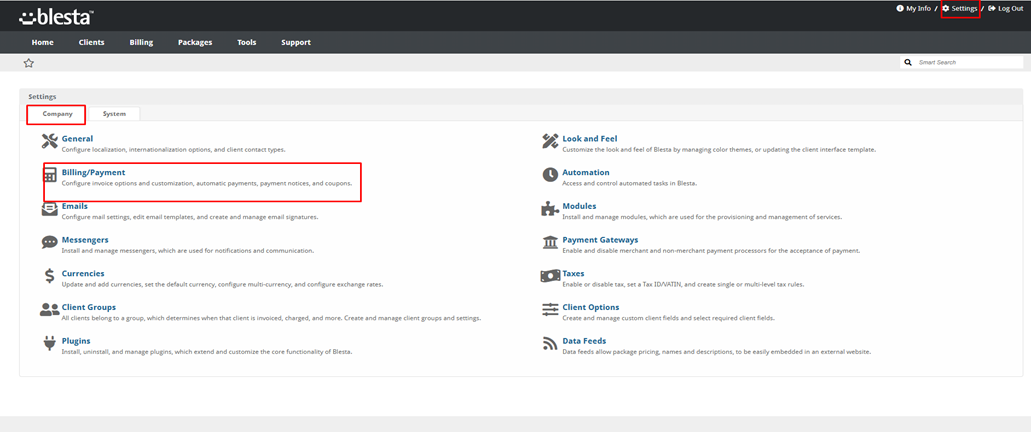
- Check the Checkbox to Change Package, Renew Services and Cancel Services to allow on the client area.
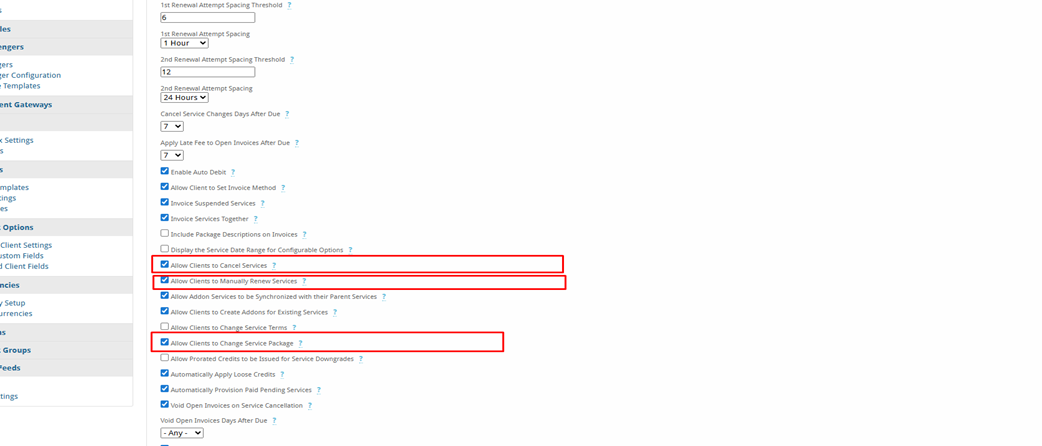
- Click Update Settings.
Your module is now configured and ready to sell EasyDMARC products!.