
Integrating HubSpot Marketing Hub with Sender Insights allows for detailed visibility into email performance by consolidating raw HubSpot event data, including sends, opens, clicks, and bounces, alongside metrics from other email service providers (ESPs). Unlike standard reporting, this integration breaks down performance by individual sending domains and mailboxes (for example, newsletter@ versus support@), providing a comprehensive view of sender reputation and engagement.
The unified analytics dashboard enables users to monitor HubSpot email performance covering delivery, open, click, and bounce rates alongside data from SendGrid, Mailgun, and Amazon SES. This consolidated approach reduces the need to switch between multiple platforms and offers a clearer picture of overall email ecosystem performance.
By analyzing data at the mailbox level, teams can identify which specific addresses or campaigns are driving engagement or contributing to deliverability issues. Sender Insights automatically groups and presents this information, providing actionable insights at a granular level beyond domain-wide statistics.
Real-time monitoring of critical deliverability metrics, such as global bounces and spam reports, allows for proactive detection of potential reputation threats, helping maintain inbox placement and overall campaign effectiveness.
The integration uses secure OAuth 2.0 authentication to connect with HubSpot, automatically syncing the latest event data every 15 minutes. This eliminates the need for manual exports or spreadsheets while maintaining compliance and data security.
Let’s dive into each section to understand it further.
After the integration is completed, and data is received, the first thing you’ll notice will be your:
1- Connection Name
2- Domains
3- Emails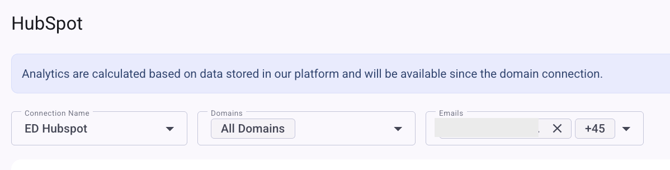
This is very important, as you will have the option to view each connection name you use in HubSpot, along with your domains and email addresses. Everything is based on your selection, so you can choose exactly what you would like to review. In addition, you will also have the option to select a date range so you can analyze the data for your preferred time period.
Sender Deliverability Insights
Sender Performance Summary: These cards provide a consolidated view of deliverability and engagement metrics for a selected sending domain or email address over a specified date range. They offer a high-level perspective on sender performance, making it easy to assess trends and overall results during the chosen period.
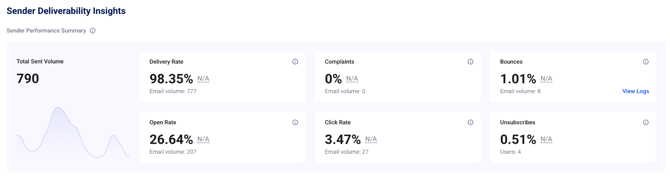
This section includes:
Delivery Rate: Represents the number of emails successfully delivered. Within the card, the corresponding values are displayed from top to bottom.
Delivery % is calculated by dividing the metric total by the total number of emails sent.
Difference % shows the change in the metric total compared to the previous period within the selected date range.
Volume reflects the total number of emails delivered.
Complaints: This metric represents the number of emails delivered to ISPs with which Amazon SES has a Feedback Loop (FBL) configured, excluding any addresses included in your Account Suppression List. Within the card, the corresponding values are displayed from top to bottom.
Complaints % represents the proportion of emails that received a complaint, calculated by dividing the metric total by the total number of emails delivered to ISPs with an Amazon SES Feedback Loop (FBL) enabled.
Difference % shows the change in the metric total compared to the previous period within the selected date range.
Volume reflects the total number of emails that generated a complaint.
Bounces: This metric represents the number of emails that failed to deliver, including both hard and soft bounces, while excluding any addresses listed in your Account Suppression List. Within the card, the corresponding values are displayed from top to bottom.
Bounce % indicates the proportion of emails that failed to deliver, calculated by dividing the total number of hard and soft bounces by the total number of emails sent.
Difference % shows the change in the metric total compared to the previous period within the selected date range.
Volume represents the total number of bounced emails, including both hard and soft delivery failures.
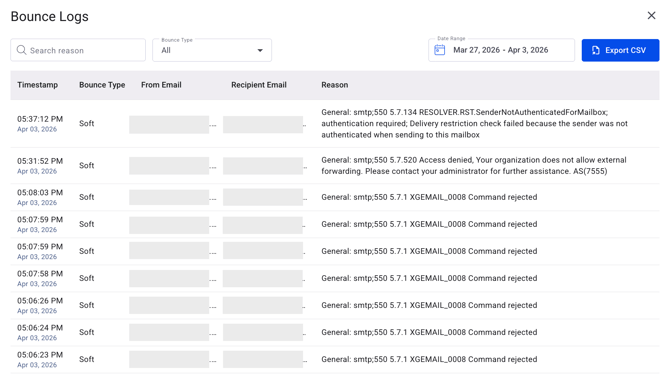
Note: This section allows you to view the bounce logs, providing better visibility into the reasons for bounces. You can see details such as the time of the bounce, bounce type (soft or hard), the sender’s email, and the recipient’s email.
Additionally, you have the ability to search for specific reasons, filter by bounce type, select your preferred date range, and export the data as a CSV file.
Open Rate: This metric indicates the number of emails that were opened and had engagement tracking enabled. Within the card, the corresponding values are displayed from top to bottom.
Open % represents the proportion of emails opened, calculated by dividing the metric total by the total number of delivered emails that had engagement tracking enabled and were HTML encoded.
Difference % shows the change in the metric total compared to the previous period within the selected date range.
Volume reflects the total number of emails that were opened.
Click Rate: This metric represents the number of emails that were clicked and had engagement tracking enabled, containing at least one tracked link. (Individual links can be excluded from tracking using a special tag.) Within the card, the corresponding values are displayed from top to bottom.
Click % represents the proportion of emails clicked, calculated by dividing the metric total by the total number of delivered emails that had engagement tracking enabled, were HTML encoded, and contained at least one tracked link.
Difference % indicates the change in the metric total compared to the previous period within the selected date range.
Volume reflects the total number of emails that were clicked.
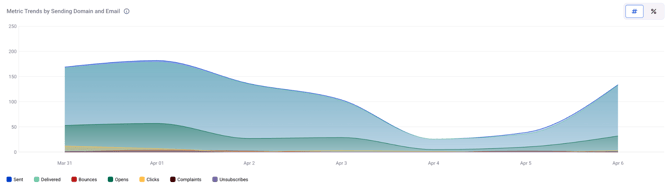
Metric Trends by Sending Domain and Email: These cards provide a summary of deliverability and engagement metrics for a selected sending domain or email address within a specified date range. They offer a high-level perspective on sender performance, allowing users to quickly assess trends and outcomes for the chosen period, and by choosing to see the data by Volume or by Rate.
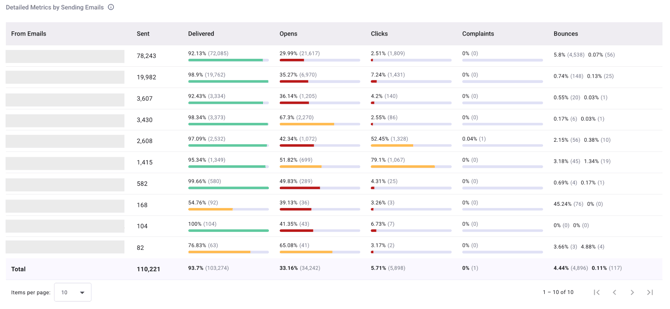
Detailed Metrics by Sending Emails: This table presents key delivery and engagement metrics for sent emails, providing a clear overview of performance. It can be used to analyze trends and identify areas where issues may be affecting deliverability or recipient engagement.
Recipient Deliverability Insights
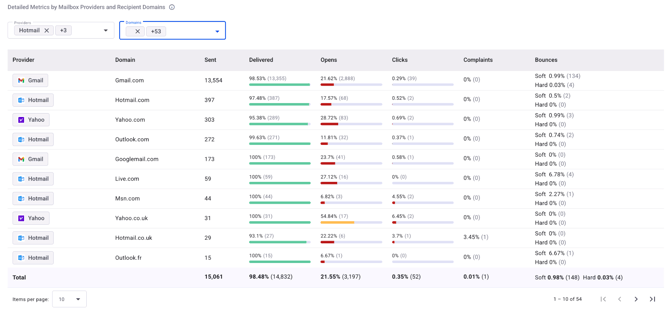
Detailed Metrics by Mailbox Providers and Recipient Domains: This table displays key delivery and engagement metrics broken down by mailbox provider and recipient domain. Bounce metrics include detailed cause breakdowns, allowing for deeper analysis. It can be used to monitor performance trends and identify potential issues across different recipients.
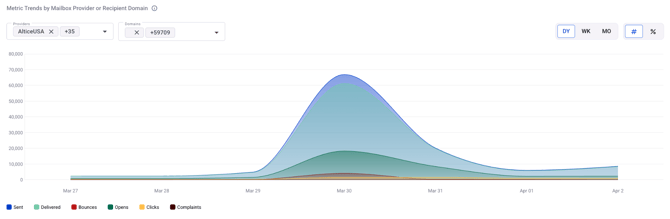
Metric Trends by Mailbox Provider or Recipient Domain: This chart tracks key deliverability and engagement metrics over time for a specific mailbox provider or recipient domain. It allows users to identify performance drops, spikes, or recurring patterns within the selected date range, supporting more informed decisions to maintain and improve email performance.
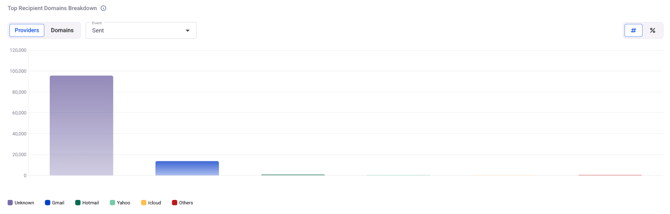
Top Recipient Domains Breakdown: This chart highlights the top mailbox providers or recipient domains according to the selected metric. It can be used to identify performance trends and target deliverability issues more effectively.
If you have any questions, please don’t hesitate to open a support ticket, and our team will assist you.