
EasyDMARC’s Managed Solutions include Managed BIMI, designed to help domain owners navigate the complex process of configuring BIMI, which often requires advanced technical expertise.
Before proceeding with Managed BIMI, it's important to note that having a BIMI record requires your domain's DMARC policy to be set to either “p=quarantine” with “pct=100” or “p=reject.” A “p=none” policy will not qualify, as it does not provide active protection for your domain.
Now, when the domain’s DMARC policy is enforced, let’s review the steps of setting up Managed BIMI from scratch:
Step 1: Navigate to Managed BIMI under Managed Solutions in the left sidebar.
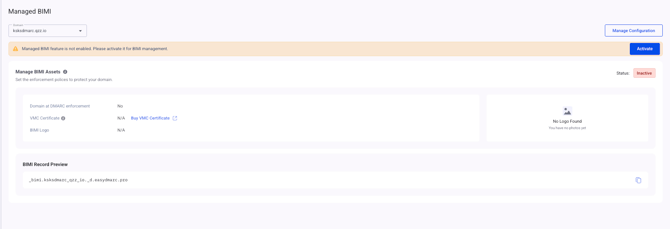
Step 2: Before activating the Managed BIMI Solution, make sure to upload your VMC/CMC certificate and/or SVG-format logo to the Managed BIMI dashboard. To do so, click Manage Configurations in the upper-right corner.
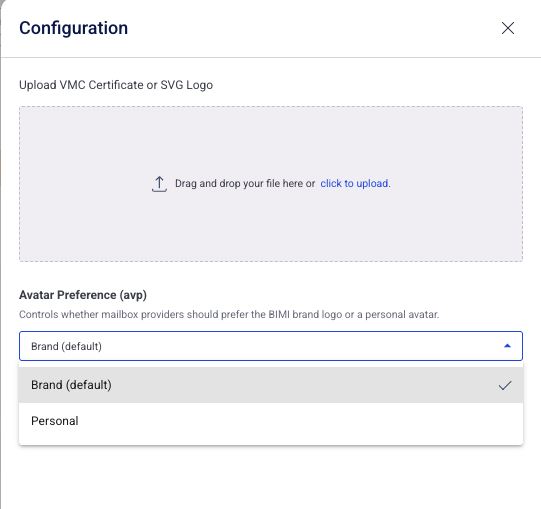
Note: The Avatar Preference (avp) setting indicates whether participating mailbox providers should prefer displaying the BIMI brand logo or a personal avatar when both are available. Brand is selected by default.
Step 3: Once your VMC/CMC certificate and/or SVG-format logo has been successfully uploaded, click "Save". Then, return to the Managed BIMI dashboard and click "Activate" to begin the activation process.
Step 4: The system will generate a CNAME record required to activate Managed BIMI. Add this CNAME record to your domain’s DNS zone.
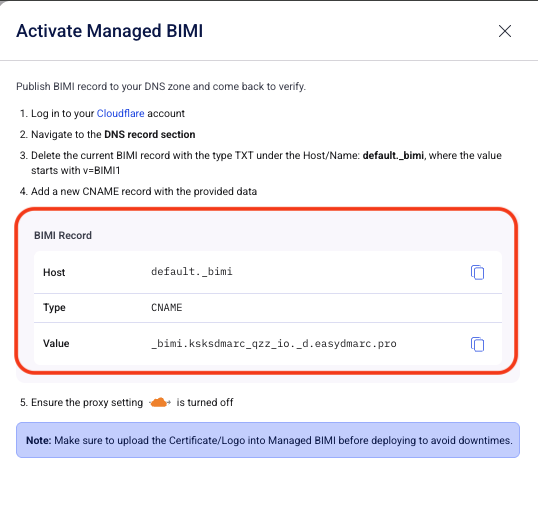
Step 5: Navigate to your DNS host page(in this example it’s Cloudflare) and create a new CNAME type record obtaining the information provided by EasyDMARC
Note: Make sure that any existing BIMI records are removed before adding the one that EasyDMARC provided.
The proxy status on the newly created CNAME record should be disabled.
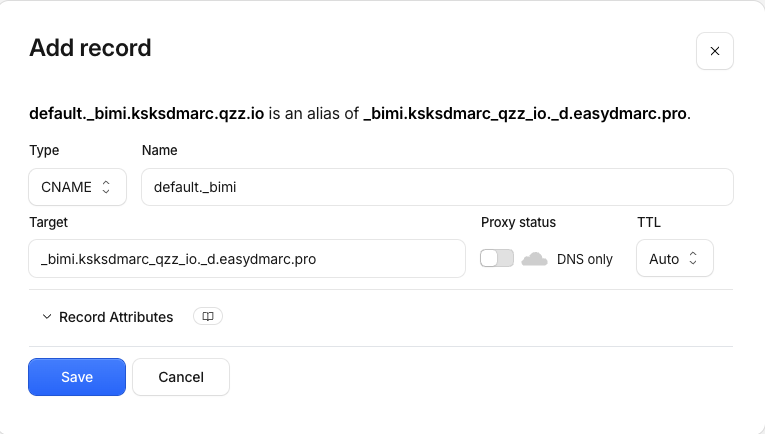
Step 6: Once the CNAME record has been added to your DNS zone, return to the Managed BIMI dashboard and click "Verify". After the DNS record has propagated and been successfully verified, Managed BIMI will be activated for your domain.
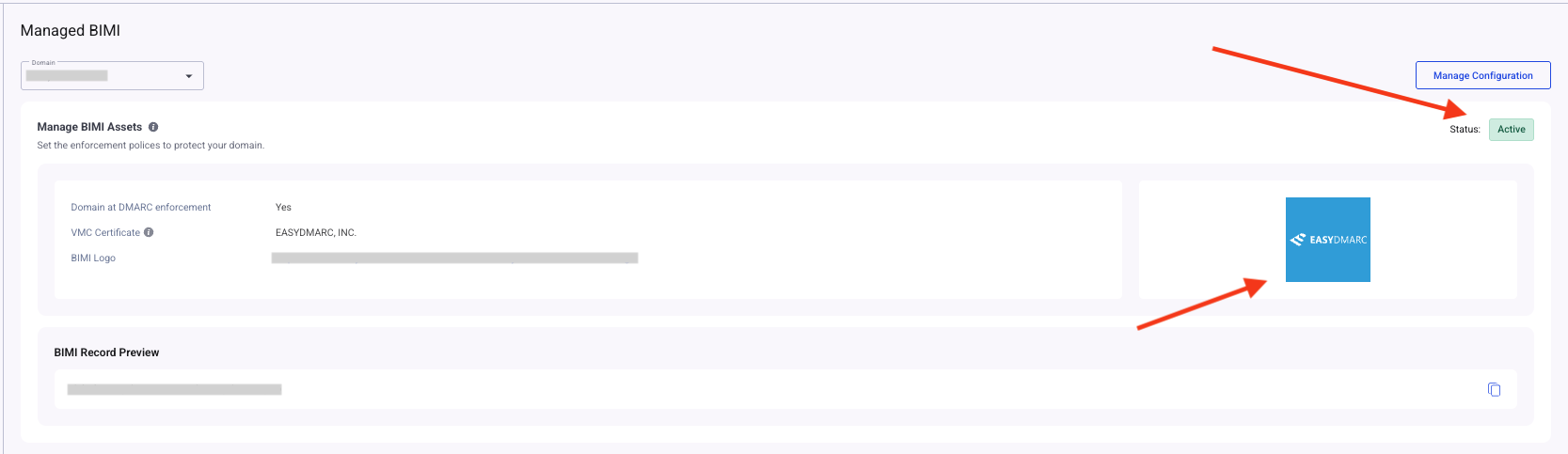
To double-check your BIMI configurations, you can use EasyDMARC’s BIMI record checker
If you encounter any difficulties, please don’t hesitate to contact our support team by submitting a ticket.