
The SentinelOne integration sends your EasyDMARC alerts and audit logs to SentinelOne Singularity AI SIEM (Singularity Data Lake) as structured events. Your security team can then see email-authentication events, such as a changed DMARC record or a spike in authentication failures, next to endpoint and identity data, and act on them with SentinelOne detections and playbooks.
There is nothing to install. EasyDMARC pushes events to SentinelOne's HTTP Event Collector (HEC) endpoint, using a write key you create in SentinelOne. Setup takes about 15 minutes.
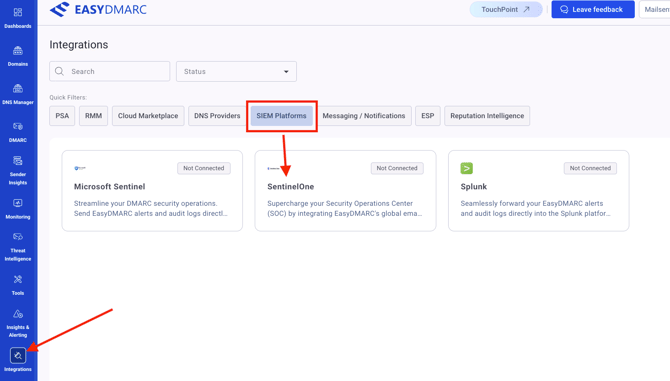
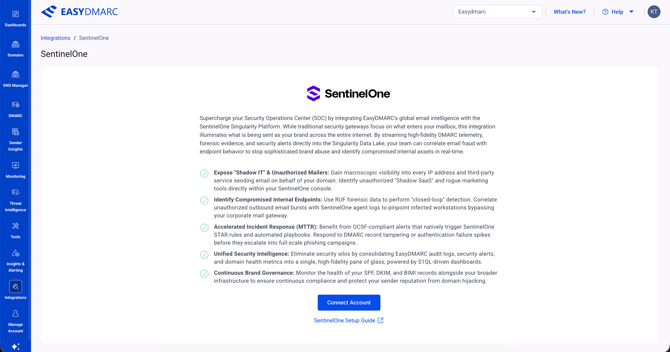
You find the integration under Integrations >> SentinelOne. The page describes the integration and holds the Connect Account button and a link to the SentinelOne Setup Guide.
Teams typically use the integration to:
- Get a SIEM alert when a DMARC, SPF, DKIM or BIMI record watched by an EasyDMARC alert changes unexpectedly.
- Trigger SentinelOne STAR rules and automated playbooks from EasyDMARC alerts.
- Keep an audit trail of EasyDMARC account activity, such as configuration changes and user sign-ins, alongside the rest of your security logs.
Before you start, please check below what you need.
|
Where |
What you need |
|---|---|
|
EasyDMARC |
An account with admin rights, at least one managed domain, and a plan that includes Alerts, Audit Logs or both. |
|
SentinelOne |
A tenant with AI SIEM (Singularity Data Lake) turned on, and the rights to create an AI SIEM HEC write key (a Log Access key). |
|
Your region |
Your SentinelOne region and its ingest URL. |
Step 1: Get your SentinelOne ingest details
- Sign in to the SentinelOne console.
- Open the menu under your email address and select API Keys.
- Under Log Access Keys, select Add Write Key, then copy the HEC token it creates.
- Note your ingest URL. Replace <region> with your region, for exampl us1 or eu1. If you aren't sure of your region, check your console URL or ask your SentinelOne admin.
Example URL: https://ingest.<region>.sentinelone.net/services/collector/event
Copy the token now. SentinelOne shows the HEC token only once. Keep it somewhere safe until you paste it into EasyDMARC.
Step 2: Connect EasyDMARC to SentinelOne
- In EasyDMARC, go to Integrations >> SentinelOne and select Connect Account.
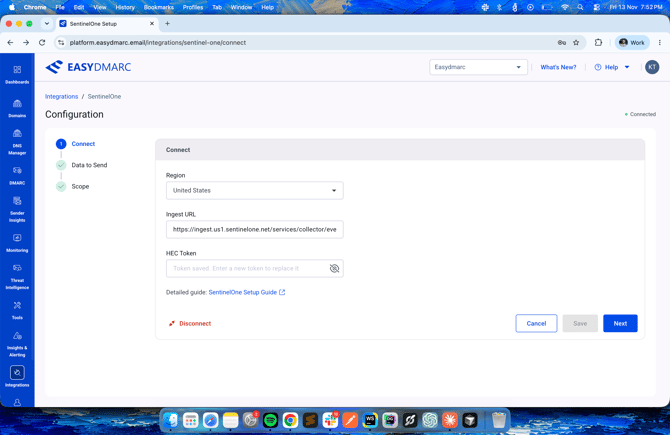
- Fill in the connection details:
|
|
What to enter |
|---|---|
|
Region |
Pick your SentinelOne region: United States, Canada, Europe (EMEA), India, India South or Australia. |
|
Ingest URL |
Filled in from the region you pick. Change it only if your SentinelOne admin gave you a different ingest host. It must be an https address on sentinelone.net. |
|
HEC Token |
The write key from Step 1. It's masked after you paste it. |
Step 3: Choose what to send
EasyDMARC sends two streams to SentinelOne, each with its own switch.
|
|
What it sends |
|---|---|
|
Alerts |
The alerts you set up in EasyDMARC, sent as structured events. In the next step you choose which domains' alerts are sent. |
|
Audit logs |
Account activity, such as configuration changes and user sign-ins. It sends every audit event for your whole organization, whatever you choose in the next step. |
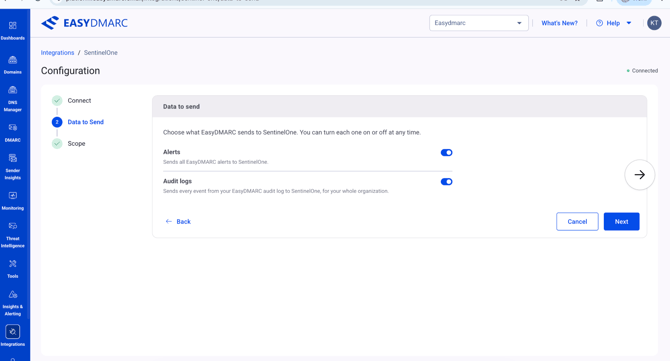
Both switches start off. Nothing is sent until you turn on at least one stream and finish the setup.
Your plan decides what you can turn on. A switch is grayed out, with an upgrade message, if your EasyDMARC plan doesn't include that feature. Alerts needs a plan with Alerts, and Audit logs needs a plan with Audit Logs.
Step 4: Choose the domains
Scope decides which domains' alerts go to SentinelOne. It applies to alerts only, so if Alerts is off, you skip this step.
- Under Send alerts from, choose All managed domains, or choose to send alerts only for selected domains and pick at least one.
- Select Save Configuration. You'll see a SentinelOne Configured confirmation.
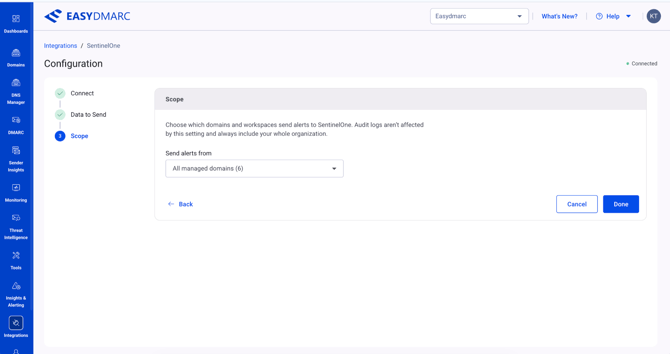
You can change it later. Open the integration again at any time to change the streams, the domains or the connection details.
Step 5: Import the parser and detections
The parser and detections are in SentinelOne's Sentinel-One/ai-siem repository on GitHub. Import them into your SentinelOne console:
- Parser. Import the EasyDMARC parser (parsers/…/easydmarc*.conf), so events are checked, enriched and tagged.
- Detections. Import the STAR and PowerQuery detection templates.
Test before you rely on it. Check the parser and detections against sample data before you use them in production.
Step 6: Check that it works
|
Check |
How |
|---|---|
|
Connection |
The integration screen shows the status Connected. |
|
Data |
In AI SIEM, run a query on "Vendor = "EasyDMARC" and check that events arrive for the streams you turned on. |
|
Alerts |
Change a DNS record that one of your EasyDMARC alerts watches, such as the SPF or DMARC record of a test domain, and check that the alert event arrives in AI SIEM. |
How long it takes. EasyDMARC sends events to SentinelOne once a minute, so audit events show up within a few minutes. A DNS record alert fires at that alert's next scheduled check, so a record change can take longer to appear.
Troubleshooting
|
You see |
What it means |
What to do |
|---|---|---|
|
Connecting fails right away |
The region or ingest URL is wrong. |
Check the region, and that the URL is on sentinelone.net and ends in /services/collector/event. |
|
401 or 403 when sending |
The HEC token is wrong or has expired. |
Create a new write key (Step 1) and paste it into EasyDMARC. |
|
413 or "request too large" |
A batch is too large. |
Nothing. EasyDMARC keeps batches under 4.5 MB and splits them automatically. |
|
429 or 503 now and then |
SentinelOne is limiting traffic for a moment. |
Nothing. EasyDMARC retries automatically with growing pauses. |
|
No events in AI SIEM |
Both streams are off, which is how they start. Or the domain isn't in your Scope, no alerts are firing in EasyDMARC, or the parser isn't imported. |
Turn on the streams (Step 3), check the domains in Scope (Step 4), make sure you have alerts set up in EasyDMARC, and import the parser (Step 5). |
|
A stream's switch is grayed out |
Your EasyDMARC plan doesn't include Alerts or Audit Logs. |
Upgrade your plan, or send only the stream your plan includes. |
|
Ingest costs higher than expected |
Many alerts, or large events. SentinelOne bills ingest by volume. |
Limit the domains in Scope, adjust which alerts you create in EasyDMARC, or turn off Audit logs if you don't need account activity in the SIEM. |
If you encounter any limitations, you can contact our support team by opening a ticket here.