
The Oracle Eloqua integration brings your Eloqua sending activity into Sender Insights: sends, opens, clicks, unsubscribes and bounces.
EasyDMARC connects as a dedicated Eloqua user, using that user's login. It detects your Eloqua instance automatically, so you don't need to know your pod or server URL.
Before you start
You need a dedicated Eloqua user that:
- Signs in with an Eloqua username and password.
- Has at least the Advanced Users - Marketing permissions.
- Can open all of your Eloqua emails. EasyDMARC sees the same data as this user, so activity on emails it can't open is skipped.
If you don't have such a user, ask your Eloqua administrator to create one or check its permissions before you connect.
Important: EasyDMARC connects as this user. If the user's password changes, you'll need to connect again (see Troubleshooting).
You'll also need your Eloqua company name, the one you enter on the Oracle Eloqua sign-in page.
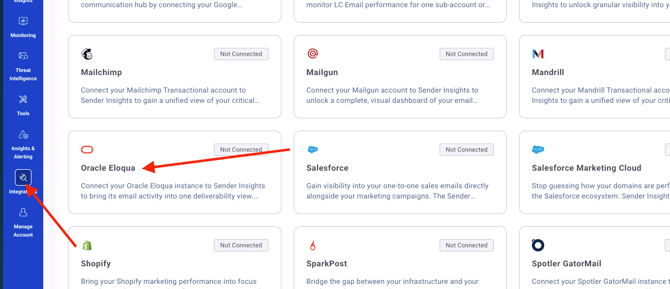
Step 1: Start the connection- In EasyDMARC, go to Integrations → ESP → Oracle Eloqua.
- Select Connect Account.
- Enter an Account Name of your choice.
- Enter your Eloqua Company name, then the dedicated user's Username and Password.
- Select Connect.
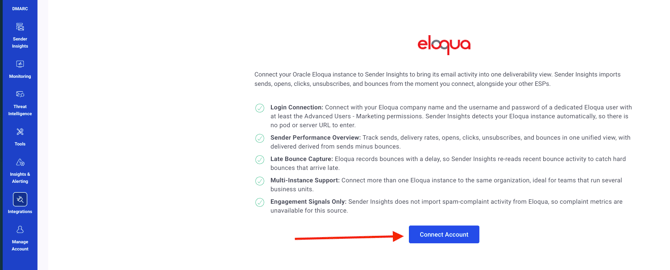
EasyDMARC signs in to Eloqua with the login you entered. If Eloqua refuses it, the form tells you why (see Troubleshooting).
When the login works, EasyDMARC detects your Eloqua instance and finishes the connection. The account shows as Connected.
You can connect more than one Eloqua instance to the same organization. Each instance can be connected only once, and two instances can't share a domain.
Step 3: Add your domainsAdd the sending domains you use in Eloqua to the connection. EasyDMARC finds them from the From addresses of your Eloqua emails.
Each domain must be verified in EasyDMARC. EasyDMARC imports activity only from domains that are added and verified.
Once your domains are added, EasyDMARC starts importing your Eloqua activity. Sends, opens, clicks, unsubscribes and bounces appear in Sender Insights. New activity appears after a delay of an hour or more.
- No history import. EasyDMARC imports activity from the moment you connect onward. Activity from before you connected isn't imported.
- Bounces arrive late. Eloqua records bounces on a delay, so hard bounces can take hours, sometimes longer, to appear. EasyDMARC re-checks recent activity to catch them.
About DKIM and SPF
Eloqua handles DKIM signing through Oracle's Branding and Deliverability package, which Oracle Support sets up. SPF is a DNS record you publish yourself. EasyDMARC doesn't configure either inside Eloqua.
EasyDMARC does detect Eloqua as a sending source and checks that your DKIM and SPF records are published correctly. Use DNS Manager and your aggregate reports to publish and verify them.
TroubleshootingEloqua rejects the login when you connect. Check the company name, username and password.
- If the message mentions the Advanced Users - Marketing permissions, ask your Eloqua administrator to add them to the user.
- If it says the instance is already connected, delete that connection first, then connect again.
- If it says Oracle Eloqua is unavailable, wait and try again later.
No data appears. EasyDMARC sees the same data as the Eloqua user who connected. Check that the user's security groups let it open all your Eloqua emails, because activity on emails it can't open is skipped. Also check that the connection has at least one verified domain. Remember that new activity takes an hour or more to appear.
The connection shows Connection Issue. Select Reconnect to restore access.
Eloqua password changed. The connection turns to Connection Issue, and Reconnect can't fix it because it uses the saved login. Delete the connection, connect again with the new password, and add your domains again. Activity is imported from the new connection time onward.
If there are still questions or concerns that remain uncovered after checking this article, you can contact EasyDMARC Technical Support.