
Microsoft 365 is Microsoft's cloud-based suite of productivity and collaboration tools, including Outlook, Exchange Online, Teams, and SharePoint, used by organizations to manage email, documents, and communication across a company-wide tenant.
To integrate Microsoft 365 with EasyDMARC, please check the steps below:
1. Initiate Consent:
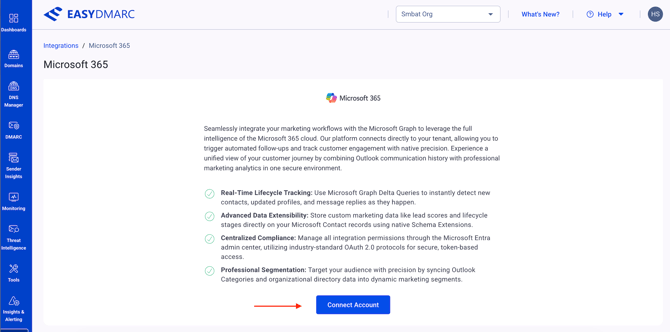
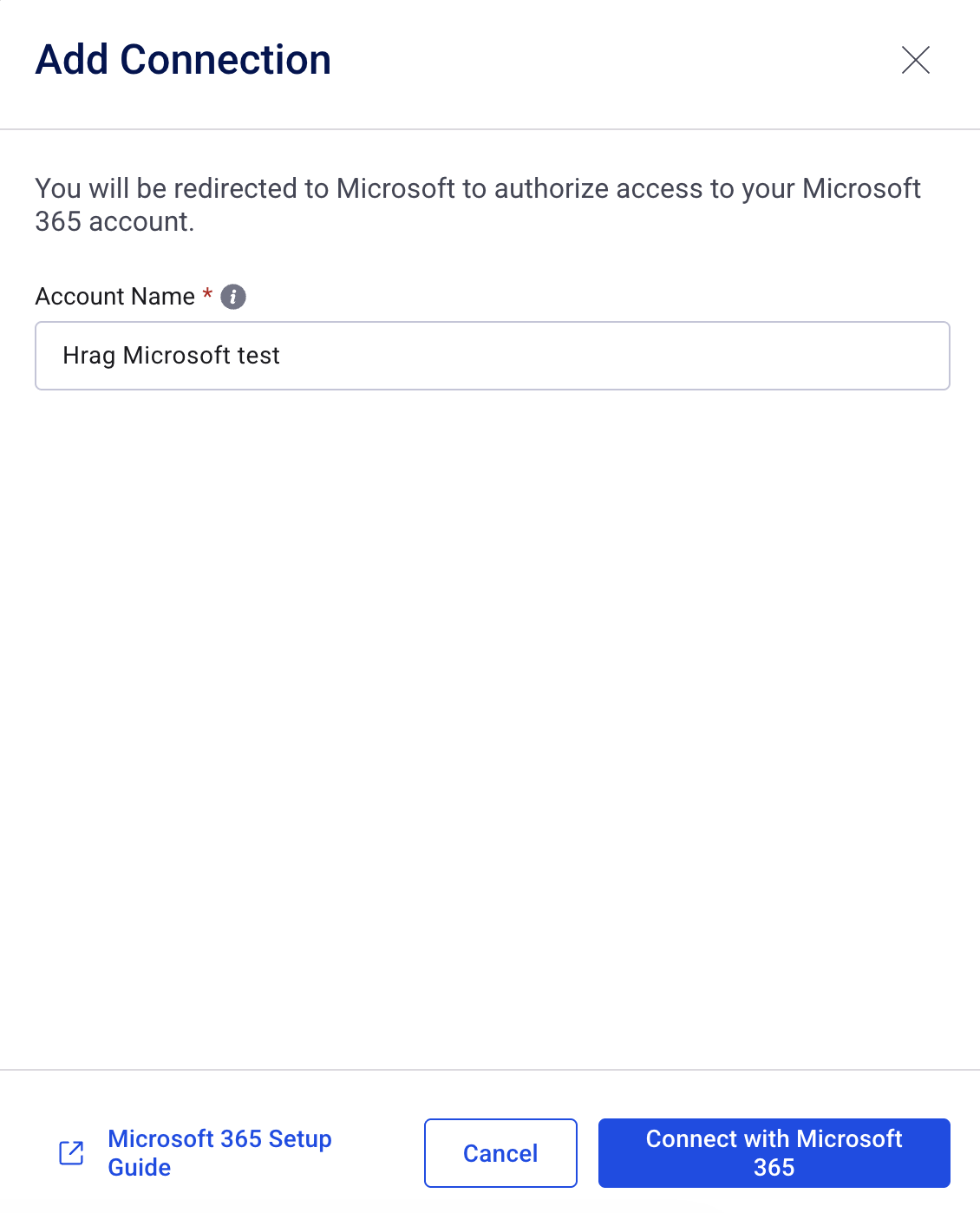
Navigate to Integrations -> Microsoft 365. Click on "Connect Account" button on the EasyDMARC integration page and then give an Account Name and click "Connect with Microsoft 365" to be redirected to the Microsoft secure authorization portal.
2. Admin Login:
Sign in with a Global Administrator account for your Microsoft 365 tenant to grant organization-wide permissions.
3. Review Permissions:
Review the list of requested Microsoft Graph API permissions, which will include Mail.Send, Contacts.Read, and ExchangeMessageTrace.Read.All for delivery analytics.
4. Grant Consent:
Check the box labeled "Consent on behalf of your organization" and click Accept.
5. Service Principal Provisioning:
If your organization requires message tracing for bounce/delivery metrics, EasyDMARC will guide you through a one-time PowerShell command to provision the required service principal in your tenant.
6. Configuration:
Once redirected back to EasyDMARC, select the specific mailboxes or security groups you wish to include in the integration.
7. Finalize Sync:
Click Start Initial Sync to map your existing Outlook folders and categories to EasyDMARC's segmentation engine.
If there are still questions or concerns that remain uncovered after checking this article, you can contact EasyDMARC Technical Support.