
This feature allows you to receive automated email notifications with daily, weekly, or monthly reports sent to a specific email address of your choice. These reports provide a domain-based summary, including key details such as email volume, protocol validations (SPF, DKIM, DMARC), sending sources, the applied DMARC policy, and much more.
From the left sidebar, navigate to Insights & Alerting > Reporting. Click Create Report to start setting up a new report.
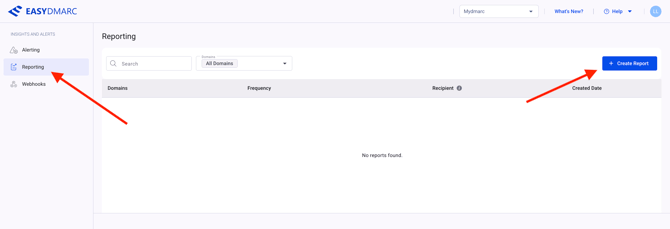
-
Specify the domains for which the DMARC reports will be generated.
- Enter the email address of the person who should receive the report notifications.
- Choose the appropriate time zone to ensure the recipient receives the reports at their preferred local time.
- Select the desired period (daily, weekly, monthly) for which the DMARC reports will be generated and sent to the recipient email address:
- Daily: DMARC reports will be generated every day.
- Weekly: DMARC reports will be generated every week.
- Monthly: DMARC reports will be generated every month.
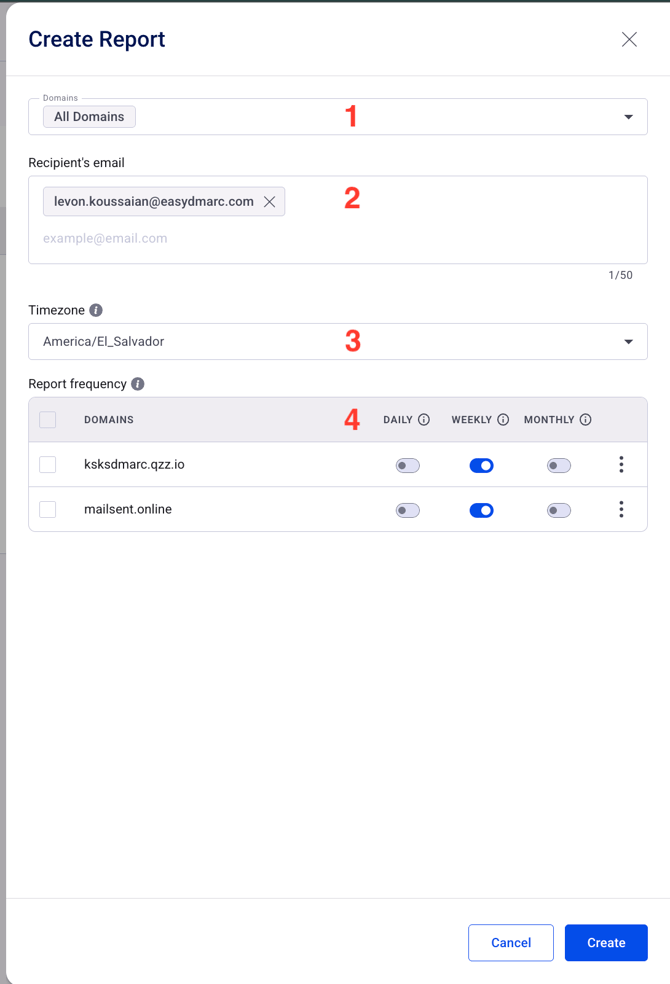
Once you’ve filled out all the required fields based on your preferences, click the Create button. Your report will be created and scheduled for delivery according to your selected frequency.
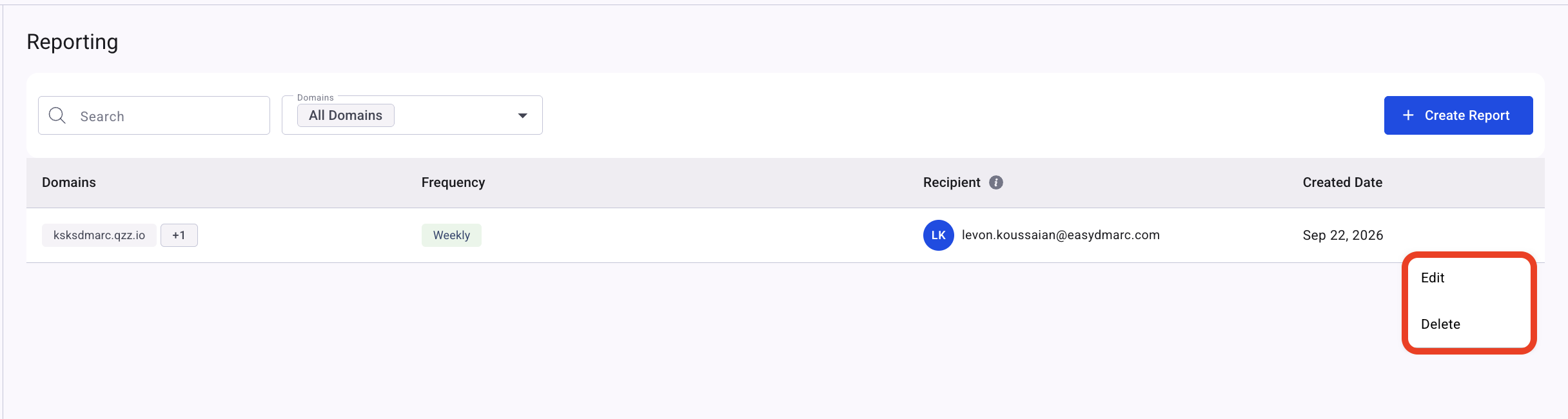
After creating the report, you can view it on your dashboard. From there, you can edit the report settings or remove the report if it’s no longer needed.
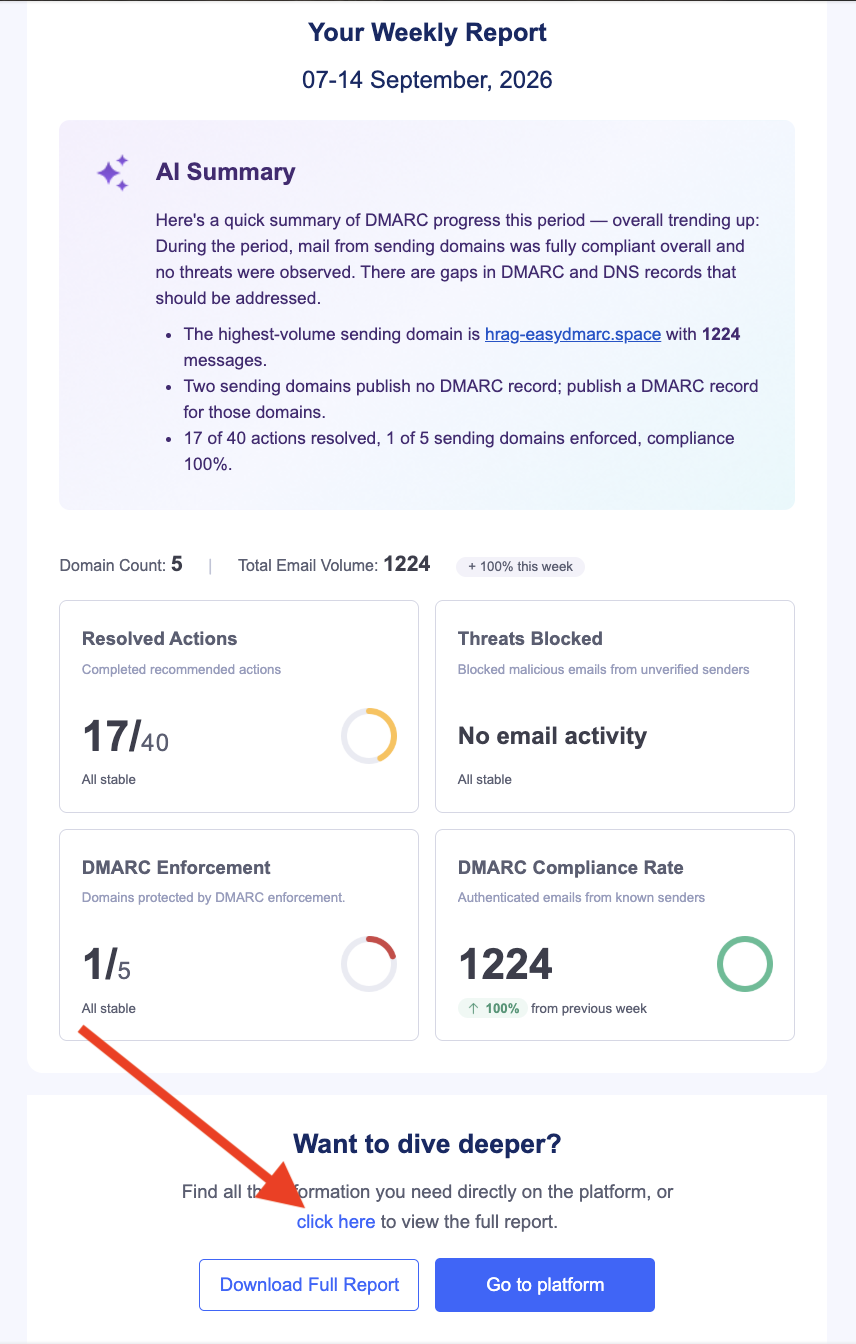
Here’s an example of what the email notification will look like. You can also view the report or download the full, detailed version for further review.
By following these steps, you’ll have a streamlined reporting process, keeping you informed about your domain's email activity and DMARC compliance status. Regular reporting ensures you stay on top of your email authentication and security measures, helping to protect your domain and maintain trust with your recipients.