
EasyDMARC's white-label reporting feature allows you to send reports to your clients without EasyDMARC branding. By connecting your Microsoft mailbox to EasyDMARC, you can use your own email domain to send reports and provide a more consistent, branded experience for your clients.
This guide explains how to connect your Microsoft mailbox and activate white-label reporting in the EasyDMARC Trust Platform.
Step 1: Microsoft Mailbox Connection
Navigate to Insights & Alerting from the left hand menu and choose Reporting. (Or click the link for a shortcut Reporting). After that click on Mailbox Configuration.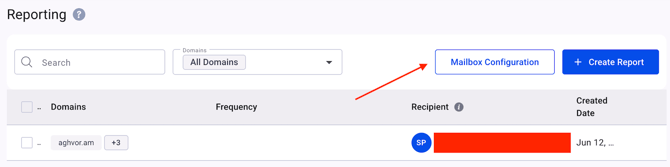
Select Microsoft and click Connect.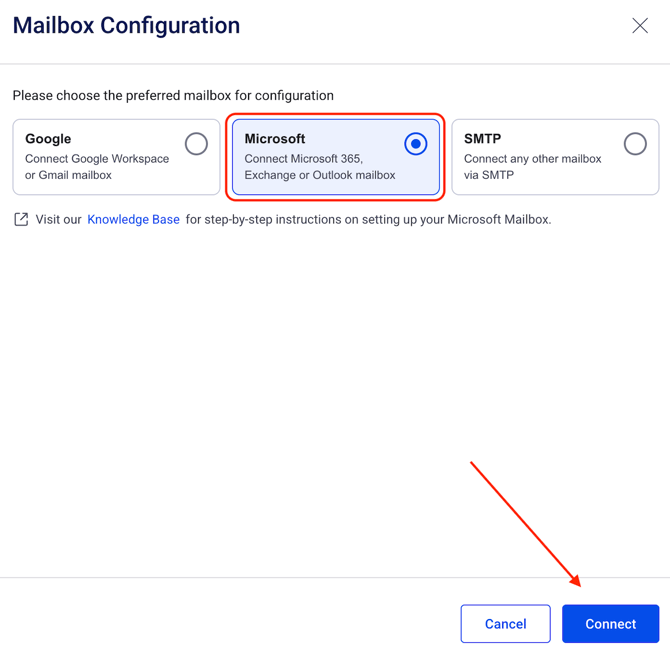
This will redirect you to Microsoft Log in page, where you need to log in your Microsoft Admin account and accept the permissions requested. And after that you will see a green pop up on top right corner showing successful connection message.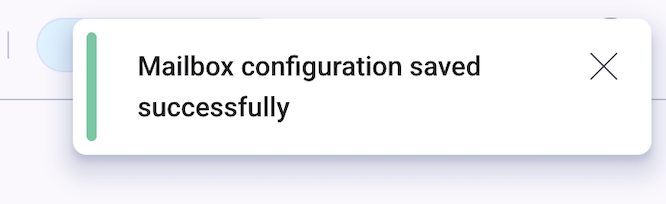
And you will have Microsoft mailbox successfully connected to EasyDMARC via SMTP.
Step 2: Activate White Label Reporting
In the Reporting section, click the three-dot menu next to the report you previously created and select Edit.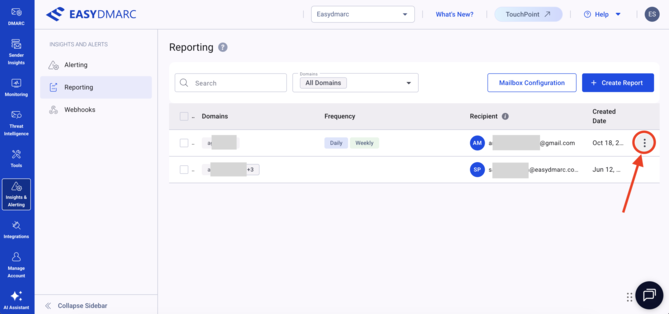
Scroll down to the White label reports section and enable the option by toggling it on. Select My Domain and make sure your intended Microsoft email address is displayed under the Connected Account section.
Click Save to apply your changes.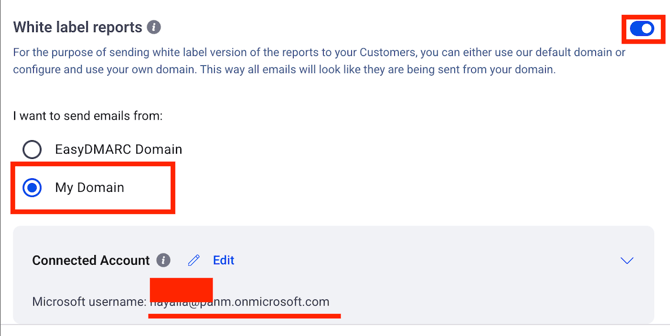
White-label reporting is now enabled for your selected report, allowing you to send reports using your connected Microsoft mailbox.
In case you have any questions which are not addressed the guide, please feel free to reach out to EasyDMARC experts.