
DNS Manager is organized into several sections, each focused on a different part of managing your DNS: checking configuration, monitoring live status, making changes safely, and recovering from a change if needed.
Overview
The Overview section shows a high-level view of all your verified domains at once:
1. Your total domain count
All domains verified in your EasyDMARC account. DNS Manager monitors every verified domain for health and security issues. Full DNS zone management (add, edit, delete records) is only available when a DNS provider integration is connected
2. Average health score
A 0–100 score averaged across your domains, based on Open Intelligence insights. Each domain starts at 100 and loses 20 points for every open Critical insight and 5 for every open Warning. Any open Critical also caps the domain at 79, so it can’t show as Healthy while a critical issue is active. Informational insights and dismissed insights don’t count. Bands: 90–100 Healthy · 70–89 Needs Attention · 0–69 Critical.
3. The number of insights that need attention.
The total number of open findings across all domains from our intelligence engine. We run ~40 continuous checks covering DNSSEC, email authentication, record hygiene, certificates, nameservers, and more. Each finding has a severity and a suggested action.
4. Critical insights count
Insights with critical severity — issues that can break email delivery, DNS resolution, or domain security if left unresolved. These should be reviewed immediately. If you’ve subscribed to DNS Manager Insights alerts, you’ll also receive these via your configured channels (email, Slack, webhook).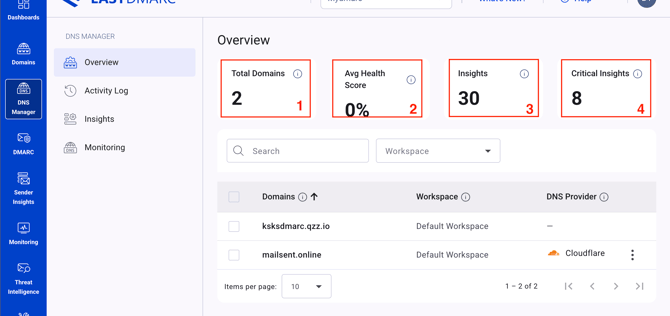
The overview section also includes a search bar for finding a particular domain, plus a workspaces dropdown to switch between workspaces.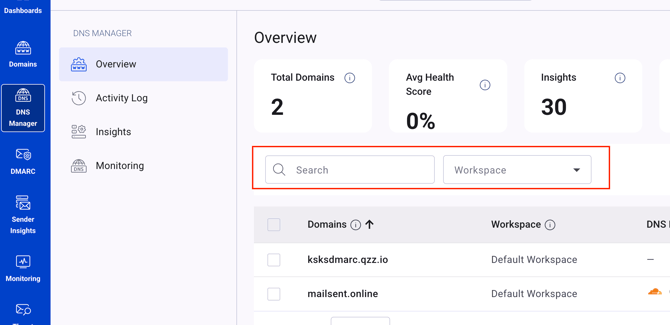
Below those, you'll find a table listing all your domains. 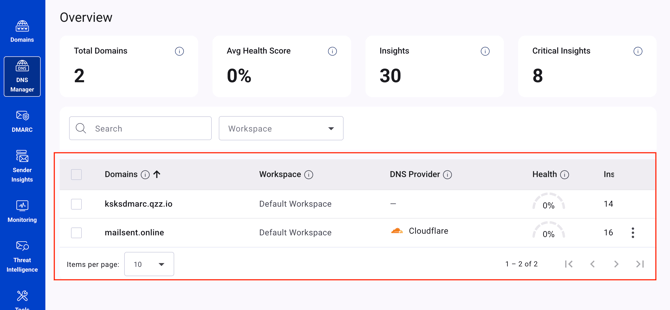
Clicking on any domain takes you to its detailed DNS view.
Note: To see all the details and use all the centralized management capabilities of the detailed per-domain view, you need to integrate your DNS provider.
The detailed domain overview provides the following information in the header of the page:
1. Number of records
The total count of DNS records in this zone — A, AAAA, CNAME, MX, TXT, NS, SOA, CAA, SRV, PTR.
2. Changes
The total number of changes detected on this domain — record additions, modifications, deletions, and snapshots taken. Includes both changes made through EasyDMARC and changes made directly in the provider’s dashboard (shown as “drift” events).
3. Insights
The number of open intelligence findings on this domain.
4. Last checked date and time
When we last queried this domain’s authoritative nameservers. Health scores, insights, and the zone records view are based on this snapshot.
5. Snapshot button
Capture the current state of the entire DNS zone. Useful before bulk changes, migrations, or as a known-good restore point.
6. Add record button
You can click the Add record button to create any record in your DNS zone for the given domain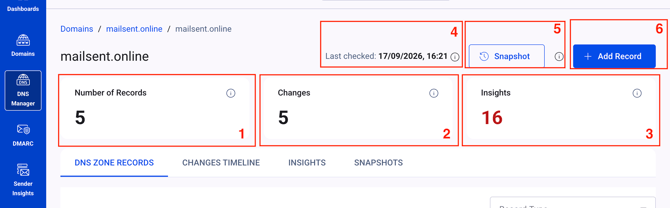
Below the header, you have 4 main sections for each domain overview:
1. DNS zone records
This section shows the selected domain's DNS records - record types, names, values, TTLs, a dropdown to filter by record types, and last updated time, which shows when the record was last modified — eithee through EasyDMARC or detected via drift from the provider.
If the domain's DNS provider is integrated with EasyDMARC, you will also have the edit and remove functionalities for supported records: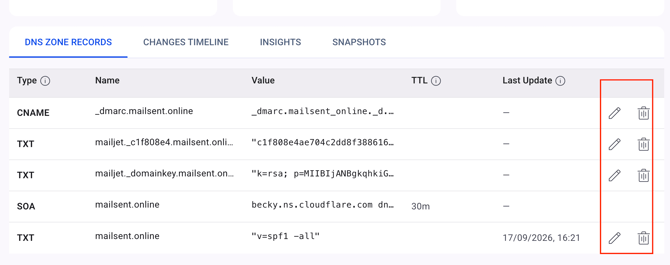
When clicking the "Edit" button, a side bar will open where you will see the current record, with the field to make changes in the record name and value, set the TTL and buttons to save the changes or cancel them.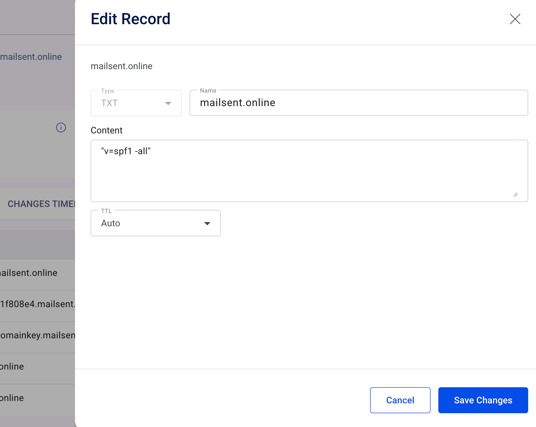
Clicling the "Delete" button will provide a pop up for confirmation before the record removal: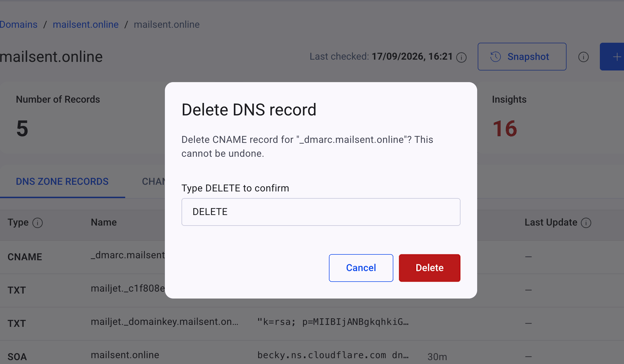
2. Changes timeline
This section shows the changes that were done to the selected domain's DNS records with the following details:
The list of changes with views before and after the change and the time when the change was detected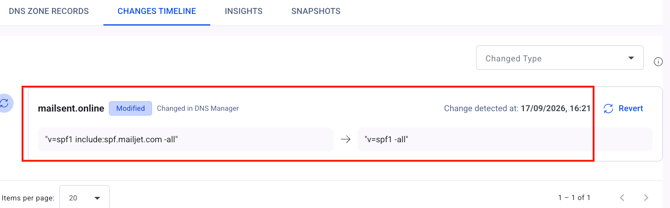
The "revert" button if you want to bring the record back to the "before change" state. Before reverting the record, you will need to approve the change: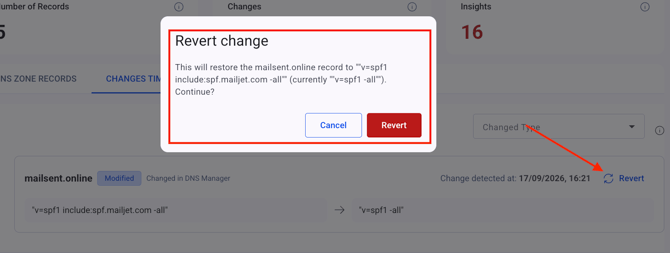
Dropdown to filter the changes by the change type - All, added, modified and removed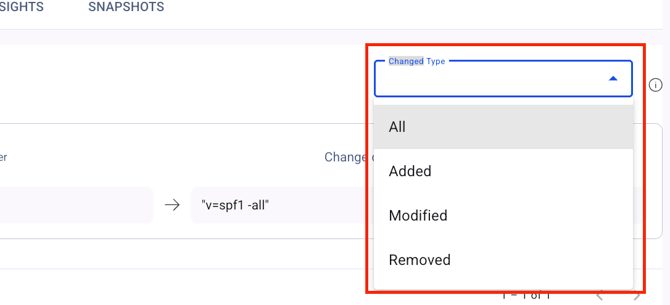
3. Insights
EasyDMARC runs around 40 automated checks across your DNS zone — covering email authentication, mail routing, encryption in transit, key/certificate strength, and overall security posture.
Each finding explains what's wrong and how to fix it, and our AI walks the evidence, identifies the likely cause, and prepares the fix for you to approve.
In the "Insights" section of the domain overview in DNS manager you will find the open intelligence findings with their:
1. Names
2. Descriptions
3. Severity - Critical — immediate action needed (breaks something now or imminently). Warning — should be fixed (creates risk or weakens security). Informative — good to know (best-practice nudge, no immediate risk).
4. Detection time - When we first detected this issue. Older findings that haven’t been resolved deserve a closer look — they often indicate a configuration the team has forgotten about.
5. Details with the button "View details" - Open the full finding detail — what triggered it, the records affected, and the suggested remediation steps.
6. Action button "X" in case you want to dismiss the finding
7. Dropdown to filter the insights per severity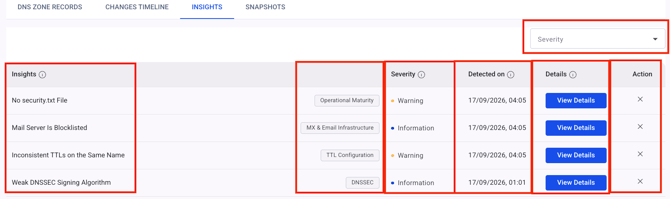
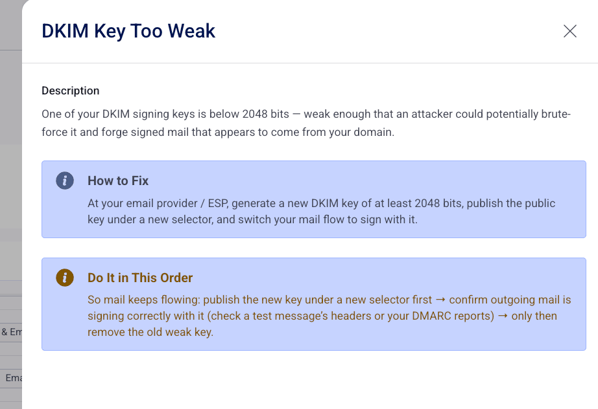
When clicking the "View Details" button, you will be presented with a sidebar describing the finding, providing the option on how to fix it and the explanation on why it would be helpful:
4. Snapshots
Snapshots let you capture the complete state of your DNS zone at a single point in time. This comes in handy before bulk changes or migrations, giving you a known-good restore point you can roll back to if something goes wrong.
Note: EasyDMARC takes automated snapshots on a daily basis. However, you can use the Snapshot button for forced snapshot whenever needed.
The Snapshot section provides you with:
1. The list of your snapshots for the selected domain
2. The type of the snapshot - manual or automatic
3. "Restore" button, which will let you restore the records back to the state when the given snapshot was taken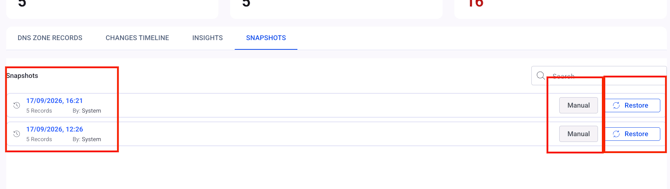
To see a snapshot's details, including the records at the time it was taken, simply click on it. This opens a sidebar showing those details, with the option to restore your records back to that snapshot.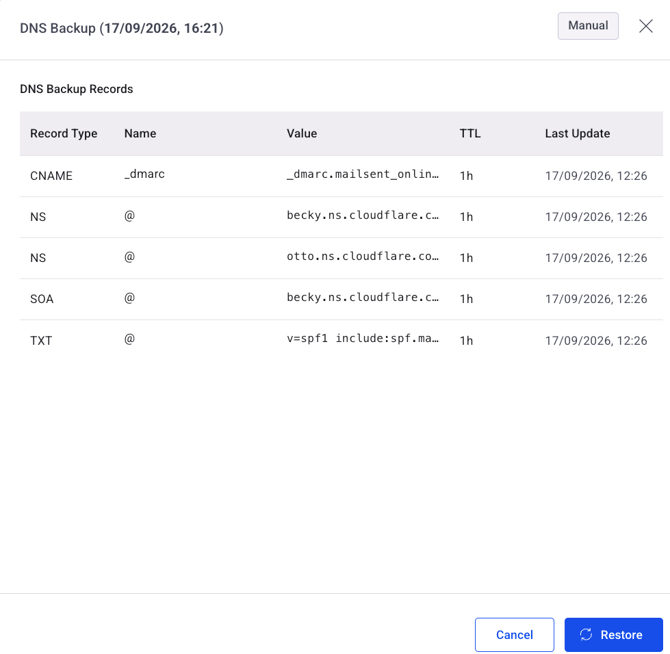
In case you have any questions which are not addressed the guide, please feel free to reach out to EasyDMARC experts.