
EasyDMARC MCP lets you connect the AI assistant you already use, such as Claude, Claude Code, ChatGPT, or Cursor, to your EasyDMARC account, so it can answer questions using your real email security and deliverability data.
MCP (Model Context Protocol) is an open standard that lets AI assistants securely connect to outside services. Once connected, you can ask your assistant things like "Which of my domains are still at p=none?" or "Why did delivery drop for this sender?" and it pulls the answer from EasyDMARC instead of you copying data between tools.
The connection uses one server URL for every client:
https://mcp.easydmarc.com/mcp
You don't need an API key. When your AI assistant asks you to sign in, you sign in with your EasyDMARC account, and the assistant gets exactly the access your account already has — no more.
The MCP server can give your assistant context across:
- DNS and infrastructure
- Authentication state and DMARC policy
- Sender health, reputation and delivery signals
- Threat intelligence and impersonation
Before you begin
You'll need:
- An EasyDMARC account you can sign in to. The assistant inherits that account's access, so use an account that can see the domains you want to ask about.
- A supported AI client: Claude (web, desktop or mobile), Claude Code, ChatGPT or Cursor.
- Permission to add connectors in that client. On Claude Team and Enterprise plans, only an Owner can add a custom connector for the organization; members then connect to it individually. On Claude's Free plan you can add one custom connector.
Tip: If you're an MSP or work across several organizations, sign in with the account whose access you want the assistant to have. The assistant can't see anything that account can't.
Step 1: Open the MCP Guide in EasyDMARC
- Sign in to the EasyDMARC platform.
- In the left navigation, click Manage Account.
- In the ACCOUNT panel, select MCP Guide.
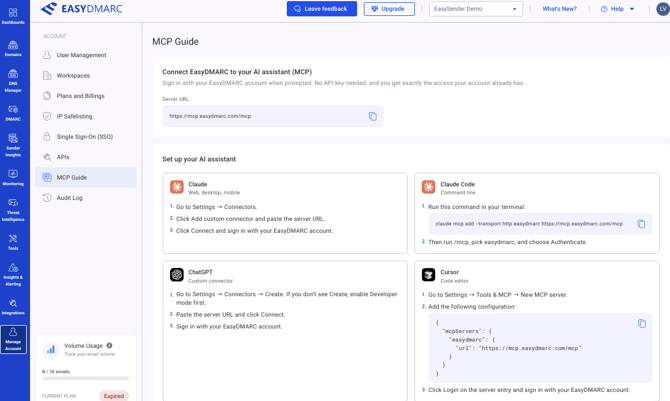
The page has two parts:
- Connect EasyDMARC to your AI assistant (MCP) — shows the Server URL with a copy button.
- Set up your AI assistant — one card per supported client, with the exact setup steps and copyable commands.

Click the copy icon next to the Server URL to copy https://mcp.easydmarc.com/mcp. You'll paste it into your AI client in the next step.
Step 2: Connect your AI assistant
Pick your client below. Every client ends the same way: you sign in with your EasyDMARC account to approve the connection.
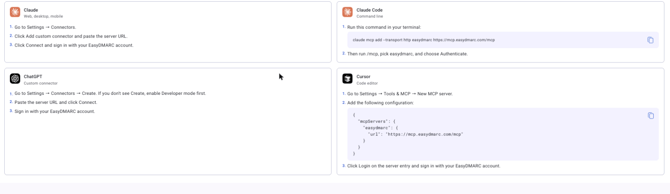
Claude (web, desktop, mobile)
- In Claude, go to Settings → Connectors.
- Click Add custom connector and paste the server URL: https://mcp.easydmarc.com/mcp
- Click Connect and sign in with your EasyDMARC account.
To use it in a chat, click + in the message box, open Connectors, and make sure EasyDMARC is turned on.
Note: On Claude Team and Enterprise plans, an Owner first adds the connector in Organization settings → Connectors. Members then find it in their Connectors list and click Connect. See Anthropic's custom connector guide for details.
Claude Code (command line)
- Run this command in your terminal:
claude mcp add --transport http easydmarc https://mcp.easydmarc.com/mcp
- Run /mcp, select easydmarc, and choose Authenticate.
- Sign in with your EasyDMARC account in the browser window that opens.
ChatGPT (custom connector)
- Go to Settings → Connectors → Create. If you don't see Create, enable Developer mode first.
- Paste the server URL and click Connect.
- Sign in with your EasyDMARC account.
Cursor (code editor)
- Go to Settings → Tools & MCP → New MCP server.
- Add this configuration:
{ "mcpServers": { "easydmarc": { "url": "https://mcp.easydmarc.com/mcp" } } }
- Click Login on the EasyDMARC server entry and sign in with your EasyDMARC account.
Tip: Menu names in third-party clients change often. If a step doesn't match what you see, check that client's own documentation for adding a remote MCP server.
EasyDMARC MCP is deliberately scoped: it gives your assistant the context it needs, not everything EasyDMARC holds.
- Your account, your access. You sign in with your EasyDMARC account, and the assistant sees only what that account can see.
- No API key to manage. Sign-in happens through your AI client's secure sign-in flow, so you never paste credentials into a chat.
- Selected actions only. The assistant can run only the actions EasyDMARC makes available through MCP.
- Secrets stay out. Operations that could reveal credentials or other secret values are intentionally not available to external AI.
- Your AI provider's terms apply. EasyDMARC controls what it shares through MCP. How your AI provider handles the data you send to it depends on that provider and your settings.
If you experience any limitations, do not hesitate to open a support ticket using this link. Our support team will gladly assist you.