
Overview
To send reports from your own domain, enable White label reports, select My Domain, and connect a mailbox. This guide covers a custom SMTP server or SMTP relay, using either the standard SMTP form or the SMTP API form.
The SMTP option is for a mailbox on a mail server you manage or an SMTP relay. It does not require a Google or Microsoft sign-in. The server must accept the supplied connection details and be reachable from EasyDMARC.
Step 1: Open the report form
-
Log in to your EasyDMARC Trust Platform account.
-
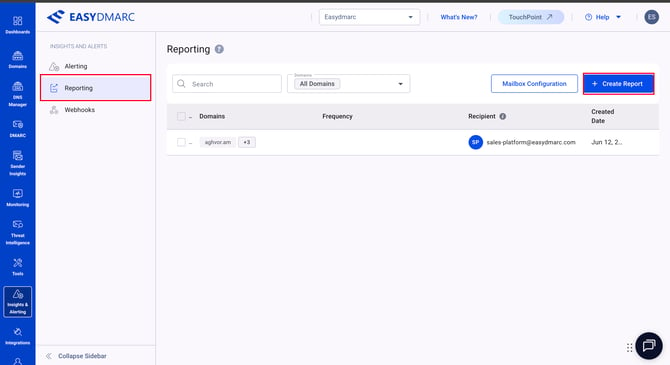
Open Insights & Alerts and select Reporting.
-
Click Create Report
Step 2: Enable white-label reporting
-
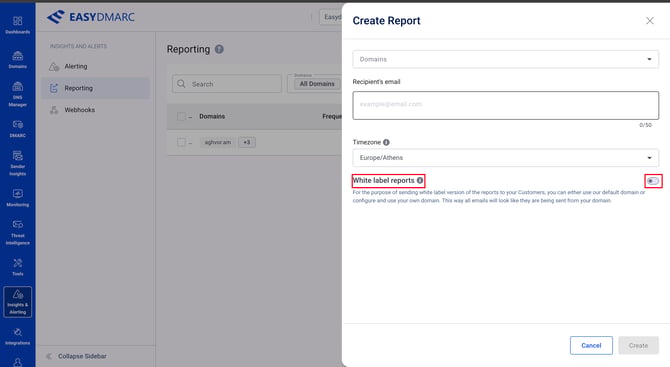
Turn on White label reports. The switch is off initially. You can open Mailbox Configuration without filling in the report’s domain, recipient, or time zone. Those fields are for creating a report and are not needed to connect the white-label mailbox.
-
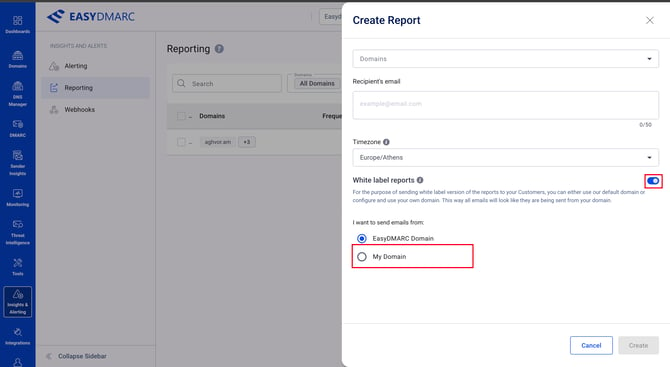
Under I want to send emails from, choose My Domain to send reports using your own domain. (EasyDMARC Domain uses EasyDMARC’s default sending domain.)
- Click Connect Account. (EasyDMARC opens the Mailbox Configuration panel immediately; you do not need to navigate to Mailbox Configuration separately.
.png?width=670&height=366&name=download%20(1).png)
- The mailbox panel may open with Google selected and show Google-specific email and application-password fields. For this guide, do not fill in those Google fields. Select the SMTP card labeled Connect any other mailbox via SMTP.
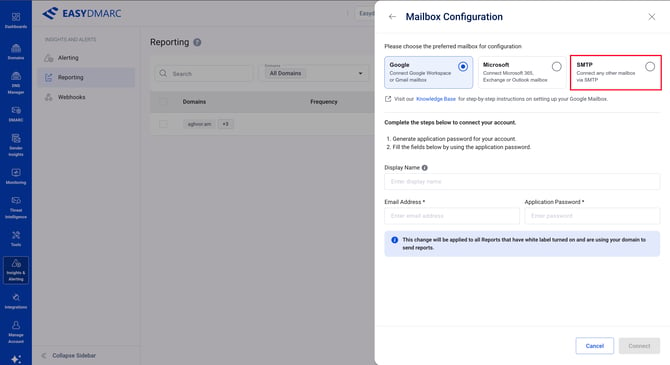
- Choose one of the two SMTP authentication options shown in Mailbox Configuration.
Option A: Standard SMTP
1. Select the SMTP tab.
2. Fill in the fields:
- Display Name: Optional; a label to identify this mailbox configuration.
- SMTP username: Required; enter the username supplied for the SMTP account.
- SMTP password: Required; enter the matching SMTP credential.
- SMTP host: Required; enter the SMTP server hostname.
- SMTP port: Required; enter the port specified for the server.
- Use SSL/TLS: Select this if required by the SMTP service.
3. Click Connect.
Enter the hostname in SMTP host and the port separately in SMTP port. Do not use a webmail login URL or an unrelated API endpoint as the SMTP host..png?width=670&height=366&name=download%20(2).png)
- Option B: SMTP API
Use this tab if your mail service supplied SMTP API connection details.
1. Select the SMTP API tab.
2. Fill in the fields:
- SMTP API Email: Required; enter the email address associated with this connection.
- Display Name: Optional; a label to identify this mailbox configuration.
- SMTP username: Required.
- SMTP password: Required.
- SMTP host: Required.
- SMTP port: Required.
- Use SSL/TLS: Select this if required by the service.
3. Click Connect.
The SMTP API form still asks for an SMTP host and port. Use the email address and credentials issued for this connection by your mail service; there are no universal SMTP API values..png?width=670&height=366&name=download%20(3).png)
Account-wide effect: The Mailbox Configuration screen states that a mailbox change applies to all reports with white-label reporting enabled that use your domain to send reports. Review this before changing a mailbox used by existing reports.
Troubleshooting
- Connection is rejected: Recheck the SMTP username, password, host, and port with your mail administrator.
- SSL/TLS connection fails: Confirm whether Use SSL/TLS should be selected and that the port matches the server’s security settings.
- The report recipient does not receive the email: Check the SMTP service’s sending logs for a rejection or delivery error, and ask the recipient to check spam or quarantine.
- The connection works but delivery is unreliable: Confirm the sending domain’s email-authentication records and mail-server sending permissions with your mail administrator. Connecting SMTP does not itself change DNS records.
Keep SMTP passwords and API credentials private. Do not include credentials in screenshots or support articles.
In case you have any questions that are not addressed in the guide, please feel free to reach out to EasyDMARC experts.