
When approval is on, any DNS change, whether made by a person, a Workflow, or Insights Autofix, is captured as a pending request instead of executing immediately. An approver reviews the exact change, sees any risk findings, and approves or rejects it. Approved changes execute automatically; rejected ones come back with a comment.
Key outcomes
- Oversight where you need it. Approval is enabled per workspace, so you decide which environments require review and which don't.
- Control without bottlenecks. Delegate DNS work across your team while retaining final approval over every change that goes live.
- Fewer costly mistakes. Each change is reviewed against its diff and any risk findings before it's applied, so errors are caught before they reach production.
- Automations included. Changes made by Workflows and Insights Autofix go through the same approval process as manual changes.
- Full visibility and audit readiness. A dedicated Change Requests page, an activity timeline, and an exportable audit log give you a complete record of every executed change, including its submitter and approver.
How it works
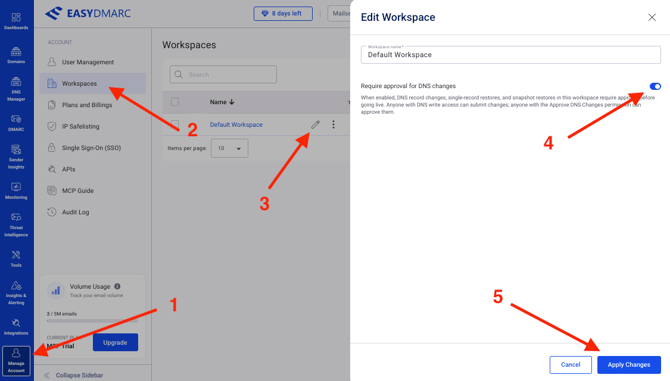
1. Enabling DNS change approval approval requirement for the workspace
Navigate to "Manage account" >> Workspaces >> edit workspace >> enable DNS change approval requirement for the selected workspace >> approve the changes
2. Requesting a change
The users who want to submit a change request need to:
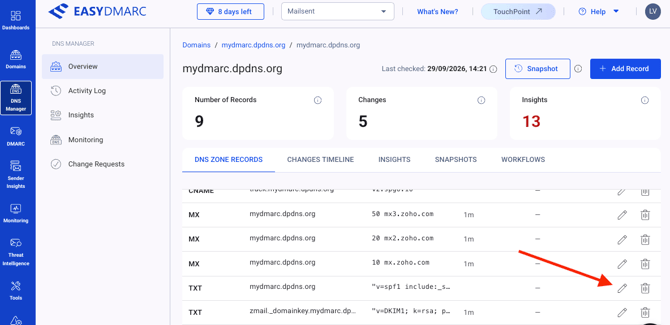
1. Navigate to the DNS manager for the domain in question
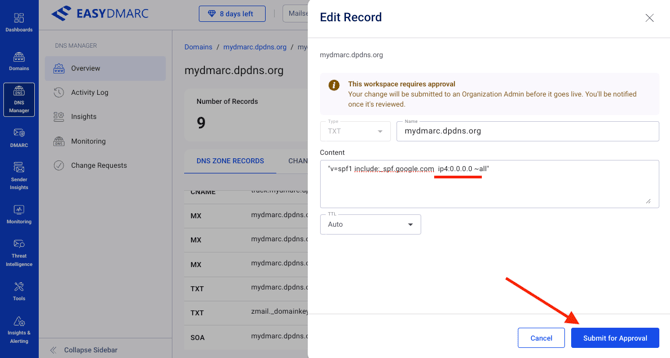
2. Click to edit the record that should be changed or removed or click "Add record" if a new record should be added
3. Make the change and click "Submit for Approval"
3. Approving or rejecting a change
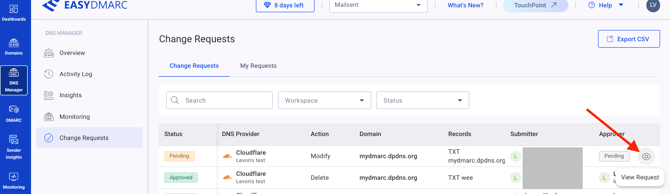
The approver will see the request in the "Change Requests" with status "Pending"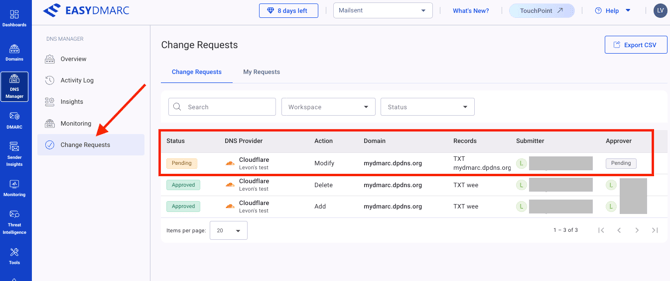
To view the change request details the approver should click the view button next to the pending request:
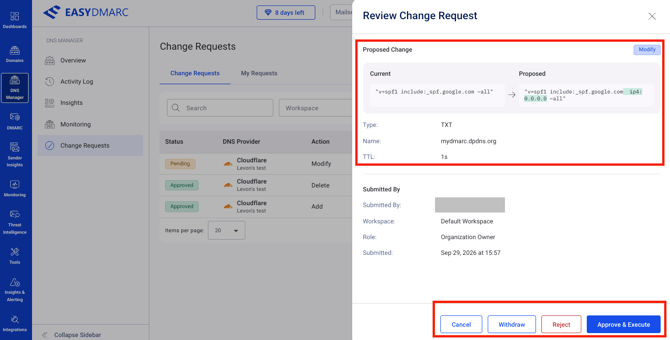
A side panel will open with the details if the request and option to withdraw the change, reject, or approve and execute the change
5. Changes Timeline
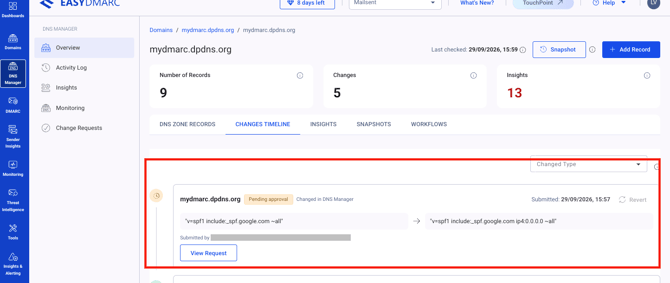
The activity upon change requests is then visible also in the "changes timeline" of the domain in the DNS manager
Who can submit changes?
By default, organization owners and admins can submit DNS record change requests.
Any other users can gain access to change request submission functionality by editing their role permissions in the User management.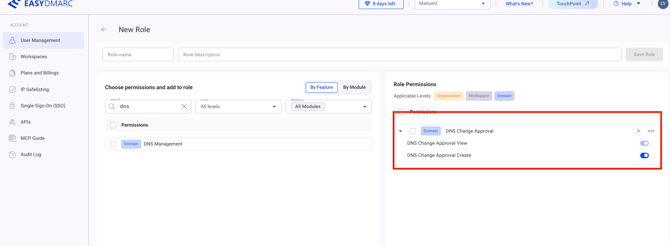
Who can approve changes?
By default Organisation Owners and Admins.
If the approve-scope option ships, any role granted approval rights.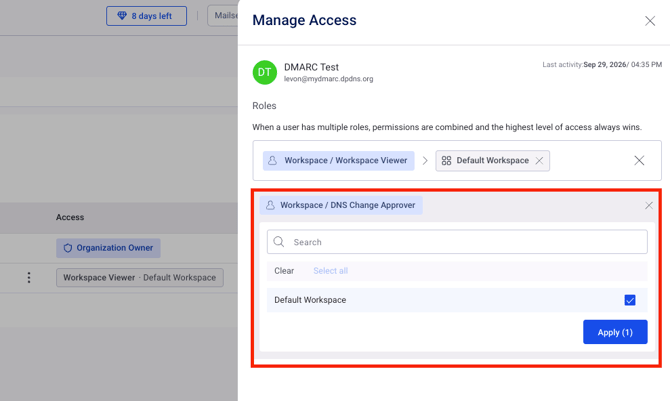
Are automated changes covered?
Yes. DNS changes made by Workflows and Insights Autofix also require approval in a gated workspace.
Is there an audit trail?
Yes. Each change records its submitter, approver, timestamps, and any rejection comments, and the full log can be exported to CSV.
What happens if a change is no longer valid?
If the underlying record is modified after the request was submitted, the change is automatically rejected. The requester can then resubmit it against the current record.