
The Activity Log gives you a running history of every action performed to your domain's DNS records — additions, modifications, and removals, all in one place.
Note: Prerequisits for seeing the activity logs is that the domain should be added and verified in EasyDMARC and the DNS provider should be integrated.
By navigating to the "Activity Log" section in DNS Manager, you will see the list of activities with the following columns:
1. Event - The type of event:
- Added — a new record was created
- Modified — an existing record was changed
- Removed — a record was deleted
- Snapshot — a zone snapshot was taken
- Intel Scan — an intelligence scan completed
- Drift Detected — a change was made directly in the provider’s dashboard and picked up by our next scan
2. Domain - the domain who's DNS record were modified, removed or added
3. Records - The specific record type and name affected. For example, “A staging” means an A record for the staging subdomain.
4. Action - A short description of what happened — automated by the system based on event type and context.
5. User - The user who triggered this event. For drift events (changes made outside EasyDMARC) and automated events (scheduled snapshots, intel scans), this shows “System”.
6. Triggered date - When the event happened, in your local time zone.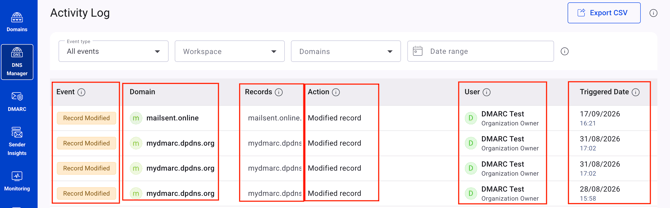
The Activity Log section provides with the following functionalities:
1. "Event type" filter - use the dropdown to filter events based on their type: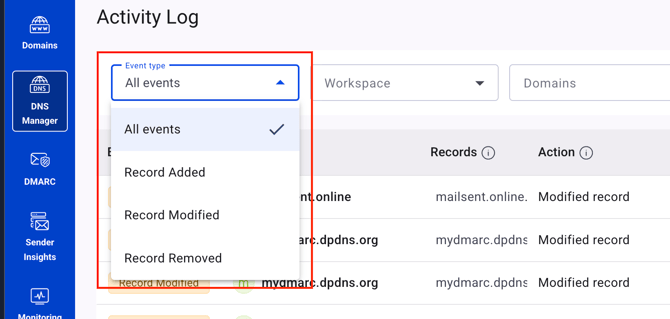
2. Filter by "Workspace" - shows activity logs for domains of the selected workspace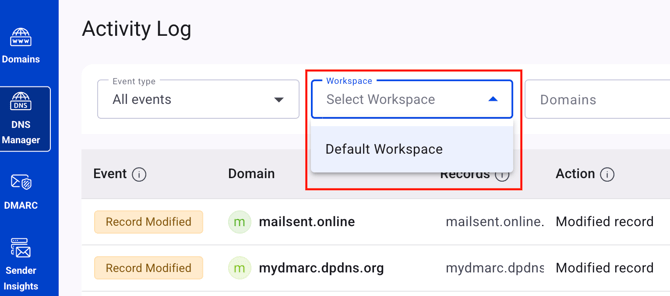
3. Filter by "Domains" - shows the activity logs of the selected domain(s) 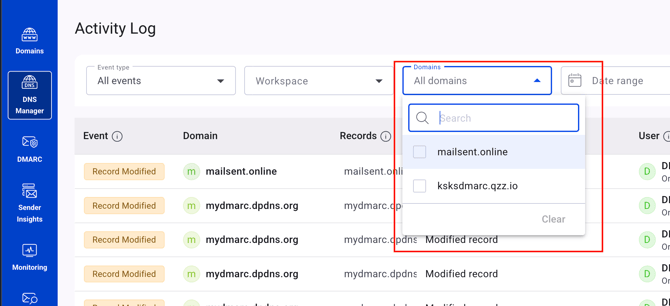
4. Filter by "Date range" - helps filter out activity logs for a specific time frame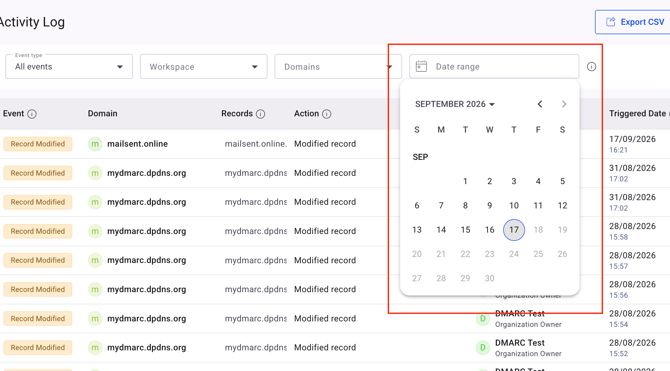 \
\
5. CSV export option - Download the filtered view as a CSV file. Useful for compliance evidence or sharing with auditors.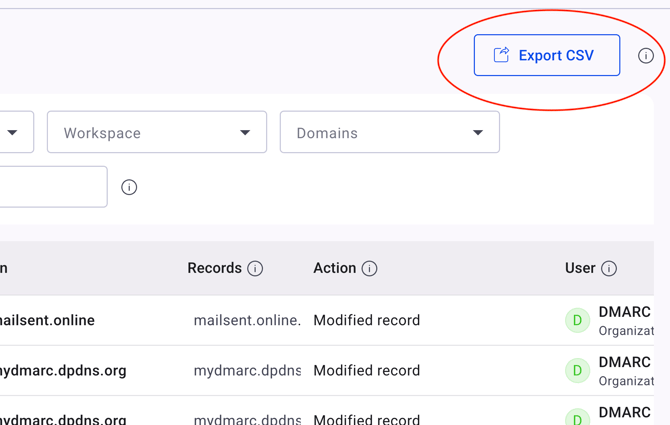
In case you have any questions which are not addressed the guide, please feel free to reach out to EasyDMARC experts.