
Before you begin
- Create a DreamHost API key before connecting the account.
- Sign in to your DreamHost account and open the API section.
- Create an API key and allow these DNS functions: dns-list_records, dns-add_record and dns-remove_record.
Note: Copy the key and keep it private. Treat it like a password.
Step 1: Open Integrations in EasyDMARC
-
Sign in to your EasyDMARC account.
-
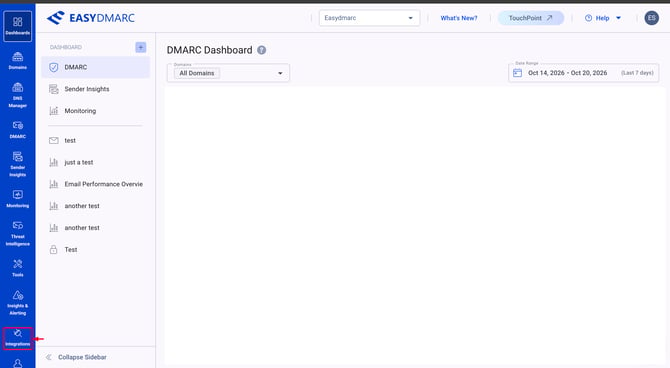
Select Integrations from the left navigation.
Step 2: Find DreamHost in the integrations list
On the Integrations page, scroll to the bottom of the provider grid to reach the page controls. Use the right arrow to move through the pages until the DreamHost card appears, then select it. In the screenshot below, DreamHost appears on the page showing items 13–24 of 55.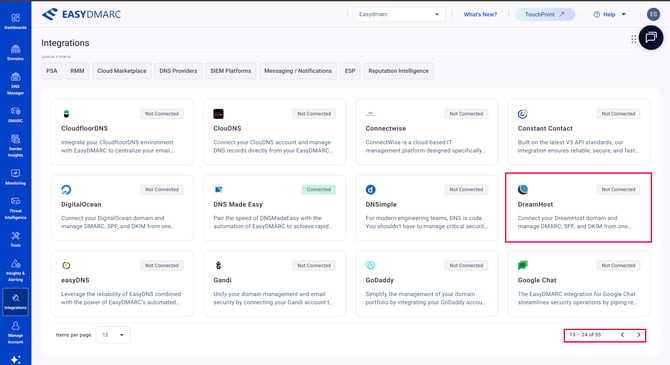
Step 3: Start the connection
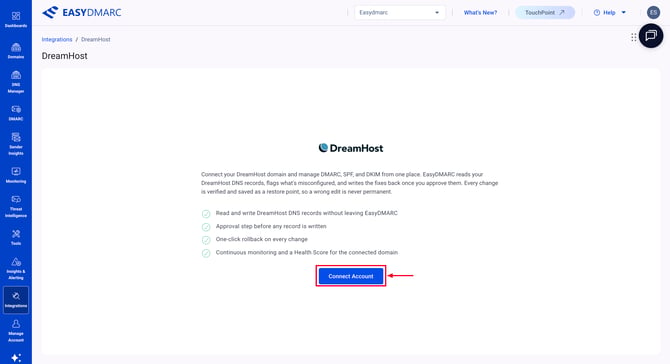
On the DreamHost integration page, click Connect Account.
Step 4: Enter the account details
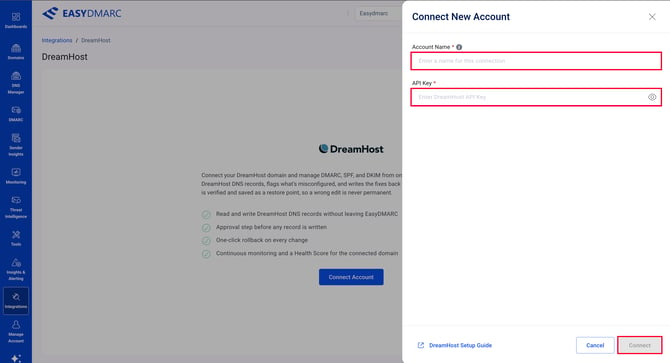
In the Connect New Account panel:
- Enter an Account Name. This is a label to help you identify the connection later. For example, use My Main Site DreamHost or Client X DreamHost.
- Paste the DreamHost API key into the API Key.
- Click Connect. The button becomes available after the required fields are filled.
After connecting
Open DNS Manager to review the connected domain’s DNS records and any recommended changes. Review and approve changes there before they are applied.
If the connection is rejected, confirm that the domain uses DreamHost nameservers and that the API key includes all three DNS functions listed above.
In case you have any questions that are not addressed in the guide, please feel free to reach out to EasyDMARC experts.